Settings → System → About → View processor infoYou can find out how many cores your processor has in Windows 11 by checking your hardware specifications in Settings or reviewing real-time metrics in the system performance monitor. Looking at system properties reveals your processor model, family, and architecture. If you need an exact count distinguishing physical processing cores from virtual logical processors, the built-in performance utility provides detailed hardware readouts.
- Open Settings, go to System, select About, and view View processor info.
- Press Ctrl + Shift + Esc to open system performance details, select the processor, and view physical cores and logical processors.
How to find out how many cores your processor has
1. Open System settings
Press Windows + I to launch Settings. In the left navigation pane, select System to access your primary computer settings.
Alternatively, open the page directly:
Open "About" in Settingsor press Win+R, typems-settings:about, and press Enter
2. Open the About page
In the main pane, scroll down and select About. This page displays essential hardware summaries, device specifications, and Windows edition details for your computer.
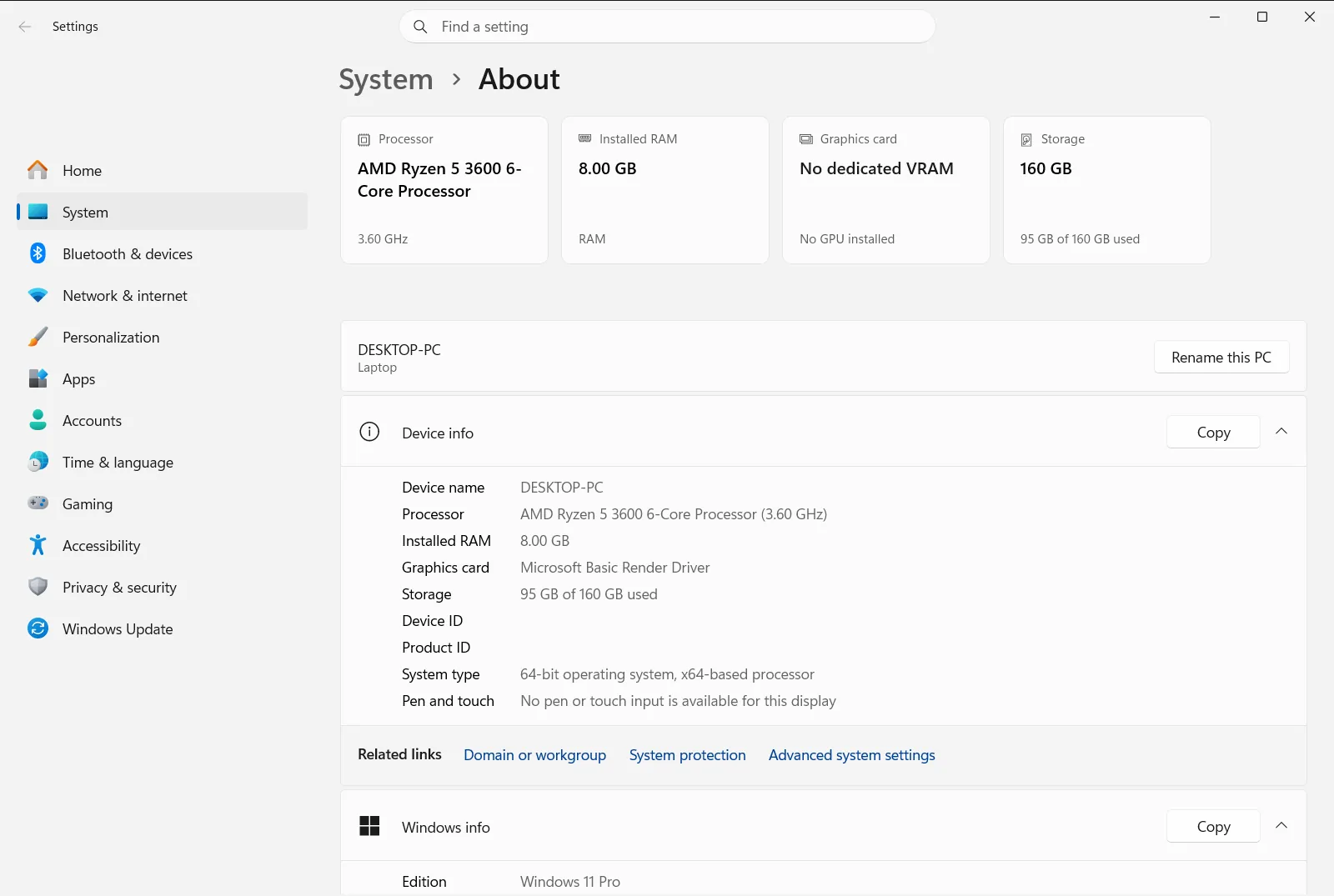
3. Expand device specifications
Locate the section labeled Device specifications. If the details list is collapsed, select the header to expand it and reveal your system hardware components.
4. Review processor information
Navigate to View processor info to view the full model string of your central processing unit. The navigation path is Settings › System › About › Device specifications.
The processor name indicates the manufacturer, architecture family, and specific tier. Many manufacturers include the core configuration directly in the branding name. If your computer is managed by an organization, access to certain system settings may be governed by administrative policies.
Finding physical cores and logical processors
While viewing your general hardware summary confirms your processor model, you might need the exact count of physical cores and logical processors currently active on Windows 11. Modern central processing units often separate individual physical silicon cores from logical cores created through multithreading technologies.
To inspect your live core architecture, launch the built-in system performance utility by pressing Ctrl + Shift + Esc. From the left navigation pane of the utility window, select the performance graph section, then choose the central processor graph.
Below the main utilization charts, Windows provides detailed operational statistics for your hardware. You will find two distinct entries:
- Physical cores: This metric represents the independent, physical processing units physically etched onto the processor silicon chip. Each physical core is capable of executing computational instructions independently.
- Logical processors: This value represents the total number of simultaneous execution threads the processor can handle. Technologies such as simultaneous multithreading divide each physical core into two virtual pipelines, doubling the logical processor count compared to physical cores.
For additional details regarding processor compatibility and core metrics, review Microsoft’s official guide to finding processor cores on Windows devices.
Understanding related device specifications
When checking your processor capabilities in About, reviewing adjacent system specifications helps give a complete picture of your hardware performance.
Directly beneath your processor entry, locate View RAM info. Multi-core processors rely heavily on system memory bandwidth when running concurrent workloads, gaming, or virtualization. Checking your installed memory helps verify whether your system has sufficient capacity to keep all processor cores fed with data.
You can also check See if you have a 32-bit or 64-bit version of Windows on the same page. This entry specifies whether your computer runs a 64-bit operating system and whether it is powered by an x64-based or ARM-based processor. Modern 64-bit versions of Windows 11 are optimized to scale across multi-core architectures and address large memory pools effectively.
Further down the page, Windows specifications provides your current Windows 11 edition, feature version, and operating system build. Keeping your operating system updated ensures that the Windows thread scheduler properly allocates tasks across both high-performance and efficiency cores.
Frequently asked questions
How can you find out how many cores your processor has in Windows 11?
Open Settings and go to System > About to view View processor info. You can also press Ctrl + Shift + Esc to see physical cores and logical processors in the performance monitor.
What is the difference between physical cores and logical processors?
Physical cores are independent hardware processing units built into the processor silicon. Logical processors are virtual execution pipelines created by multithreading technologies, allowing each physical core to handle multiple processing threads at once.
How do I quickly open the About page in Windows 11?
Press Windows + R, enter ms-settings:about into the Run box, and select OK. This shortcut opens About directly without having to navigate through menus in Settings.
Does the processor model in Settings reveal core numbers?
The processor name shown in View processor info lists the chip brand, family, and model number. Many processors include core counts in their model naming, while the performance monitor gives exact active counts.
Where can I see if Windows 11 runs on a 64-bit processor?
Check See if you have a 32-bit or 64-bit version of Windows on About. It states whether your installation is a 64-bit operating system running on an x64-based or ARM-based processor.
Official Microsoft documentation
