Settings › Personalization › Lock screenIf you are fixing lock screen timeout on Windows 11, the settings that control how long the lock screen stays active while your PC is locked are on the Lock screen page in Settings. When the lock screen slideshow stops too soon, or never starts, the cause is usually one of three slideshow options. This article shows where to find them and how to adjust each one.
- Open Settings > Personalization > Lock screen > Advanced slideshow settings and raise the slideshow play time.
- The slideshow settings only apply when the lock screen background is set to a slideshow.
- To check the result, lock your PC with Windows + L and watch how long the lock screen stays active.
How to change how long the lock screen stays active
1. Open the lock screen settings
Press Windows + I to launch Settings. In the left navigation pane, select Personalization, then select Lock screen.
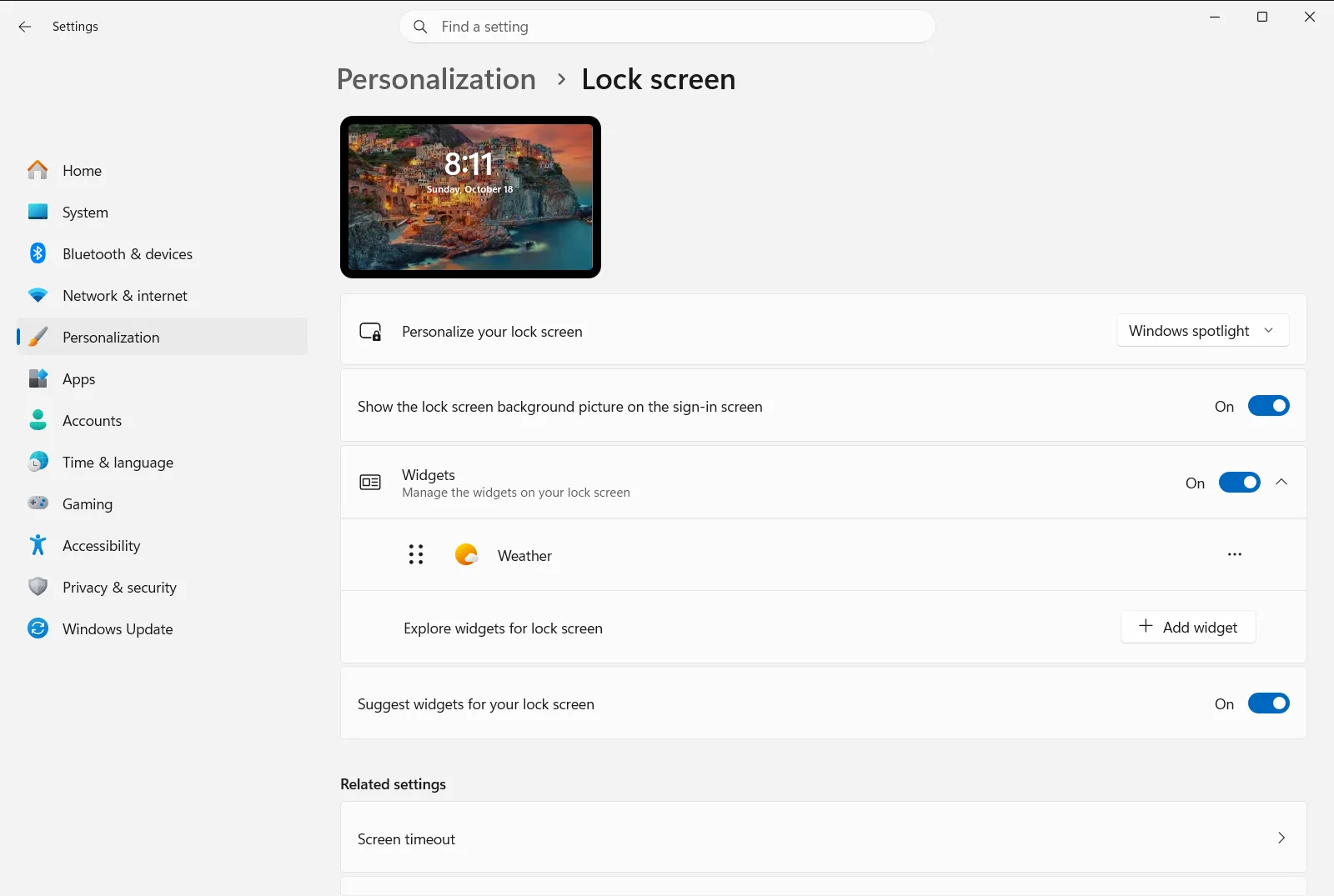
Alternatively, open the page directly:
Open "Lock screen" in Settingsor press Win+R, typems-settings:lockscreen, and press Enter
2. Make sure a slideshow is your lock screen background
Find Change your lock screen background and choose the slideshow option from the list. The play-time settings in the next steps belong to the slideshow, so they do nothing for a single picture or for Windows spotlight.
If the slideshow has no pictures to show, use Add a folder to the lock screen slideshow to add a folder that contains images.
3. Open the advanced slideshow settings
Select Advanced slideshow settings. This opens the options that decide when the slideshow plays on a locked PC and for how long.
4. Let the slideshow play while the PC is locked
Turn on Enable Lock Screen slideshow when my PC is locked. If this option is off, the lock screen may not show the slideshow after you lock the PC, which can look like it timed out right away.
5. Allow the slideshow on battery power
On a laptop or tablet, turn on Enable Lock Screen slideshow on battery power. When this is off, the slideshow is not used while the device runs on battery, so the lock screen may seem to stop sooner than it does when plugged in.
6. Choose how long the slideshow plays
Open the list under Control how long to play Lock Screen slideshow and pick a longer time. Choose the option that suits how long you usually leave the PC locked.
Then press Windows + L to lock your PC and check that the lock screen now behaves the way you want.
If the lock screen still turns off too quickly
The slideshow options above control what the lock screen shows and for how long the slideshow plays. They do not control when your display goes to sleep after a period of inactivity. That timing comes from your PC’s power and screen settings, which are separate from the lock screen page. If the screen goes dark while the PC is idle, check those settings as well.
On a work or school device, an organization can manage lock screen options, so some settings may be locked or reset by your administrator.
Related lock screen options
- Make the lock screen image react when I move my PC: turn this off if the moving background distracts you or you want a still image.
- Get fun facts, tips, tricks, and more on your lock screen: controls whether extra content from Microsoft appears on the lock screen.
- Manage lock screen widgets: add, remove, or reorder the small widgets shown on the lock screen.
For a broader overview of lock screen personalization, see the official Microsoft article on customizing the lock screen.
Frequently asked questions
What is the best way of fixing lock screen timeout in Windows 11?
Set the lock screen background to a slideshow, then open Advanced slideshow settings and turn on slideshow while locked and on battery. Finally, choose a longer play time.
Why does my lock screen slideshow not play when the PC is locked?
The option Enable Lock Screen slideshow when my PC is locked may be off. Turn it on under Advanced slideshow settings, and make sure the background type is a slideshow with a folder of pictures.
Why does the lock screen stop sooner on battery power?
The option Enable Lock Screen slideshow on battery power may be off. Turn it on under Advanced slideshow settings so the slideshow can also run when your PC is unplugged.
Where do I change how long the lock screen slideshow plays?
Go to Settings > Personalization > Lock screen, open Advanced slideshow settings, and use Control how long to play Lock Screen slideshow.
Do the lock screen slideshow settings work with Windows spotlight or a single picture?
No. The slideshow play options only apply when the lock screen background is a slideshow. Choose the slideshow type under Change your lock screen background first.
Official Microsoft documentation
