Settings → System → Notifications & actions → Show notification bell iconIf you are looking for how to open Action Center in Windows 11, the panel you want is now called the notification center. You can open it from the taskbar, with a keyboard shortcut, or with a swipe on a touchscreen. This article shows each method and what to do if the bell icon is missing.
- Select the clock or the notification bell icon on the taskbar, or press Windows + N, to open the notification center.
- If the bell icon is missing, open Settings → System → Notifications & actions and turn on Show notification bell icon.
- On a touchscreen, swipe in from the side of the screen to open the same panel.
How to open the notification center in Windows 11
Windows 11 shows your missed notifications in the notification center. Use whichever method below suits you. All of them open the same panel.
1. Select the clock or the bell icon on the taskbar
Look at the right end of the taskbar and select the clock or the notification bell icon next to it. The notification center opens and lists the notifications you have not dismissed yet.
When new notifications arrive, the bell icon lights up, so you can see at a glance that something is waiting.
2. Press the keyboard shortcut
Press Windows + N at any time to open the notification center without using the mouse. Press the same keys again, or select an empty area of the desktop, to close the panel.
3. Swipe from the side of the screen
On a device with a touchscreen, swipe in from the side of the screen. The notification center slides in, and you can tap a notification to read it or act on it.
4. Open the notification settings if the bell icon is missing
If you do not see the bell icon on the taskbar, you can bring it back in Settings. Press Windows + I to launch Settings. In the left navigation pane, select System, then select Notifications & actions.
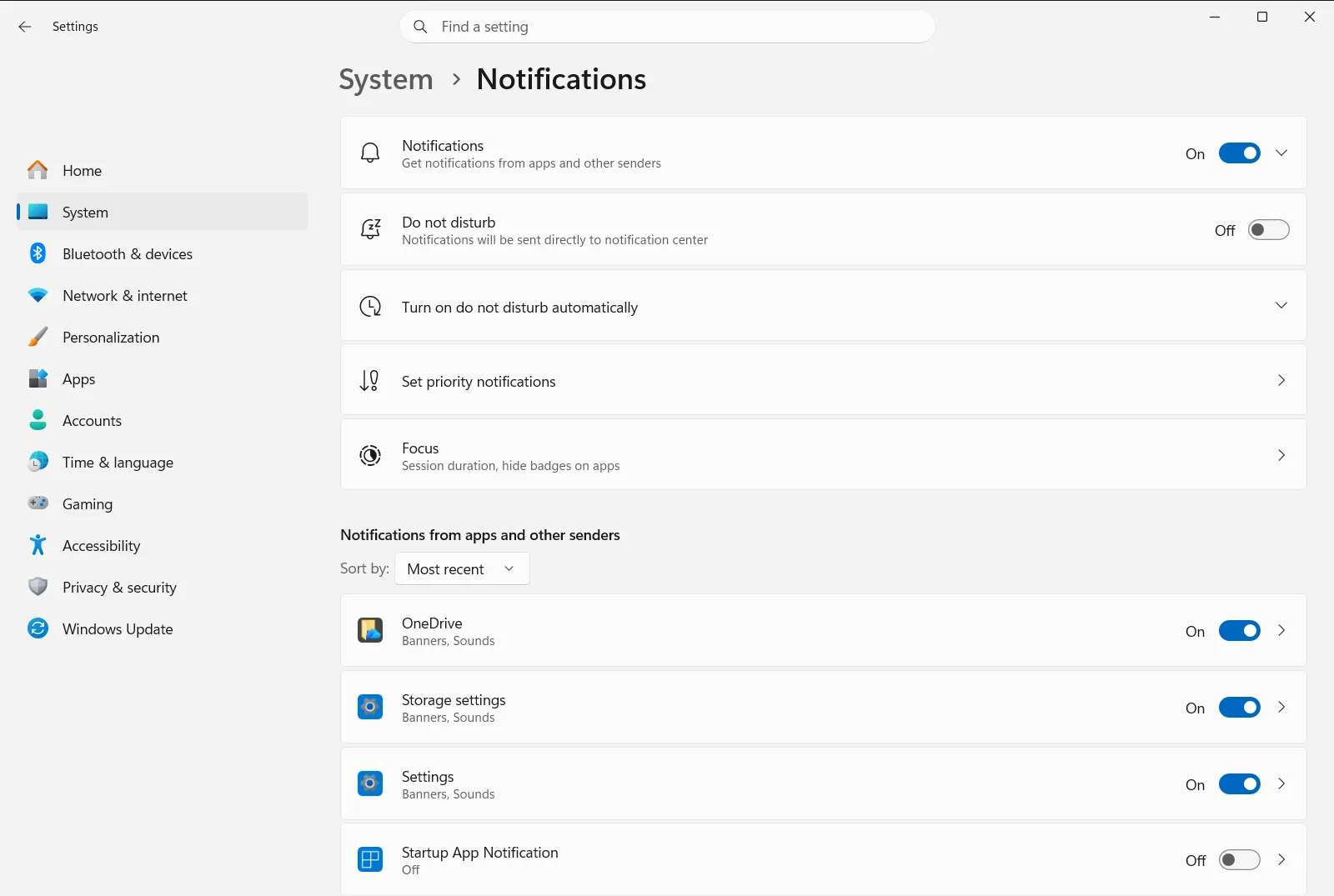
Alternatively, open the page directly:
Open in Settingsor press Win+R, typems-settings:notifications, and press Enter
5. Turn on the bell icon
On the notifications page, expand the notifications section if it is collapsed, then find Show notification bell icon and turn it on. The bell icon then appears on the taskbar again, and you can open the notification center from it.
Until then, Windows + N and the clock still work.
What you can do in the notification center
Once the panel is open, you can work with your notifications without opening the apps that sent them. Microsoft describes these actions in its notifications guide. In short:
- Read or reply. Select a notification to see its full content or respond to it directly, for example by answering a message.
- Expand a notification. If an arrow appears next to the time, select it to see more details or extra actions.
- Clear notifications. Use the close button on one notification to clear it. The close button next to an app name clears everything from that app. A separate button clears the whole list.
- Stop one app. Select the more button on an app’s notification to find the option that turns off all notifications from that app.
- Silence everything for a while. Select the bell icon with zZ on it. Banners are then limited to alarms, reminders, and apps you have chosen. Everything else goes straight to the notification center. Select the same button again to turn this off and review what you missed.
Where is the Action Center in Windows 11?
Windows 11 does not have a panel labeled Action Center. Notifications live in the notification center described above. The toggles for things like Wi-Fi and brightness are in a separate quick settings panel, which you can usually open with Windows + A. Keep this in mind if you are searching for the “action centre” or the old toggle buttons.
Related notification settings
The notifications page in Settings controls what lands in the notification center. These options are the most useful:
- Turn app notifications on or off lets you turn app notifications on or off. If the notification center looks empty, check this first.
- Do not disturb automatic rules lets you set rules for when notifications are silenced automatically.
To reach the automatic rules directly, follow this path:
Settings › SystemOn a work or school device, an organization can manage these notification settings. In that case some options may be unavailable or changed for you.
Frequently asked questions
How to open action center windows 11?
Select the clock or the notification bell icon on the taskbar, or press Windows + N. On a touchscreen, swipe in from the side of the screen. Windows 11 calls this panel the notification center.
Why is there no Action Center in Windows 11?
Windows 11 has no panel named Action Center. Your notifications are in the notification center, which you open from the taskbar or with Windows + N. The quick toggles sit in a separate quick settings panel.
How do I silence notifications from the notification center?
Open the notification center and select the bell icon with zZ on it. Banners are then limited to alarms, reminders, and apps you choose, and other notifications go straight to the notification center until you turn it off.
What should I do if the notification bell icon is missing from the taskbar?
Open Settings, go to System, then Notifications & actions, and turn on Show notification bell icon. Until the icon is back, Windows + N and the clock on the taskbar still open the notification center.
How do I clear all notifications in the notification center?
In the notification center, use the button that clears all notifications to remove every one of them. To clear a single app, use the close button next to the app name. To clear one notification, use its own close button.
Official Microsoft documentation
