
Settings → System → About → Rename your PCWhen you rename your device for better security Windows 11 makes it easy to update your computer’s network identity. Out of the box, your operating system often assigns a generic name that might include your PC’s manufacturer, model, or even your personal name. When you connect to a public Wi-Fi network at a cafe or airport, your computer broadcasts this name to the local network router and potentially to other connected users. Because this identifier is visible to other devices on your local network, updating it to something less descriptive helps obscure your hardware from potential threats. A custom, secure name also makes it significantly easier to manage multiple machines linked to your Microsoft account.
- Open Settings, go to System, select About, and click Rename your PC to enter a new name.
- You will need to restart your computer for the new network identity to fully apply across the operating system.
- Verify your updated computer name under View your PC name to confirm the change was successful.
How to rename your PC
1. Open Windows Settings
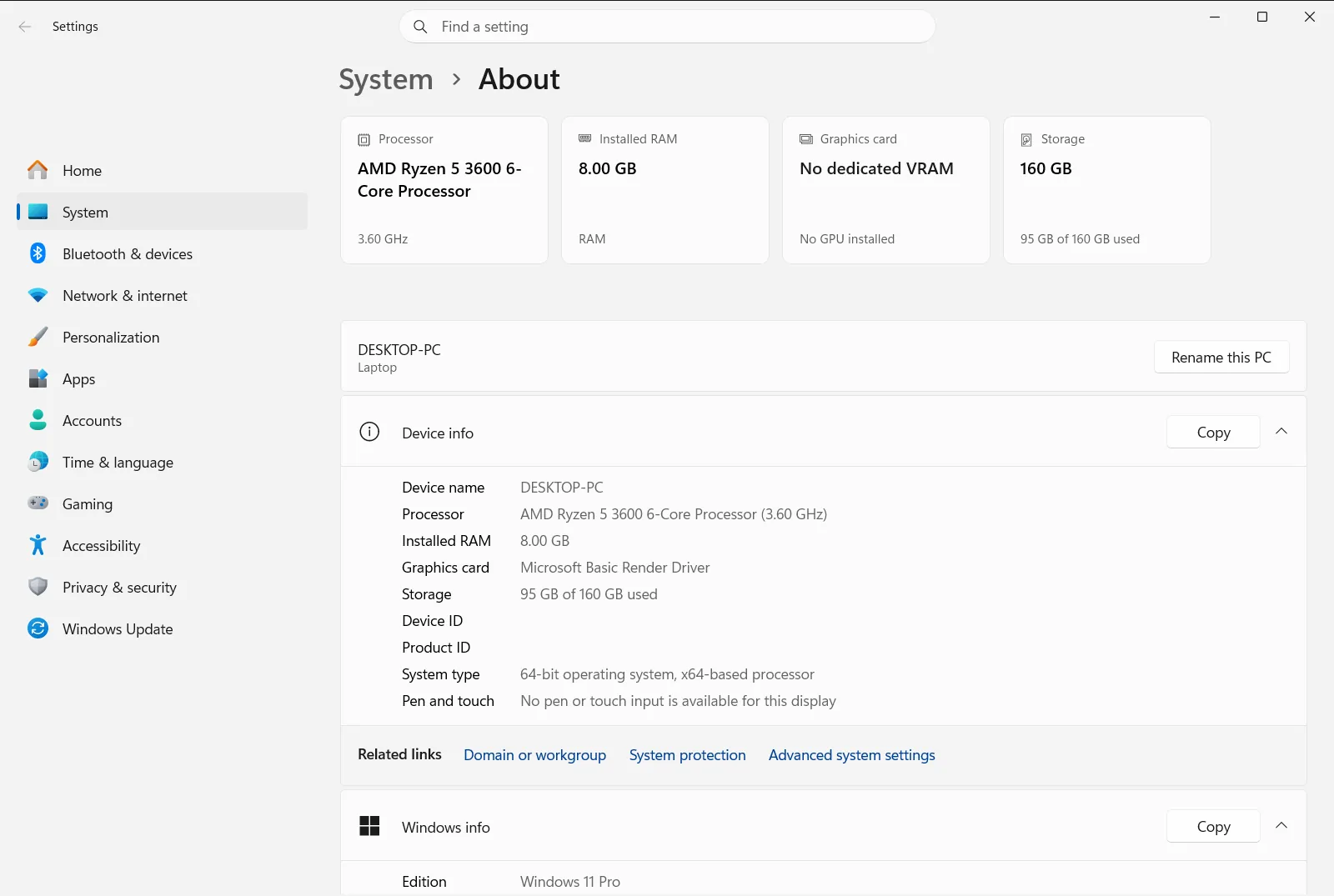
To begin the process, you need to access the main system configuration area. Press Windows + I to launch Settings. In the left navigation pane, select System, then select About.
Alternatively, open the page directly:
Open "About" in Settingsor press Win+R, type ms-settings:about, and press Enter
2. Initiate the rename process
Once you are on the correct page, look near the top of the window for your current computer name. Locate and click the Rename your PC button to open the renaming dialog box.
3. Enter a secure name
A dialog box will appear prompting you for the new identifier. Type a name that does not include personal information, specific device models, or your location to maintain better security. Keep in mind that standard network naming rules apply, meaning you cannot use spaces or most special punctuation marks. Click Next to proceed.
4. Restart your computer
After confirming the new name, Windows will prompt you to restart your machine. You can choose to restart immediately or wait until later if you have unsaved work. The new name will only take effect and become visible to your network after the system completely reboots.
Why renaming improves security and organization
According to the official Microsoft documentation, leaving your computer with its default identifier can inadvertently leak hints about your hardware type or user identity. Obscuring these details reduces the risk of targeted network attacks, especially when you connect to public networks at coffee shops or airports. If your device is named with your full name or exact laptop model, malicious actors can easily identify who you are or what specific hardware vulnerabilities to look for. Taking a few moments to change this identifier is a simple but effective step in hardening your personal privacy.
Beyond security, updating your PC’s name offers significant organizational benefits. If you use multiple devices with your Microsoft account, giving each one a distinct, recognizable name helps you clearly identify and differentiate between them when managing backups, app installations, or linked services. For organizations and IT management, establishing a consistent naming convention simplifies the entire process of tracking, updating, and managing a fleet of devices.
Viewing your device specifications
While you are on the About page to change your computer’s name, you can also review your comprehensive hardware and software details. This is particularly useful if you need to check your system capabilities before installing demanding software or games.
Expand the View device name, processor, RAM, and Windows version section to see your processor model, installed RAM, and current device name. If you need to know whether you are running a 32-bit or 64-bit version of the operating system, you can find that information under See if you have a 32-bit or 64-bit version of Windows. For users who rely on digital pens or touchscreens, you can verify your display’s input capabilities by checking the View pen and touch info entry. Gamers and creative professionals might also want to review their graphics card information by looking at the View graphics card info details.
Additionally, you can check Windows specifications to verify your exact Windows 11 edition, version, and OS build number. This information is often required when troubleshooting software issues or verifying that your system has received the latest feature updates.
Checking your PC’s support and storage info
The system information page also provides quick access to other vital computer health metrics. If you are running out of space for your files and applications, you can click on View device storage info to view a detailed breakdown of your total storage, available disk space, and current storage usage. Knowing your exact product key status is also important for activation troubleshooting, which you can find under View your product ID.
If you encounter hardware issues or need technical assistance, the Get PC support info section offers direct links to manufacturer help resources. Finally, when it is time to upgrade to a new machine, you can explore the Trade-in or recycle your PC options to learn how to safely trade in or recycle your current PC. Keeping track of all these specifications ensures your computer remains secure, well-managed, and ready for any future software requirements.
Frequently asked questions
Rename your device for better security windows?
To rename your device for better security windows, open Settings, navigate to System > About, and click Rename your PC. Enter a secure name and restart your PC.
Why should I change my default computer name?
Default names often include your PC brand or your own name, which can be visible on local networks. Changing it obscures these details, improving your privacy and security against targeted network snooping.
Do I have to restart my PC immediately after renaming it?
No, you do not have to restart right away. Windows gives you the option to restart later, but the new name will not be applied to your network identity until the next time your computer reboots.
Where can I check my current computer name?
You can view your current name by opening Settings, selecting System, and going to About. Your current name is listed under View your PC name.
Are there any restrictions on what I can name my PC?
Yes, Windows PC names cannot contain spaces or certain special characters like punctuation marks. They are typically limited to standard letters, numbers, and hyphens to ensure network compatibility.
Official Microsoft documentation
