Settings → System → SoundTo set up a microphone in Windows 11, connect it to your PC, open the sound settings, and pick it from the list of input devices. You can then record a short test sample and adjust the input volume until your voice comes through clearly. The steps work for wired, USB and Bluetooth microphones.
- Open Settings → System → Sound, then select your microphone under Input.
- For a Bluetooth microphone, use the option to add a device in the same input area and follow the prompts.
- Run the built-in test on the microphone’s properties page, and change the input volume if you sound too quiet or too loud.
How to set up a microphone in Windows 11
1. Connect the microphone
Plug a wired or USB microphone into your PC, or into the headset jack if it uses one. If you use a headset, the microphone is usually built in, so there is nothing extra to plug in.
For a Bluetooth microphone, put it in pairing mode first. You will add it from the sound settings in the next steps.
2. Open the sound settings
Press Windows + I to launch Settings. In the left navigation pane, select System, then select Sound.
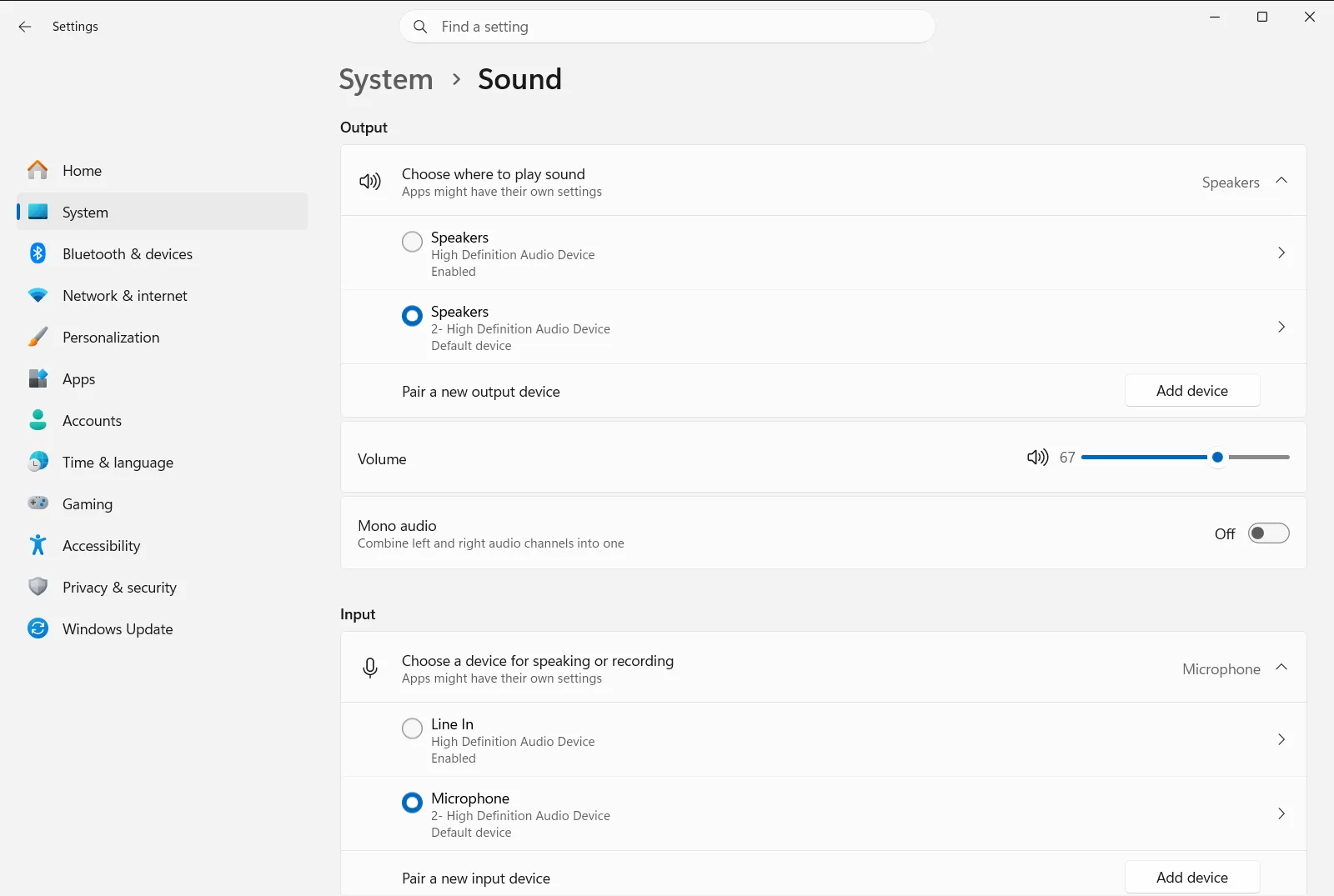
Alternatively, open the page directly:
Open "Sound" in Settingsor press Win+R, typems-settings:sound, and press Enter
3. Find your microphone in the input list
Scroll to the Input section. It lists the microphones Windows can see, and it is where you pick the microphone Windows uses.
If your microphone is Bluetooth and not listed yet, use the option to add a device in this area and follow the prompts to pair it. Once it is paired, it appears in the list with the other microphones.
4. Open the microphone’s properties and run a test
Under Manage input sound devices, select the microphone you want to use. Then choose the arrow on the right side of that device to open its properties page.
In the input settings on that page, start the microphone test and speak in your normal voice. Stop the test, then play the recording back to hear how you sound. If you hear nothing, check that you selected the correct device.
5. Adjust the input volume
If the recording was too quiet or distorted, change the level with Audio input volume control. Move the slider, then run the test again until the playback sounds natural.
The same control is the place to mute the microphone and to manage the input volume later.
Choose or manage other input devices
If you have more than one microphone, for example a webcam microphone and a headset, pick the one you want in the Input section. The entry Choose your sound input device is for exactly this choice. Repeat the test from step 4 whenever you switch devices.
To review every audio input device in one place, open the Advanced section on the same page and select Manage input audio devices.
If you use a work or school PC, an organization can manage some of these sound options, so a few of them may be unavailable.
If your microphone does not work as expected
- The microphone is not listed: check that it is plugged in firmly, try another port, or confirm that a Bluetooth microphone is paired and switched on. Then reopen Sound.
- The test records silence: make sure the device you tested is the one you are speaking into. Select another entry under Manage input sound devices and test again.
- Your voice is too quiet or too loud: adjust Audio input volume control in small steps and replay the test after each change.
Frequently asked questions
How do I set up microphone in Windows 11?
Connect the microphone, then open Settings, go to System, and select Sound. Choose your microphone in the input list, run the built-in test, and adjust the input volume until the playback sounds clear.
How do I add a Bluetooth microphone in Windows 11?
Put the microphone in pairing mode, then open the sound settings and use the option to add a device in the input area. Follow the prompts, and the microphone appears in the input list once it is paired.
How do I test my microphone in Windows 11?
Select your microphone under Input and open its properties page. Start the test, speak normally, stop it, and play the recording back to hear how you sound.
How do I change the microphone volume in Windows 11?
Open Sound and use Audio input volume control to raise or lower the level. Run the test again after each change to check that your voice is clear and not distorted.
What should I do if Windows 11 does not show my microphone?
Check that the microphone is plugged in firmly, try another port, or confirm that a Bluetooth microphone is paired and on. Then reopen Sound and look again in the input list.
Official Microsoft documentation
