Settings › Windows Update › Update settingsUninstall Problematic Windows Updates Easily: A Windows Guide
Windows updates are designed to keep your system secure, stable, and feature-rich. However, sometimes an update can inadvertently cause issues, leading to system instability, application crashes, or other unexpected behavior. If you suspect a recent patch is the culprit, learning to uninstall problematic Windows updates easily [on your] Windows machine is a crucial troubleshooting skill. This guide will walk you through the methods to safely remove troublesome updates and get your PC running smoothly again.
- Go to Settings > Windows Update > Update history > Uninstall updates, select the update, click Uninstall, then restart.
- If Windows is too unstable to start normally, open Advanced Startup Options and choose Troubleshoot > Advanced options > Uninstall Updates.
- Afterwards, use Pause updates to stop Windows Update from reinstalling the update for a short period.
Why Might You Need to Uninstall a Windows Update?
Several issues can arise from a faulty Windows update:
- System Instability: Frequent crashes (Blue Screen of Death), freezes, or unexpected reboots.
- Application Malfunctions: Specific software may stop working correctly or refuse to launch.
- Performance Degradation: Your PC might become noticeably slower or less responsive.
- Hardware Compatibility Problems: Peripherals like printers, webcams, or graphics cards might stop functioning as expected.
- Broken Features: Core Windows functionalities might become unreliable.
Before you proceed, it’s wise to try and identify which update might be causing the problem. Note when the issues started and check your update history for updates installed around that time. The “KB” (Knowledge Base) number associated with an update can help you research if others are experiencing similar problems.
How to Uninstall Problematic Windows Updates Easily (Windows Methods)
Windows provides a few ways to remove updates. Here are the most common and user-friendly methods:
Method 1: Using the Settings App (Recommended for most users)
This is generally the easiest way to uninstall problematic Windows updates [in] Windows 10 and Windows 11.
- Open Settings: Press the
Windows Key + Ito open the Settings app. - Navigate to Windows Update:
- In Windows 11: Select Windows Update from the left-hand menu.
Open "Windows Update" in Settingsor press Win+R, type
ms-settings:windowsupdate, and press Enter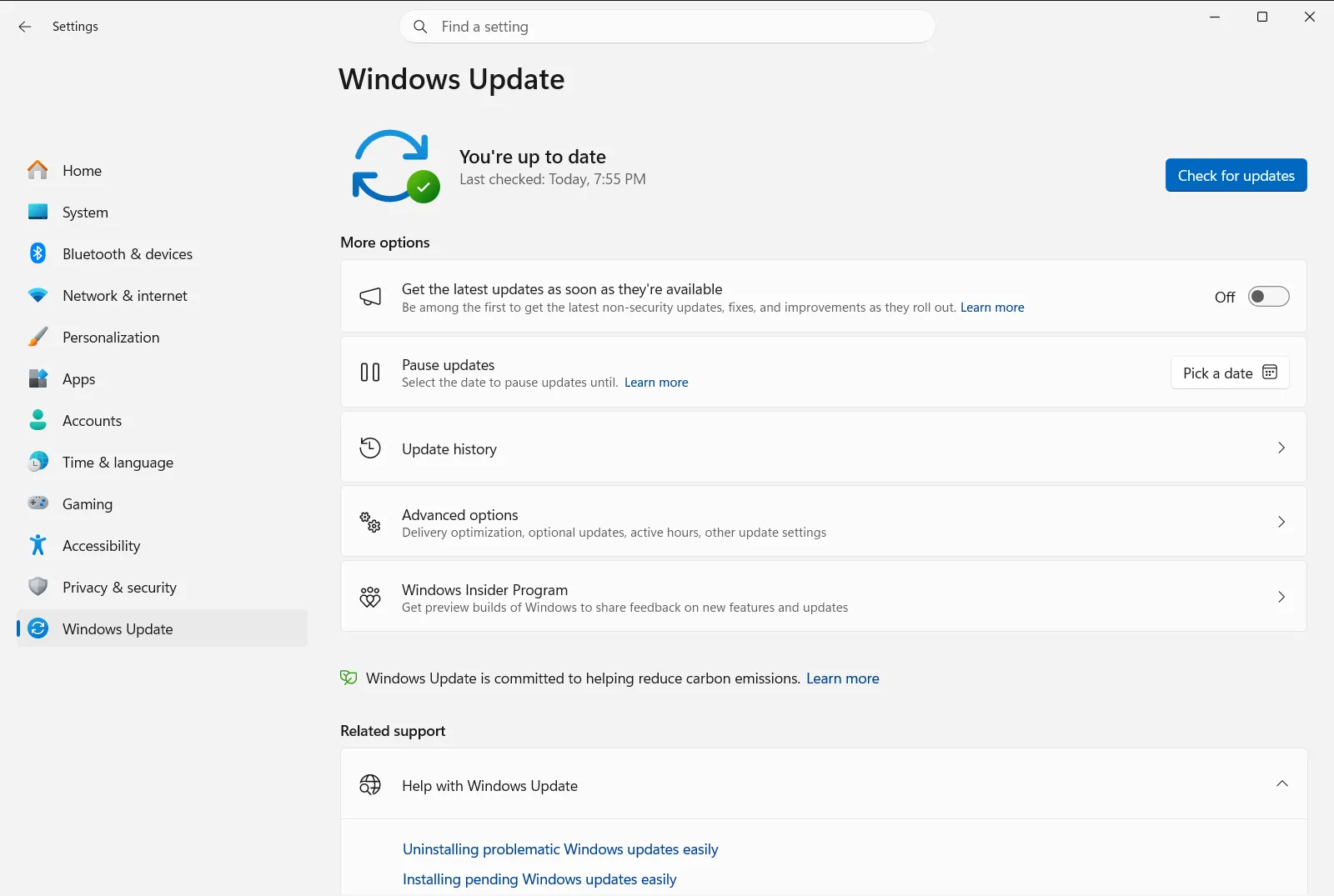
Settings › Windows Update - In Windows 10: Click on Update & Security, then select Windows Update from the left-hand menu.
- In Windows 11: Select Windows Update from the left-hand menu.
Open "Windows Update" in Settingsor press Win+R, type
- View Update History: Click on Update history. This will show you a list of successfully installed updates, including Quality Updates, Driver Updates, and Definition Updates.
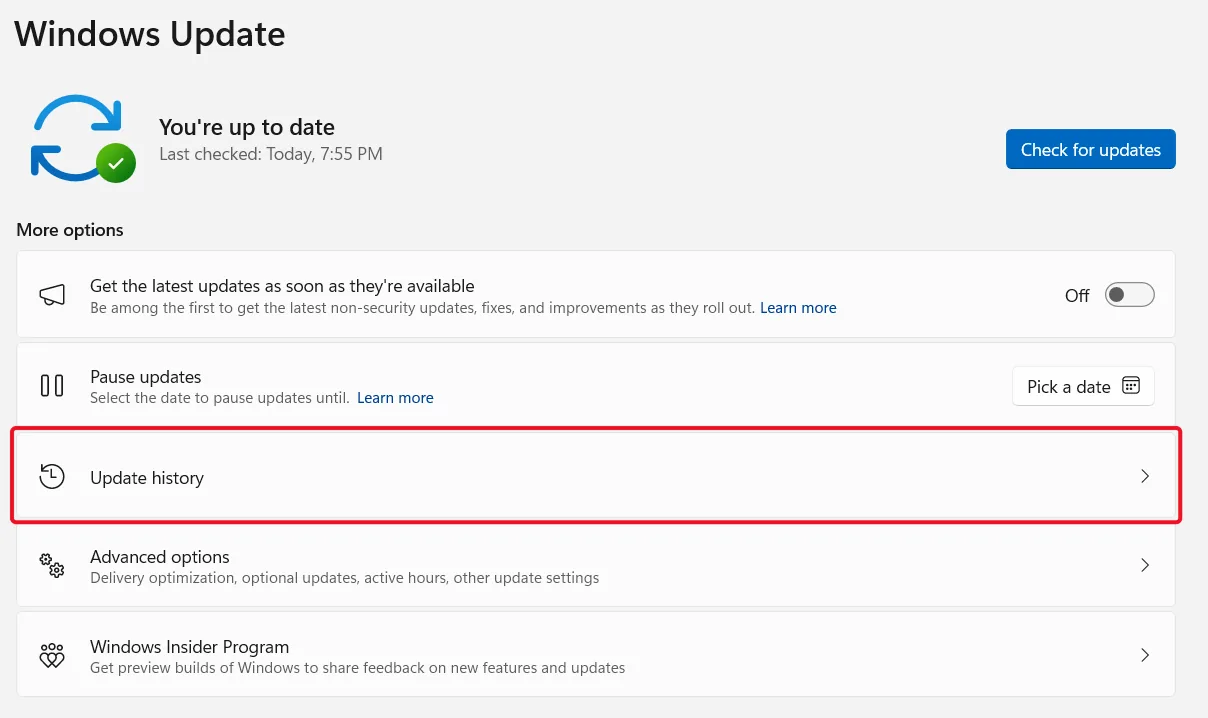
Settings › Windows Update › Update settings - Access Uninstall Updates: Scroll down within the “Update history” page and click on Uninstall updates.
- Locate and Uninstall: You’ll be taken to a Control Panel window titled “Installed Updates.” This list is sortable by name, program, or installation date.
- Identify the update you suspect is causing issues (look at the “Installed On” date or the KB number in the “Name” column).
- Select the problematic update.
- Click the Uninstall button that appears at the top of the list (or right-click the update and select Uninstall).
- Confirm: A confirmation dialog will appear. Click Yes or Uninstall to proceed.
- Restart Your PC: Windows will likely require a restart to complete the uninstallation process.

Method 2: Using Advanced Startup Options (If Windows is unstable)
If the problematic update is causing severe instability and you’re struggling to boot into Windows normally, you can try uninstalling it from the Advanced Startup Options menu.
- Access Advanced Startup Options:
- From Settings (if accessible): Go to Settings > System > Recovery (Windows 11) or Settings > Update & Security > Recovery (Windows 10). Under “Advanced startup,” click “Restart now.”
- From the login screen: Click the Power icon, then hold down the
Shiftkey while clicking Restart. - Force restart (if necessary): If Windows won’t boot, you might need to interrupt the boot process three times consecutively (turn on your PC, and as soon as you see the Windows logo or manufacturer logo, press and hold the power button to turn it off; repeat twice more). On the third attempt, Windows should automatically enter Advanced Startup.
- Navigate the Menu: Once in Advanced Startup Options:
- Select Troubleshoot.
- Select Advanced options.
- Select Uninstall Updates.
- Choose Update Type: You’ll likely see two options:
- Uninstall latest quality update: These are smaller, more frequent updates typically containing security fixes and minor improvements. Problematic updates are often quality updates.
- Uninstall latest feature update: These are larger, less frequent updates that introduce new functionalities (like the annual Windows 10/11 version upgrades). Uninstalling these is a more significant rollback. Choose the option most relevant to the update you believe is causing problems.
- Confirm and Restart: Follow the on-screen prompts to uninstall the update and restart your computer.
What to Do After Uninstalling an Update
Once the update is uninstalled and your system is stable, Windows Update will eventually try to reinstall it. To prevent this for a short period:
- Pause updates: In Windows Update settings, you can pause updates for a set number of weeks (usually up to 5). This gives Microsoft time to potentially release a fix for the problematic update. Go to Settings › Windows Update › Update settings.
It’s generally not recommended to permanently block updates, as they are crucial for security. Pausing is a temporary measure.
Conclusion
While Windows updates are essential, knowing how to uninstall problematic Windows updates easily [on your] Windows system is a valuable skill for any user. By following the steps outlined above, you can often resolve issues caused by a faulty update and restore your PC’s stability. Always ensure you have an idea of which update might be causing the issue before proceeding, and consider pausing updates temporarily if a particular update consistently causes problems.
Frequently asked questions
Uninstall problematic Windows updates easily windows: how can I do it?
Open Settings > Windows Update > Update history > Uninstall updates, select the update, click Uninstall, confirm and restart. If Windows is unstable, use Advanced Startup Options.
How do I uninstall a Windows update if Windows won't boot normally?
Use Advanced Startup Options: hold Shift while clicking Restart on the login screen, then select Troubleshoot > Advanced options > Uninstall Updates and follow the on-screen prompts to finish and restart.
What is the difference between uninstalling a quality update and a feature update?
Quality updates are smaller, more frequent updates with security fixes and minor improvements, and are often the problematic ones. Feature updates are larger and add new functions, so uninstalling one is a bigger rollback.
How do I stop Windows from reinstalling an update I removed?
Pause updates for a set number of weeks, usually up to 5, via Settings › Windows Update › Update settings. Pausing is temporary and gives Microsoft time to release a fix; permanently blocking updates isn't recommended.
How can I tell which Windows update is causing the problem?
Note when the issues started and check your update history for updates installed around that time. The KB number of an update helps you research whether other people are experiencing similar problems.
Official Microsoft documentation
