Settings › System › Multitasking › Work with multiple windowsTo split screen in Windows 11, use Snap, the built-in feature that places two or more windows side by side. You can drag a window to the edge of the screen, press the Windows key with an arrow key, or pick a ready-made layout.
- Open Settings, select System, then Multitasking, turn on Automatically snap windows to the sides or corners of the screen, and drag a window to a screen edge.
- Without a mouse, press Windows + Left Arrow or Right Arrow to snap the active window to one half of the screen.
- For more than two windows, hover over the maximize button or press Windows + Z and choose a layout.
How to split screen in Windows 11
1. Open the page with your window snapping options
Press Windows + I to launch Settings. In the left navigation pane, select System, then select Multitasking.
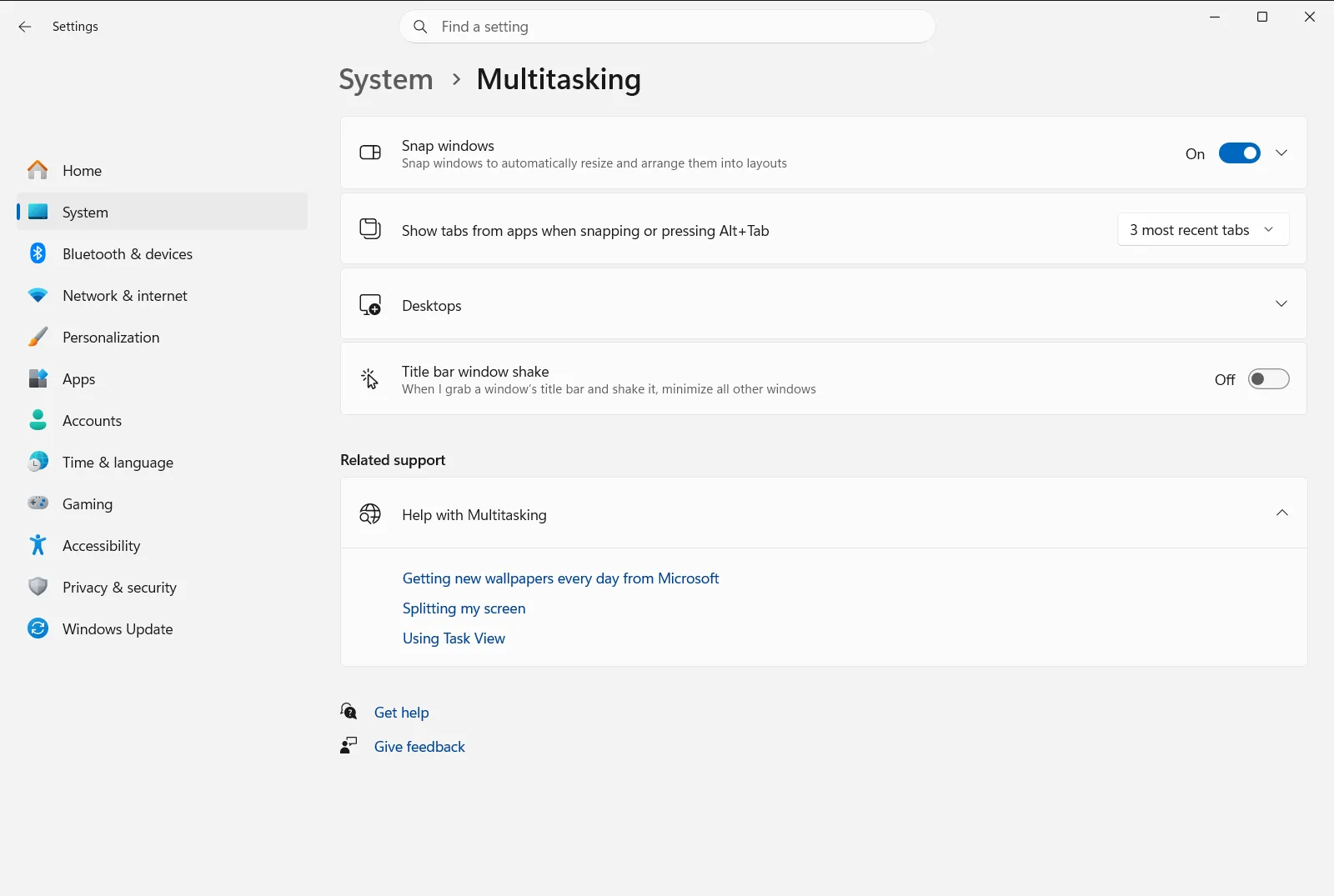
Alternatively, open the page directly:
Open "Multitasking" in Settingsor press Win+R, typems-settings:multitasking, and press Enter
2. Turn on automatic snapping
Find the group named Work with multiple windows and expand it if its options are hidden. Make sure Automatically snap windows to the sides or corners of the screen is turned on. Without it, dragging a window to an edge only moves the window and does not split the screen.
3. Keep Snap Assist turned on
In the same group, make sure When I snap a window, show what I can snap next to it is enabled. After you snap the first window, Windows then shows thumbnails of your other open windows so you can fill the remaining space with one click.
4. Split the screen with your mouse
Select the title bar of a window and drag it to the left or right edge of the screen until a translucent outline appears. Release the mouse button, and the window fills that half of the screen.
The other open windows appear as thumbnails on the opposite side. Select the one you want to place next to the first window. Dragging a window to a corner instead snaps it to a quarter of the screen, which is useful for a four-window grid.
5. Split the screen with the keyboard
Click the window you want to move, then hold Windows and press Left Arrow to place it on the left side, or Right Arrow to place it on the right side. You can keep pressing the arrow keys to change the position, and release the Windows key when the window is where you want it.
Snap Assist then offers the other windows for the remaining space, just as it does after a mouse drag.
6. Use snap layouts for more windows
To arrange three or more windows side by side, hover over the maximize button of a window, or press Windows + Z. A small flyout shows the available layouts. Select a zone in the layout you want, and then choose windows for the other zones.
You can also drag a window toward the top of the screen to show the layouts there. The layouts you see depend on the size of your display. If no layouts appear when you hover over the maximize button, check that Show snap layouts from the maximize button is turned on in Multitasking.
Resize, group and restore split windows
To change how much room each window gets, point at the divider between two snapped windows and drag it. When When I resize a snapped window, resize any adjacent snapped window is turned on, the neighboring snapped window resizes at the same time, so no space is wasted.
If you close a snapped window, Automatically resize snapped windows to fill available space can make the remaining snapped windows grow to use the free space.
Windows remembers windows you snapped together as a snap group. If you get interrupted and open another app, hover over the taskbar icon of an app from the group to restore the whole group or only that app. Turn on Show snapped windows in taskbar, Task View and Alt+Tab to see the groups in the taskbar, Task View and Alt+Tab as well. The official Microsoft article on Snap describes the same features.
If split screen does not work
- Window does not snap when dragged: check that Automatically snap windows to the sides or corners of the screen is on. If you find it hard to reach the edge, Snap a window without dragging it all the way to the screen edge lets you snap without dragging all the way to it.
- No layouts when you hover over the maximize button: turn on Show snap layouts from the maximize button .
- No layouts when you drag to the top: turn on Show snap layouts at the top of my screen.
- No window suggestions after the first snap: enable When I snap a window, show what I can snap next to it.
On a work or school device, an organization can manage these options, so some of them may be locked or missing.
Frequently asked questions
How do I split screen Windows 11?
Drag a window to the left or right edge of the screen, then pick a second window from the Snap Assist thumbnails. You can also press Windows + Left Arrow or Right Arrow, or choose a layout from the maximize button.
How do I split the screen with the keyboard in Windows 11?
Press the Windows key with Left Arrow or Right Arrow to snap the active window to one half of the screen. Then choose another window from Snap Assist to fill the other half.
How do I arrange more than two windows on one screen?
Hover over a window's maximize button or press Windows + Z, then choose a layout. The layouts offered depend on your display size, and Snap Assist helps you fill each zone of the layout you pick.
Why does my window not snap when I drag it to the edge?
Snapping may be turned off. Open Settings, go to System, then Multitasking, and turn on Automatically snap windows to the sides or corners of the screen. A work or school policy can also control it.
How do I change the size of two split screen windows?
Drag the divider between the two snapped windows. With When I resize a snapped window, resize any adjacent snapped window turned on, the neighboring snapped window resizes too, so there is no wasted space.
Official Microsoft documentation
