Settings › Network & internet › EthernetA network adapter driver in Windows 11 is the software that lets your PC talk to its network hardware, such as the wired Ethernet port. Windows installs recommended drivers on its own, while optional driver updates have to be chosen by hand. This article shows how to get a missing or outdated network adapter driver and how to check the result.
- Install the driver from the optional updates in the update settings of Settings, then restart your PC.
- To check the result, open Settings > Network & internet > Ethernet and look at Ethernet settings.
- Optional drivers are never installed automatically, so you must select them yourself.
How to update the network adapter driver in Windows 11
A driver lets Windows communicate with a device. Without a working one, the device may not function properly. Mice, keyboards, printers, external drives and video cards all depend on drivers, and so does your network adapter. Windows 11 fetches recommended drivers through its update service. Optional drivers appear in a separate list. You can read more in Microsoft’s article on automatic driver updates.
1. Check the current state of your wired connection
Press Windows + I to launch Settings. In the left navigation pane, select Network & internet, then select Ethernet.
Alternatively, open the page directly:
Open "Ethernet" in Settingsor press Win+R, type ms-settings:network-ethernet, and press Enter
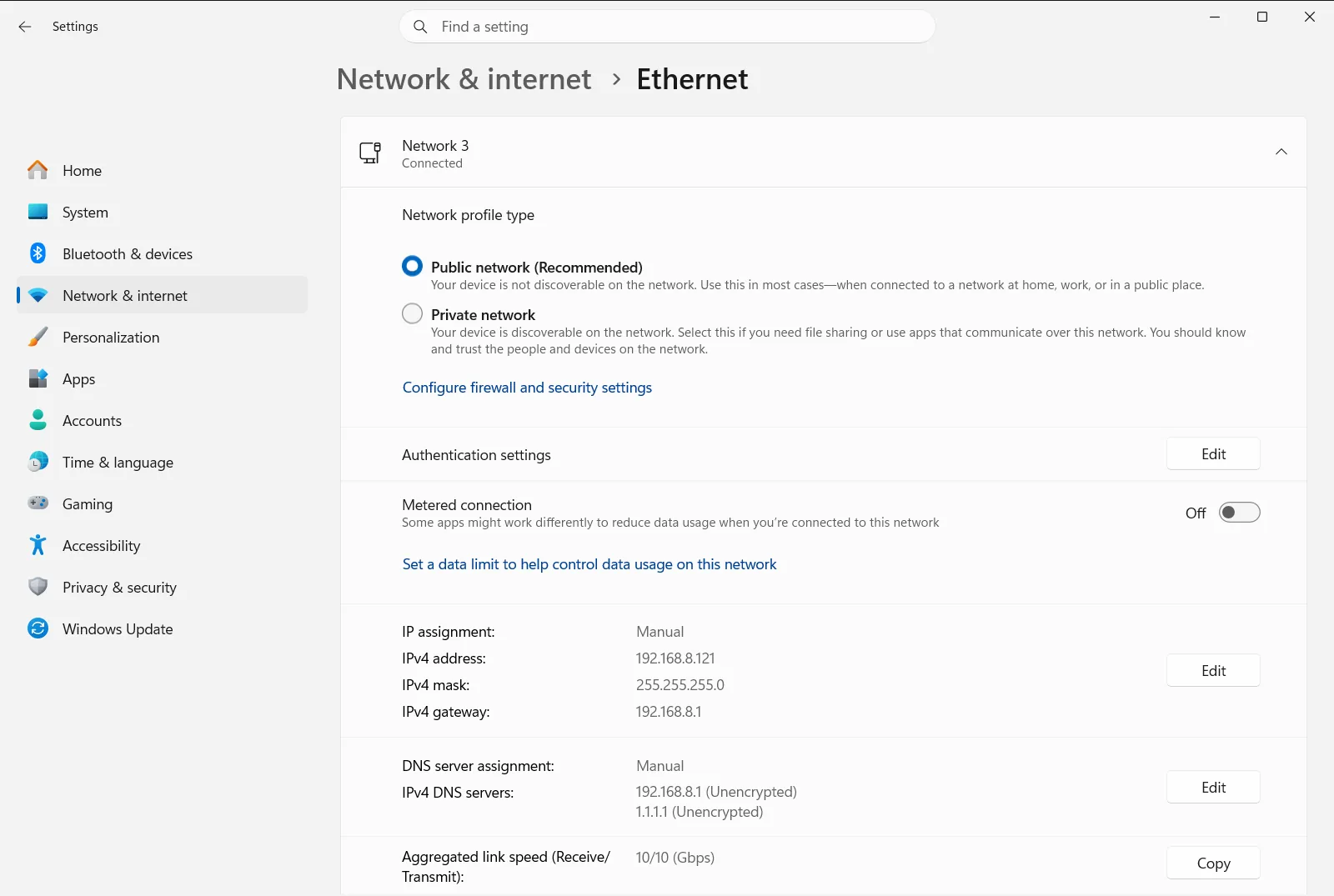
Take note of what you see. If your wired connection is listed here, Windows is already recognizing the adapter. If the connection is missing or the page offers nothing useful, continue with the next steps.
2. Make sure you have another way to get online
Driver updates are downloaded through the update service, so the PC needs a working connection while you install them. If the missing driver belongs to your only network adapter, use a different working connection for now. A second network or another device’s shared connection will do.
3. Open the update settings and the advanced options
In Settings, go to the page where Windows 11 handles its updates, then open its advanced options.
Check that the switch for receiving updates for other Microsoft products is turned on. Windows needs it to offer extra updates, including drivers.
4. Install the optional network adapter driver
Under the additional options, open the optional updates list. If any driver updates are listed, tick the ones for your network adapter, then use the download and install button.
If no driver updates appear, Windows has no optional driver for your hardware at the moment. The recommended driver may already be in place.
5. Restart the PC
When the installation finishes, right-click the Start button, choose the shut down or sign out option, and then choose to restart. Restart even if Windows did not ask you to. A restart makes sure the new driver is loaded properly.
6. Check the connection again
After the restart, press Windows + I, select Network & internet, then select Ethernet. Open Ethernet settings and confirm that your wired connection is listed and working.
Related options for your wired connection
The Ethernet settings area is also where you manage the behavior of your wired connection once the driver works. It is related to these topics:
- Network profile: choose whether the connection is treated as a private or a public network.
- LAN and internet settings: general options for your wired network.
On a work or school PC, an organization can manage this page, so some options may be fixed by your administrator.
If the driver still does not appear
- Repeat the optional updates check after a while, because new drivers can appear later.
- Confirm that the switch for updates for other Microsoft products is still turned on.
- Restart the PC once more and open Ethernet again to see whether the connection is now listed.
- If Windows offers no driver for your adapter, the hardware maker’s support page is the next place to look. Download from it on another PC if needed.
Keep in mind that optional drivers are never installed on their own. They are only installed after you select them and start the download.
Frequently asked questions
How do I update the network adapter driver Windows 11 uses?
Get online another way, open the update settings in Settings, go to the advanced options, open optional updates, select the network adapter driver, download and install it, then restart the PC.
Why does Windows not install optional drivers automatically?
Windows installs recommended drivers on its own, but optional drivers are left for you to choose. Open the optional updates list, tick the driver you want and use the download and install button.
What can I do if the missing driver is for my only network adapter?
Use another working connection while you install the driver, such as a second network or another device's shared connection. Driver updates are downloaded through the update service, so the PC must be online.
Do I need to restart after installing a network driver update?
Yes, restart the PC after the updates finish, even if Windows does not ask for it. A restart makes sure the new driver is loaded and the network adapter works properly with it.
Where do I check my wired connection after updating the driver?
Open Settings, select Network & internet, then Ethernet. There you can open Ethernet settings and confirm that your wired connection is listed and working. If it is still missing, check the optional updates list again.
Official Microsoft documentation
