Settings › Bluetooth & devices › MouseIf you want to adjust the mouse pointer speed on Windows, you only need one slider. Moving it changes how far the pointer travels on screen for a given hand movement, so you can make a sluggish cursor faster or tame one that overshoots its target. The change applies right away and takes a few seconds.
- Open Settings > Bluetooth & devices > Mouse and drag the Change the speed the cursor moves when you use the mouse slider.
- Turn Enhance pointer precision on or off to change how accurately the pointer follows slow hand movements.
- To undo a change, drag the same slider back to where it was.
How to adjust the mouse pointer speed on Windows 11
1. Open the mouse settings page
Press Windows + I to launch Settings. In the left navigation pane, select Bluetooth & devices, then select Mouse.
Alternatively, open the page directly:
Open "Mouse" in Settingsor press Win+R, type ms-settings:mousetouchpad, and press Enter
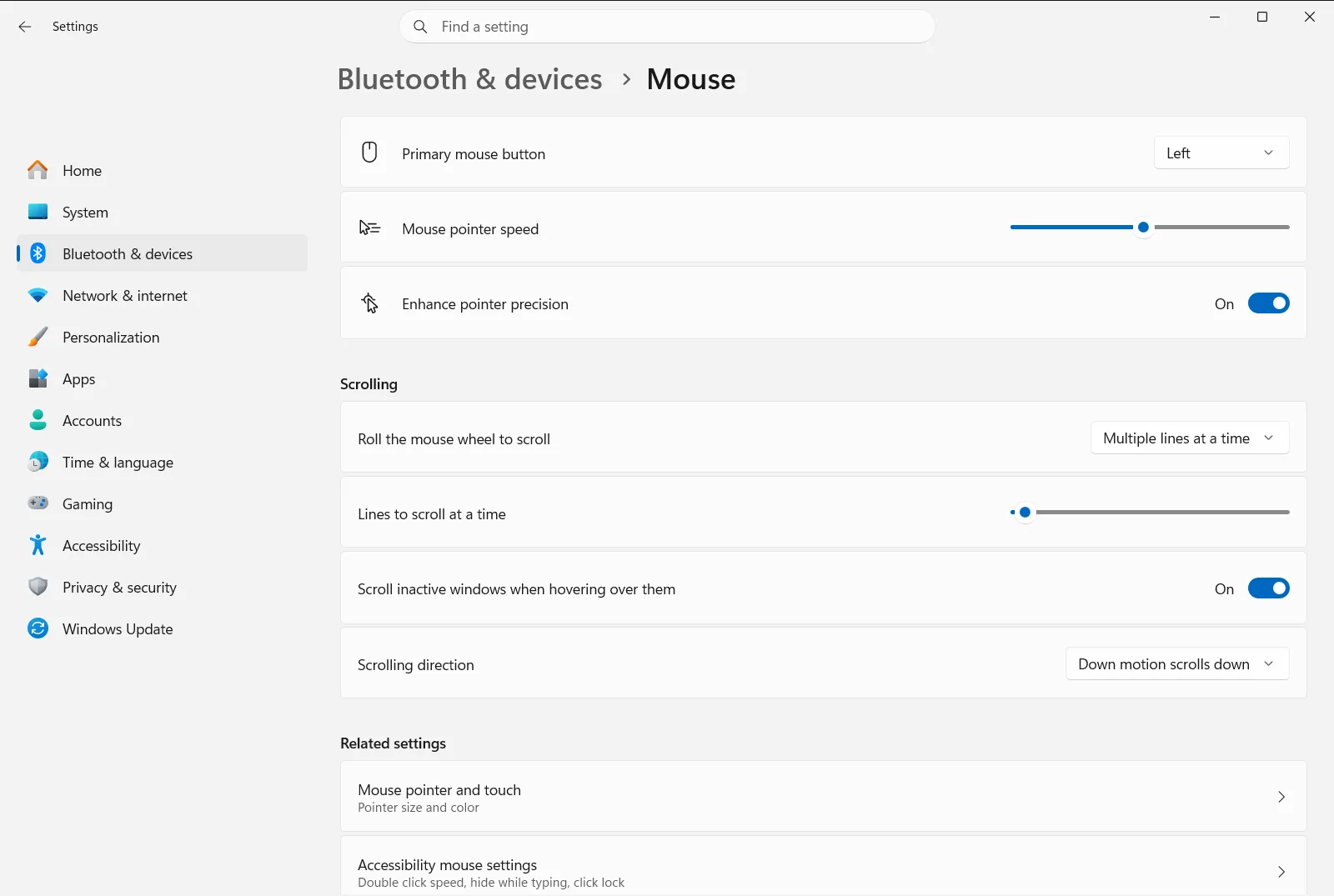
2. Drag the pointer speed slider
Find Change the speed the cursor moves when you use the mouse on the page. This is the slider that sets the cursor speed.
- Drag it to the right to increase the mouse speed, so the pointer covers more of the screen with less movement.
- Drag it to the left to reduce the mouse speed, so the pointer moves in smaller, more controlled steps.
3. Test the new speed
Move the mouse across the screen as you normally would. Try pointing at small targets such as the close button of a window or a link in text. If you keep overshooting the target, the speed is too high. If you have to lift and reposition the mouse several times to cross the screen, it is too low.
Adjust the slider in small steps until the pointer feels natural. You do not need to save anything, because each change is applied as you move the slider.
4. Decide whether to use pointer precision
On the same page, Enhance pointer precision controls what is often called cursor acceleration. When it is on, Windows makes the pointer more accurate when you move the mouse slowly, which helps with fine positioning.
Leave it on if you like that behavior. Switch it off if you want the pointer to move the same distance for the same hand movement, regardless of how quickly you move the mouse.
Other mouse options on the same page
While you are on this page, you may want to change related behavior. These options sit alongside the speed slider:
- Change the primary button on your mouse lets you swap the left and right buttons, which is useful for left-handed use.
- Under Scrolling, Choose how many lines to scroll with the mouse wheel sets how far each notch of the wheel moves the page.
- In the same group, Reverse the mouse scroll direction flips which way the page moves when you roll the wheel.
Pointer speed only affects how the cursor moves. It does not change how fast the wheel scrolls or how quickly you need to double-click. Microsoft also describes this slider in its mouse settings article.
If the pointer still feels wrong
- Speed feels inconsistent: the pointer may be reacting to how fast you move the mouse. Turn off Enhance pointer precision, then set the speed slider again.
- Slider is too coarse: make small adjustments and test after each one. Combining a slightly lower slider position with pointer precision on can help with detailed work.
- Mouse has its own speed button: some mice include a button or manufacturer software that changes sensitivity on the device itself. If the pointer speed changes unexpectedly, check for that as well as the Windows slider.
- Settings are locked or missing: on a work or school device, an organization can manage the mouse page, so some options may be unavailable or reset.
Frequently asked questions
How do I adjust the mouse pointer speed on Windows 11?
Open Settings, go to Bluetooth & devices and then Mouse, and drag the Change the speed the cursor moves when you use the mouse slider. Right is faster, left is slower. The change applies immediately, so test it by pointing at small targets and adjust in small steps.
How do I make my mouse pointer slower?
Drag the Change the speed the cursor moves when you use the mouse slider to the left on the Mouse page. The pointer then travels a shorter distance for each movement of your hand.
What does pointer precision do for mouse speed?
Enhance pointer precision makes the pointer more accurate when you move the mouse slowly. Turn it off if you want the pointer to move the same distance for the same hand movement.
Why does my mouse speed feel inconsistent on Windows 11?
The pointer may be reacting to how fast you move the mouse. Turn off Enhance pointer precision, then set the speed slider again and test it.
Why can't I change the mouse speed on a work computer?
On a work or school device, an organization can manage the mouse settings page, so some options may be locked or reset. Contact your administrator if the speed slider is unavailable or changes back.
Official Microsoft documentation
