Settings › Network & internet › EthernetWhat’s my IP address? On Windows 11, you can read it in Settings, in the details of the network you’re connected to, where it is listed as the IPv4 address. The steps below cover a wired connection, and a separate section covers wireless networks.
- Open Settings > Network & internet > Ethernet, select your connected network, and read the IPv4 address.
- The address you see is the one your PC uses on your local network, and a router usually assigns it automatically.
- On a wireless connection, the same details appear on the page for your wireless network in the same section.
How to find your IP address on Windows 11
1. Open your PC’s settings
Press Windows + I to launch Settings. You can also open it from the Start menu.
2. Go to the network section
In the left navigation pane, select Network & internet. This section holds the options for your connections. The status of your current connection is shown at the top.
3. Open the wired network page
Select Ethernet. This page lists the options for wired connections, including the network profile and the IP assignment.
Alternatively, open the page directly:
Open "Ethernet" in Settingsor press Win+R, type ms-settings:network-ethernet, and press Enter
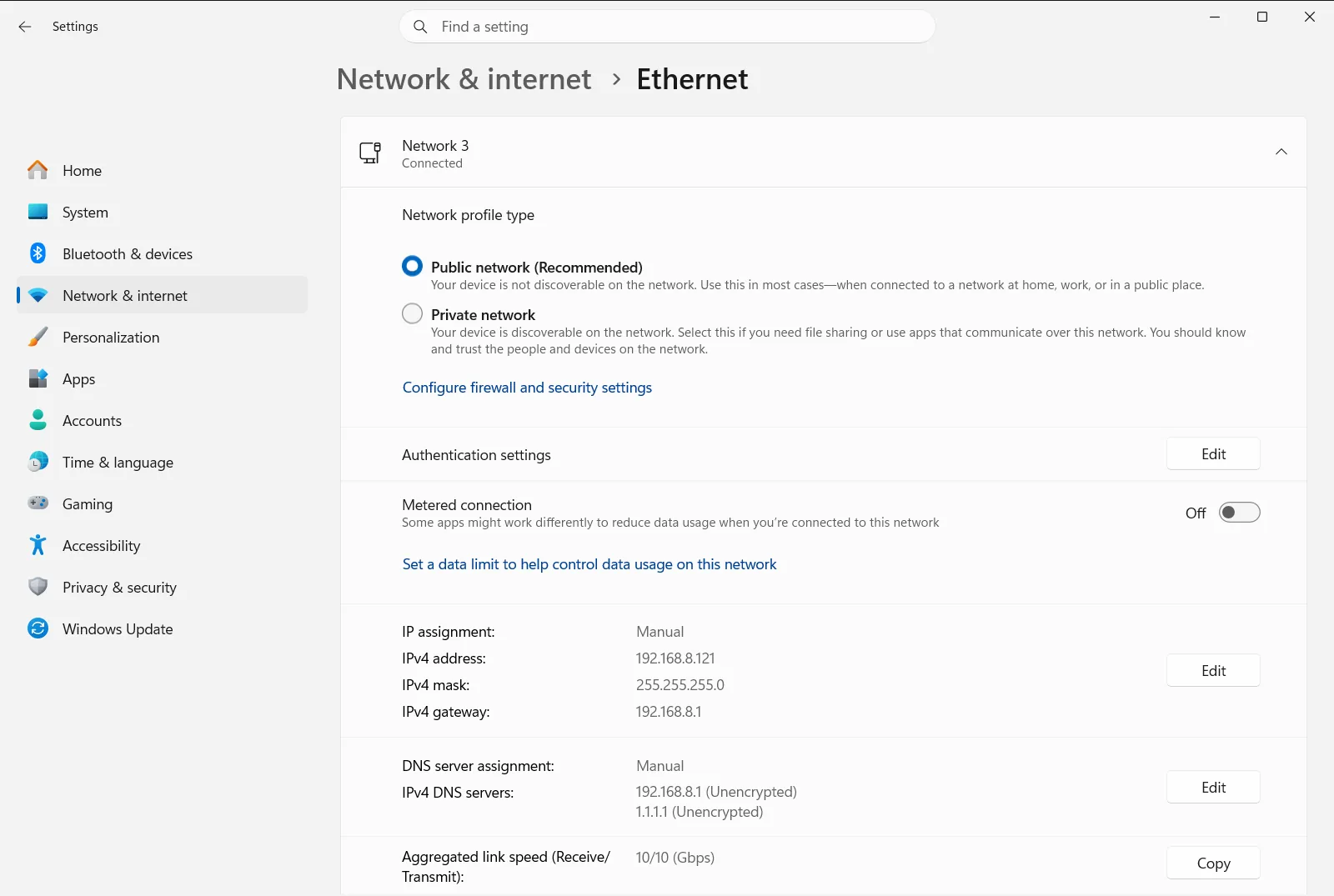
4. Read the IPv4 address
Select the Ethernet network you’re connected to, if Windows asks you to pick one, and look at its details. Find the entry for the IPv4 address. The number next to it, usually four groups of digits separated by dots, is your IP address.
Write it down or copy it if you need it for a printer, a remote connection, or a support call.
Find your IP address on a wireless connection
The wired page only covers cable connections. If your PC is connected wirelessly, stay in the Network & internet section and open the page for wireless networks. Select the wireless network you’re connected to, then look for the IPv4 address in its details, exactly as in step 4.
A faster way to reach the same section is to right-click the network icon on the taskbar and choose the option that opens the network and internet settings. It takes you to Network & internet, and you can continue from step 3. Microsoft describes the same route in its support article on essential network settings.
What the address you find actually means
The IPv4 address in Settings is the address your PC uses on your local network. In most homes and offices, a router hands it out automatically through DHCP, a method that assigns addresses to the devices on a network. Because the router assigns it, the number can be different when you connect to another network.
This is not necessarily the address that websites see. Websites usually see the public address of your router, which your internet provider assigns. The Settings page does not show that public address.
Related options on the same page
While you are on Ethernet, you may notice two other options that affect how your PC behaves on the network.
- A public network profile is the recommended choice and keeps your PC hidden from other devices on the network, so file and printer sharing is unavailable. A private profile makes your PC discoverable and allows sharing, so use it only on networks and with people you trust.
- The IP assignment can be automatic, where the router sets the address and the DNS server, or manual, where you type the IP address, subnet mask, gateway, and DNS server addresses yourself. Automatic is recommended, because you don’t need to change anything when you move your PC to another location.
If you switch to manual and enter values that don’t match your network, the connection may stop working. In that case, switch back to automatic.
On a work or school PC, an organization can manage these Ethernet options, so some of them may be unavailable or locked.
Frequently asked questions
What's my IP address in Windows 11?
Open Settings, go to Network & internet > Ethernet, select your connected network and read the IPv4 address in its details. That is the address your PC uses on your local network.
Why is the IP address in Settings different from the one websites see?
Settings shows the address your PC uses on your local network, which your router assigns. Websites usually see the public address of your router, which your internet provider assigns and which Settings does not show.
Does my IP address change when I connect to another network?
It can. With automatic assignment (DHCP), the router of each network hands out the address, so a different network usually gives your PC a different one. You don't need to change anything when you move.
How do I find my IP address on a wireless connection?
Open Settings and select Network & internet, then open the page for wireless networks. Select the network you're connected to and read the IPv4 address in its details.
Can I set my own IP address instead of using the one my router gives?
Yes. On the connection's page, change the IP assignment from automatic to manual, then enter the IP address, subnet mask, gateway and DNS servers. Automatic is recommended, because wrong manual values can break the connection.
Official Microsoft documentation
