Settings → Bluetooth & devices → Pen & Windows InkTo change the battery in Surface Pen, you open the pen, swap the old AAAA battery for a new one, and close it again. The way the pen opens, and which way the battery faces, depends on the pen model, and some models also have small coin cells in the cap. Once the pen is back together, you can confirm in Windows 11 that it still works.
- Open the pen, replace the AAAA battery with the + end facing the direction your pen type requires, then close it; Slim Pen and Slim Pen 2 have no replaceable battery.
- Pens with two side buttons also have two size 319 coin cells in the cap, and you may need to pair the pen with your Surface again afterwards.
- Check the pen afterwards in Settings → Bluetooth & devices → Pen & Windows Ink.
How to change the battery in a Surface Pen
1. Find out which pen you have
Look at your pen. Three designs have a replaceable battery:
- A pen with no clip.
- A pen with a single button on a flat edge.
- A pen with two side buttons and a clip. This group includes the Microsoft Business Pen and the Microsoft Classroom Pen 1 and 2.
Surface Slim Pen and Slim Pen 2 are different: their battery can’t be replaced, so they need charging instead. If you can’t tell which model you own, Microsoft’s official battery guide points to a page that helps you identify it.
You need one new AAAA battery. Pens with two side buttons may also need two size 319 coin cells and a jeweler’s Phillips screwdriver.
2. Change the battery in a pen with no clip
Pull the top end of the pen straight out of the bottom part. Take out the old AAAA battery and insert the new one with its positive (+) end pointing toward the tail end of the pen.
Line up the flat sides of the two halves and push them back together until they sit snugly.
3. Change the battery in a pen with a single button on a flat edge
Turn the cap (the eraser end) counter-clockwise by about 30 degrees, until you hear and feel it click. Then gently pull the cap straight out of the pen body.
Put the new AAAA battery in with the positive (+) end toward the tail end of the pen. Match the cap’s metal guide bump to the half-circle cutout in the pen body, then push the cap back in. Turn it slightly until the flat edges line up.
4. Change the AAAA battery in a pen with two side buttons
Unscrew the top of the pen from the bottom. Remove the old AAAA battery and insert the new one. On this design the positive (+) end points toward the writing tip, which is the opposite of the other two designs.
Screw the top back on. If the pen still acts up or the buttons don’t respond, continue with the next step.
5. Replace the coin cells in the cap (two-button pens only)
These pens keep two small coin cells in the cap, and they power the Bluetooth connection. Unscrew the top of the pen from the bottom and leave the paper label inside the top part.
- Remove the battery case. The recommended way is to put a jeweler’s Phillips screwdriver through the middle of the spring and unscrew the case. Alternatively, press the spring down, set a flathead screwdriver in one of the side notches, and twist the case out.
- Take out the old coin cells and fit the two new size 319 cells so their negative (–) sides point toward the pen tip.
- Lower the pen top over the battery case, then tighten the case just until it starts to resist. Don’t overtighten it.
Keep the pen top upright while you do this. If you hold it sideways and slide the case in, the coin cells can flip over before they settle into place. Finally, screw the top and bottom of the pen back together.
6. Open the pen settings in Windows 11
Press Windows + I to launch Settings. In the left navigation pane, select Bluetooth & devices, then select Pen & Windows Ink.
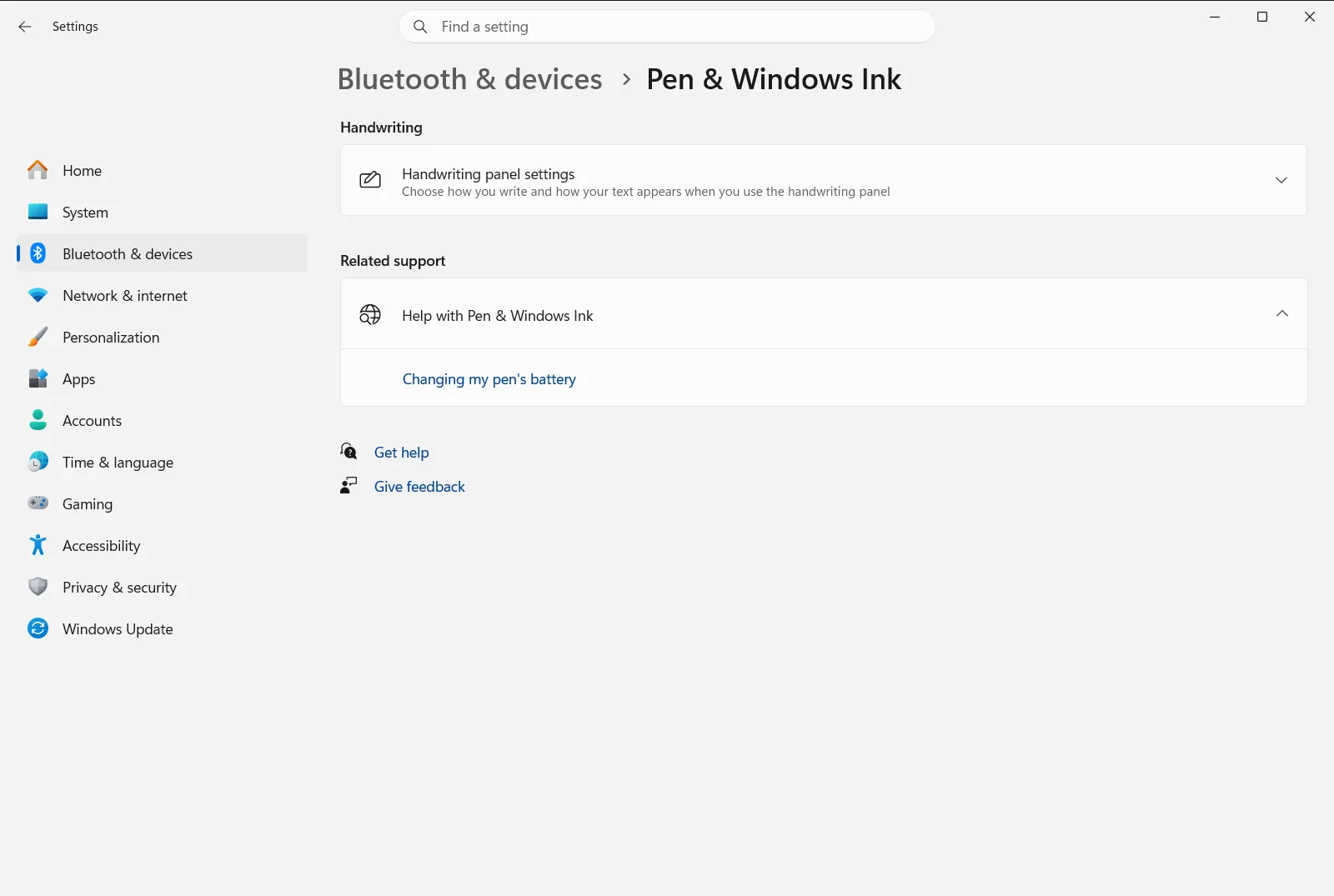
Alternatively, open the page directly:
Open "Pen & Windows Ink" in Settingsor press Win+R, typems-settings:pen, and press Enter
7. Test the pen and pair it again if needed
Write or tap on the screen, then press the pen buttons. If the pen is recognized, the settings on this page apply to it as usual. For example, Use the pen button as a right-click equivalent when it's available controls what the pen button does when it’s available.
After a battery change, some pens need to be paired with your Surface again. If the buttons don’t respond, open Bluetooth & devices and add the pen as a Bluetooth device again.
Related pen options on the same page
While you’re on the page, you can also review these options:
- Pen shortcuts lets you choose what a single click, double-click, or long press of the pen button does.
- Use the top of the pen to erase ink when it's available controls whether the top of the pen erases ink on pens that have an eraser end.
On a work or school device, some pen options may be managed by your organization.
If the pen still doesn’t work after the change
- Check the battery direction again. The AAAA battery faces a different way in a two-button pen than in the other designs.
- Make sure the pen halves or the cap are fully seated and the flat edges are aligned.
- On a two-button pen, confirm the coin cells didn’t flip and that the case isn’t overtightened.
- Pair the pen again from Bluetooth & devices.
- Try a fresh battery, since a new one can occasionally be weak.
If none of this helps, ask Microsoft Support or your organization’s IT helpdesk, or look into repair options for your Surface.
Frequently asked questions
How do I change the battery in Surface Pen?
Open the pen by pulling the top out, turning the cap, or unscrewing it, depending on the model. Insert a new AAAA battery in the direction your pen type requires, then close the pen. Slim Pen models have no replaceable battery.
Which way does the AAAA battery face in a Surface Pen?
In pens with no clip or a single flat-edge button, the positive (+) end points toward the tail end. In pens with two side buttons and a clip, the positive end points toward the writing tip.
Can I replace the battery in Surface Slim Pen or Slim Pen 2?
No. Surface Slim Pen and Slim Pen 2 don't have replaceable batteries. If one of them isn't working, you need to charge it rather than open it and swap a battery.
What are the small batteries in the cap of a Surface Pen with two side buttons?
They are two size 319 coin cells that power the Bluetooth connection. You can replace them with a jeweler's Phillips screwdriver, putting the negative (–) side toward the pen tip.
Do I need to pair my Surface Pen again after changing the battery?
Sometimes. If the pen buttons don't respond after you reassemble it, open Bluetooth & devices in Settings and pair the pen with your Surface again.
Official Microsoft documentation
