Settings → Personalization → Colors → Apply color to Start, taskbar, and Notification CenterYou can change the taskbar color in Windows 11 by choosing an accent color and then telling Windows to apply it to the taskbar. Everything happens on one page of Settings, and the change is visible right away. The same steps apply whether you spell it color or colour, as in change taskbar colour Windows 11.
- Open Settings → Personalization → Colors, pick an accent color, then turn on Apply color to Start, taskbar, and Notification Center.
- The taskbar can only be tinted when Windows uses dark or custom mode, not light mode.
- To go back to the neutral look, turn the same switch off again.
How to change the taskbar color in Windows 11
1. Open the Colors page in Settings
Press Windows + I to launch Settings. In the left navigation pane, select Personalization, then select Colors.
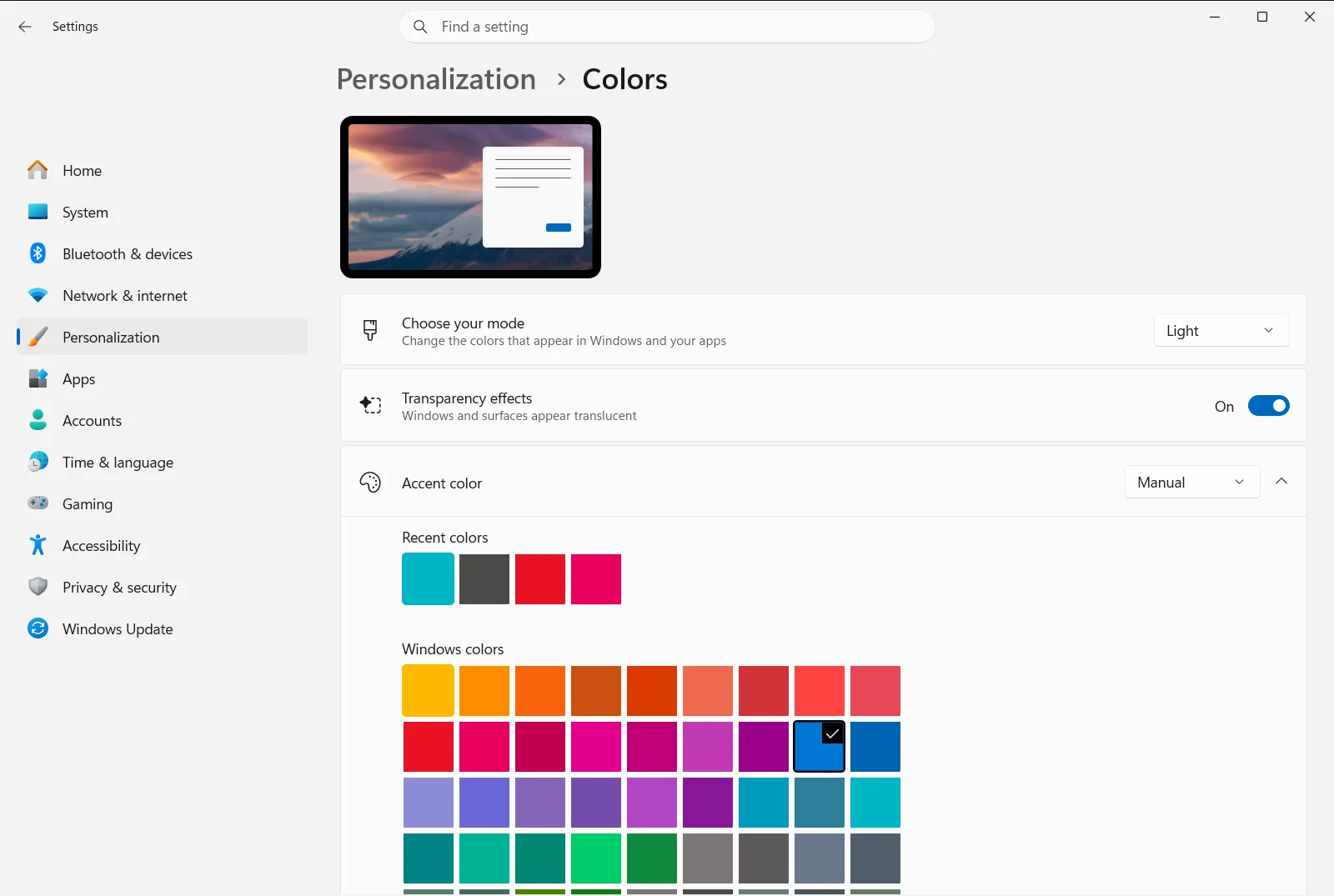
Alternatively, open the page directly:
Open "Colors" in Settingsor press Win+R, typems-settings:colors, and press Enter
2. Use a color mode that allows a colored taskbar
Windows can tint the Start menu and the taskbar only when the color mode is dark or custom. In light mode the option you need in step 4 is not offered. Near the top of the page, find the color mode setting and switch it away from light mode.
Custom mode is useful if you want to choose light or dark separately instead of applying one look to everything. Some apps also keep their own light or dark setting, so not every app follows the choice you make here.
3. Choose your accent color
The accent color is the color Windows will use on the taskbar. In the Choose your accent color area you have two ways to set it:
- Let Windows choose for you. This is the Automatically pick an accent color from my background behavior, so the color follows your desktop picture.
- Pick a color yourself. Select one of the color swatches, or open the more detailed color picker if you want an exact shade.
4. Turn on color for Start and the taskbar
Scroll down and turn on Apply color to Start, taskbar, and Notification Center. This is the switch that actually paints the taskbar with your accent color. Without it, the accent color only affects buttons, links, and similar highlights.
5. Check the result
Look at the taskbar and the Start menu. Both should now use your accent color. If you chose the automatic option in step 3, the color can change when you pick a different desktop picture. To try another shade, go back to step 3 and choose again.
Related color options on the same page
While you are on Colors, two more switches change how the color looks:
- Apply color to title bar paints the title bars and borders of windows with the same accent color, so your windows match the taskbar.
- Transparency effects makes some surfaces slightly see-through. If the taskbar color looks lighter or softer than the swatch you picked, this effect can be the reason. Turn it off if you want a more solid color.
On a work or school device, an organization can manage some of these options, so a switch may be locked or may reset itself.
If the taskbar color does not change
- The switch is missing or unavailable. Go back to step 2 and make sure the color mode is dark or custom. Microsoft’s color personalization article also states that light mode cannot color the taskbar.
- The switch is off. Choosing an accent color alone does not recolor the taskbar. Turn on Apply color to Start, taskbar, and Notification Center as shown in step 4.
- The color keeps changing. The automatic accent color follows your desktop picture. Choose a color yourself in step 3 to keep one fixed shade.
- You want the default look back. Turn off Apply color to Start, taskbar, and Notification Center. The taskbar then follows the plain color mode instead of your accent color.
Frequently asked questions
What is the easiest way to change taskbar color Windows 11?
Open Settings, go to Personalization then Colors, pick an accent color, and turn on Apply color to Start, taskbar, and Notification Center. Light mode doesn't allow this.
Why can't I turn on color for the taskbar in Windows 11?
The option is only available when Windows uses dark or custom mode. If light mode is active, switch the color mode on the Colors page first, then try the switch again.
Can Windows pick the taskbar color automatically?
Yes. Use the Automatically pick an accent color from my background behavior so Windows takes the accent color from your desktop picture, and keep the taskbar color switch turned on so the color shows there.
How do I show the same color on window title bars?
Turn on Apply color to title bar on the Colors page. Window title bars and borders then use the accent color you chose, so they match the taskbar.
How do I remove the color from the taskbar again?
Open Colors and turn off Apply color to Start, taskbar, and Notification Center. The taskbar and Start menu stop using the accent color and follow the plain color mode instead.
Official Microsoft documentation
