Settings → PersonalizationYou can change the desktop background color in Windows 11 by replacing your wallpaper picture with a single solid color. The setting lives in the personalization options of Settings. It takes only a few clicks and you can switch back to a picture at any time.
- Open Settings → Personalization, open the desktop background page, choose the single-color option and pick a color.
- To undo it, return to the same page and choose the picture option again, then select an image.
- The Colors page changes accent colors and light or dark mode, not the desktop background color.
How to change the desktop background color in Windows 11
1. Open the personalization section
Press Windows + I to launch Settings. In the left navigation pane, select Personalization.
As a shortcut, you can right-click an empty area of the desktop and choose the personalization command in the context menu. It takes you to the same place.
2. Open the desktop background page
In the personalization section, select the page that controls your desktop background. This is the page where you pick a picture, a slideshow, daily images from around the world, or a plain color. It is separate from the Colors page, which deals with accent colors and light or dark mode.
3. Choose the single-color option
Under the personalization options for your background, change the choice from picture (or slideshow, or the daily images) to the option that uses a single color. Once you select it, Windows replaces the wallpaper image with a flat color.
4. Pick your color and check the result
Choose a color from the options Windows offers. Then close Settings or minimize your open windows to look at the desktop. If the color is not what you wanted, return to the same page and pick another one. You can repeat this as often as you like.
Go back to a picture background
To undo the change, open the same desktop background page again. Choose the picture option and select one of the images offered, or browse to a photo on your device. You can also pick the slideshow option to cycle through a folder of images, or the option that shows a new image from around the world each day. Solid color, picture, slideshow and daily images are all choices on the same page, so changing one replaces the other.
For a detailed description of every background option, see Microsoft’s support page about changing the desktop background.
Change the accent color and mode instead
Many people search for this topic when they actually want to recolor Start, the taskbar or window title bars. Those colors are set on the Colors page, not on the desktop background page.
- Press Windows + I to launch Settings, select Personalization, then select Colors.
Alternatively, open the page directly:
Open "Colors" in Settingsor press Win+R, type ms-settings:colors, and press Enter
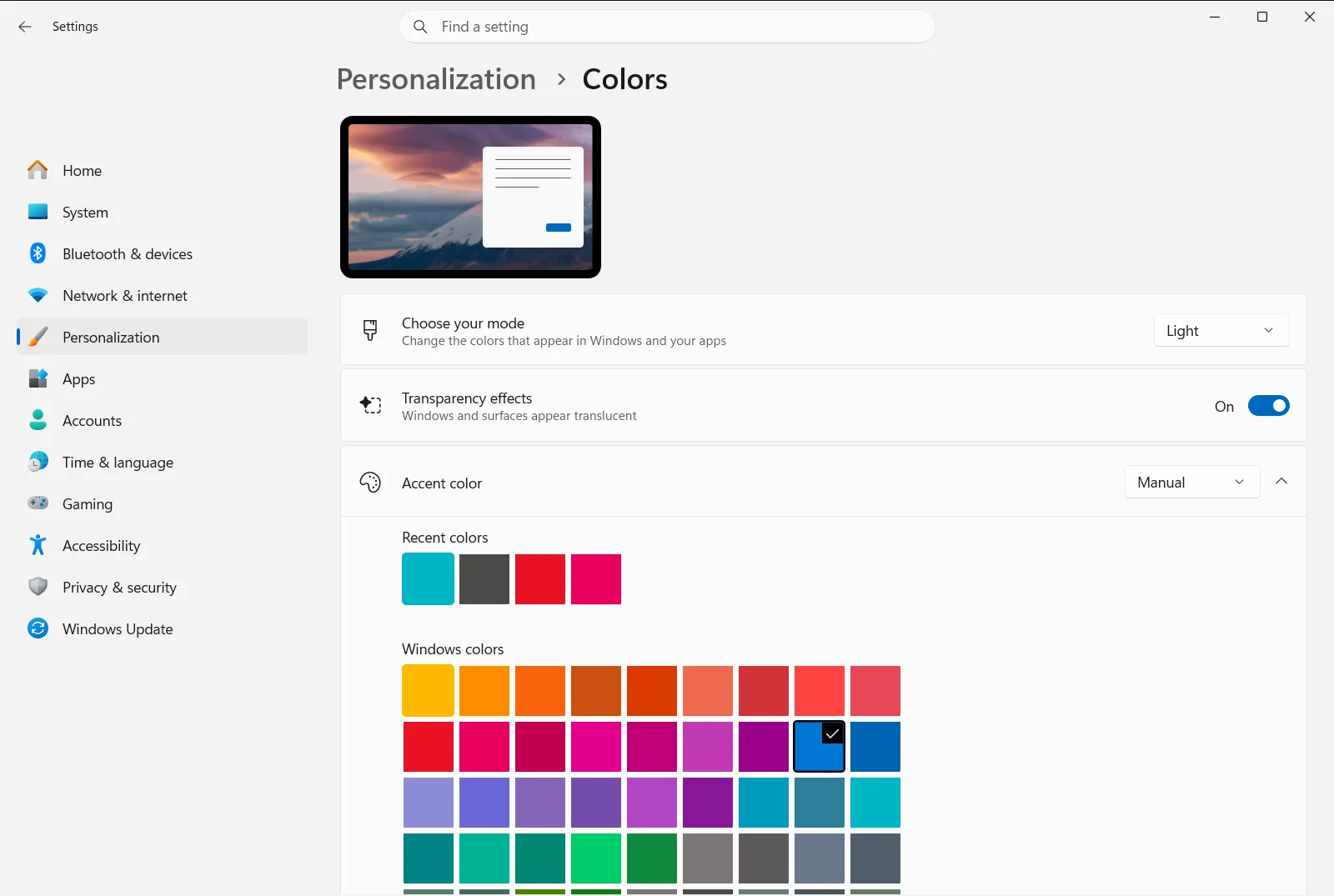
On this page you will find these related options:
- Choose your accent color – the group where you choose the color Windows uses for highlights and accents.
- Automatically pick an accent color from my background – lets Windows pick the accent color from your background automatically. This is handy after you switch to a solid color, because the accent can follow it.
- Apply color to Start, taskbar, and Notification Center – shows the accent color on Start, the taskbar and the notification area.
- Apply color to title bar – shows the accent color on window title bars.
- Turn on dark mode systemwide and Turn on dark mode for apps – switch between light and dark appearance for Windows and for apps. Turn on light mode systemwide is the matching setting for light mode across the system.
- Make Start, taskbar, and Notification Center transparent – turns see-through effects on or off. Turning them off can make colors look more solid.
These settings change the look of Windows and apps. They do not change the color you chose for the desktop background.
If the desktop color does not change
- You still see a picture. Check that you selected the single-color option and not the picture, slideshow or daily images option.
- The color looks different from the preview. Choose a different color from the options on the same page and compare it on your desktop.
- The taskbar or Start did not change color. The desktop background does not control those. Use the options on the Colors page described above.
- The options are unavailable or reset. On a work or school device, your organization can manage the color settings, so some choices may be locked.
Frequently asked questions
Windows 11 change desktop background color: what are the steps?
Open Settings, select Personalization, open the page for your desktop background, choose the single-color option and pick a color. To go back, choose the picture option again and select an image.
Does the Colors page change the desktop background color?
No. The Colors page sets accent colors and light or dark mode. The desktop background color is set on the separate desktop background page in the personalization section.
How do I go back to a picture after using a solid color?
Open the desktop background page again and choose the picture option, then select one of the offered images or browse to your own photo. The solid color is replaced as soon as you pick a picture.
How can I make the accent color match my solid background?
Open the Colors page and turn on Automatically pick an accent color from my background. Windows then picks the accent color from your background automatically.
How do I show a color on Start and the taskbar?
On the Colors page, turn on Apply color to Start, taskbar, and Notification Center. Windows then applies your accent color to Start, the taskbar and the notification area.
Official Microsoft documentation
