Settings → Bluetooth & devices → TouchpadTo open the on-screen touchpad in Windows 11, first make its icon available in the system tray, then select that icon. The on-screen touchpad (also called the virtual touchpad) is a touchpad drawn on your screen that you can use to move the mouse pointer. It is handy on touch screens and on devices without a working physical touchpad.
- Right-click the taskbar, open its settings, switch on the virtual touchpad icon in the system tray icons area, then select that icon next to the clock.
- To hide it again, close the touchpad window, then switch the same virtual touchpad option off in the taskbar’s settings.
- The physical touchpad has its own page under Settings → Bluetooth & devices → Touchpad.
How to open the on-screen touchpad in Windows 11
The on-screen touchpad is not switched on from the touchpad page in Settings. You enable its icon in the taskbar’s settings instead, and the touchpad then opens from the system tray.
1. Open the taskbar’s settings
Right-click an empty area of the taskbar and choose the taskbar settings entry from the menu that appears.
On a touch screen, press and hold the taskbar instead of right-clicking, then choose the same entry.
2. Turn on the virtual touchpad icon
In the window that opens, look for the area that controls which icons appear in the system tray. Find the entry for the virtual touchpad and make sure its switch is set to On.
Microsoft describes the same procedure in its article about enabling and disabling the virtual touchpad.
3. Select the virtual touchpad icon
Look at the system tray, which sits at the right end of the taskbar next to the time and date. Select the virtual touchpad icon there.
4. Use the touchpad window
The on-screen touchpad appears on your screen. Touch or click inside it to control the mouse pointer, just as you would on a physical touchpad. To open it again later, select the same icon in the system tray.
How to hide or turn off the on-screen touchpad
If you no longer want the touchpad, remove it in two quick steps:
- If the touchpad window is visible, close it with the close button in its window.
- Right-click the taskbar (or press and hold it on a touch screen), open the taskbar’s settings, and switch the virtual touchpad option to Off.
The virtual touchpad icon then disappears from the system tray. You can bring it back at any time by repeating the steps above.
On-screen touchpad vs. your physical touchpad
The on-screen touchpad is a separate feature from the touchpad built into your laptop. The physical touchpad is configured on its own page in Settings. Open it with Windows + I to launch Settings, select Bluetooth & devices in the left navigation pane, then select Touchpad.
Alternatively, open the page directly:
Open "Touchpad" in Settingsor press Win+R, type ms-settings:devices-touchpad, and press Enter
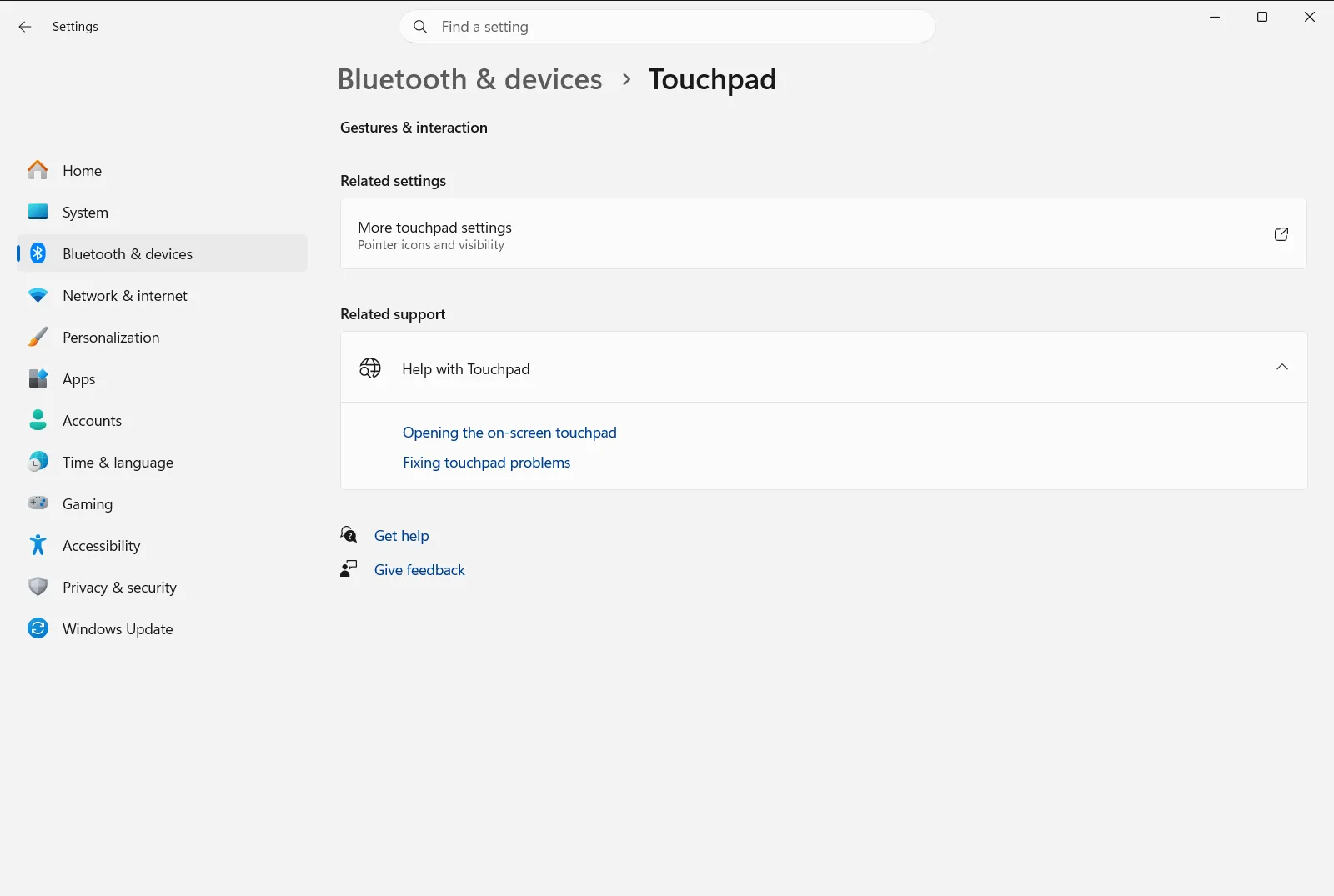
Typical options on that page include:
- Turn the touchpad on or off – switch the physical touchpad on or off.
- Turn off touchpad when a mouse is connected – decide whether the touchpad stays active when a mouse is connected.
- Change the speed the cursor moves when you use the touchpad – adjust how fast the pointer moves.
- Reset your touchpad to its default settings – restore the touchpad to its default settings.
These options change the physical touchpad only. On a work or school device, an organization can manage this page, so some options may be unavailable or locked.
If you can’t find the touchpad icon
- Recheck that the virtual touchpad switch in the taskbar’s settings is set to On. The icon appears in the system tray only while that switch is on.
- Make sure you are looking at the system tray next to the time and date, not at the apps pinned to the taskbar.
- If you closed the touchpad window, select the icon again to reopen it. Closing the window does not remove the icon.
Frequently asked questions
What is the fastest way to open the on-screen touchpad windows 11?
Right-click the taskbar, open its settings, and switch on the virtual touchpad icon in the system tray icons area. Then select that icon next to the time and date to open the on-screen touchpad.
How do I show the on-screen touchpad on a touch screen?
Press and hold the taskbar instead of right-clicking, then choose the taskbar settings entry. Switch on the virtual touchpad icon, then tap that icon in the system tray to open the touchpad.
How do I remove the virtual touchpad icon from the system tray?
Close the touchpad window if it is open, then open the taskbar's settings and switch the virtual touchpad option to Off. The icon then disappears from the system tray next to the clock.
Is the on-screen touchpad turned on from the touchpad settings page?
No. The on-screen touchpad is turned on from the taskbar's settings. The page Touchpad controls the physical touchpad, such as cursor speed or turning it on and off.
Why is the virtual touchpad icon missing from the taskbar?
The icon only appears in the system tray while its switch is on in the taskbar's settings. Turn that switch on, then look next to the time and date on the right side of the taskbar.
Official Microsoft documentation
