Settings → Gaming → Xbox Game BarHere are the keyboard shortcuts for Xbox Game Bar Windows 11 users need most: Windows + G opens the overlay, Windows + Alt + R starts and stops a recording, Windows + Alt + M toggles the microphone, and Windows + Alt + Print Screen takes a screenshot. They only work after Game Bar is turned on in Settings.
- In Settings → Gaming → Xbox Game Bar, make sure Game Bar is switched on, then press Windows + G.
- Press Windows + Alt + R to start a recording and again to stop it; clips are saved as MP4 files in the Captures folder under Videos.
- Press Windows + Alt + M during a recording to turn the microphone on or off.
How to use Xbox Game Bar keyboard shortcuts in Windows 11
1. Go to the Game Bar page
Press Windows + I to launch Settings. In the left navigation pane, select Gaming, then select Xbox Game Bar.
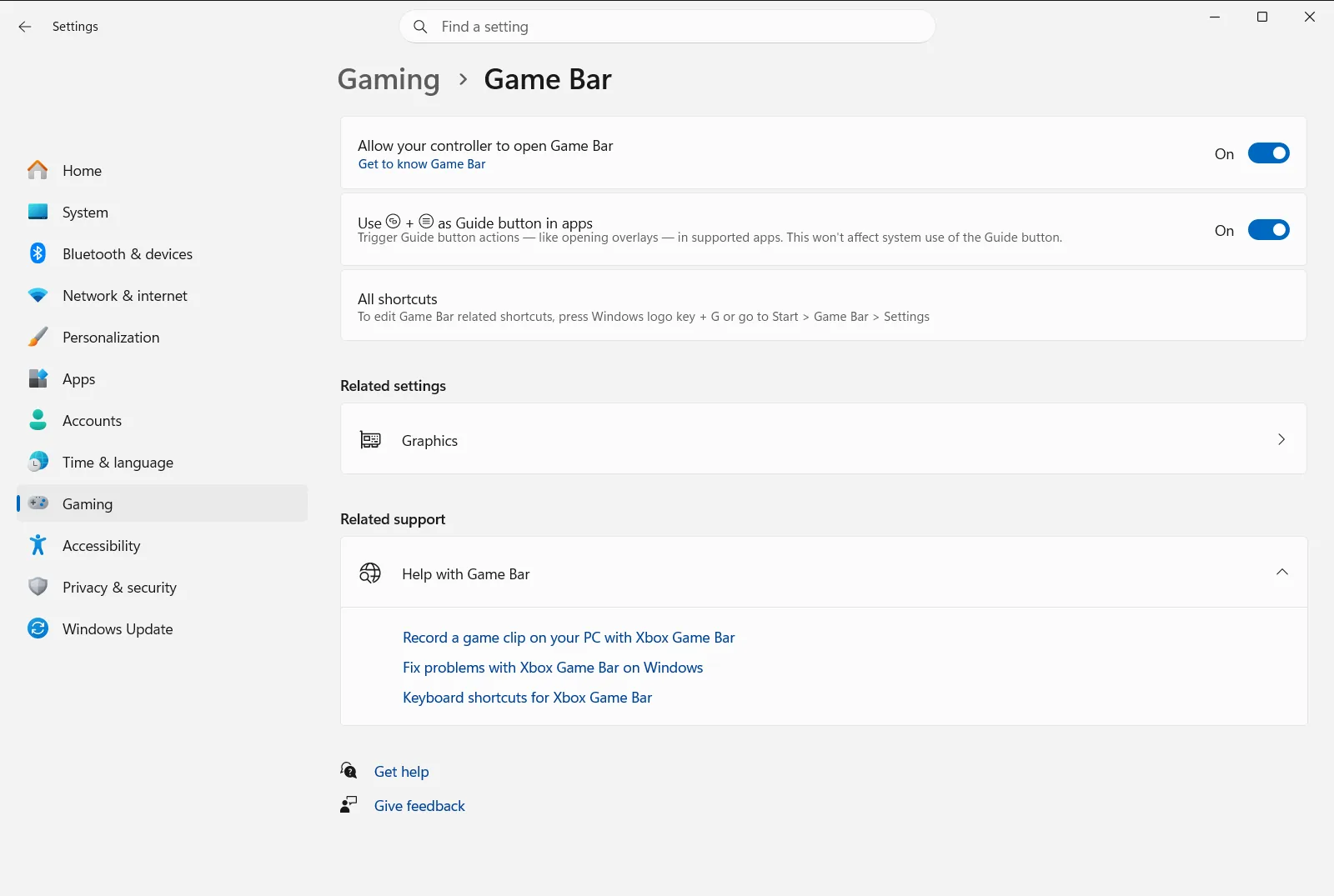
Alternatively, open the page directly:
Open "Xbox Game Bar" in Settingsor press Win+R, typems-settings:gaming-gamebar, and press Enter
2. Make sure Game Bar is turned on
At the top of the page, find the switch that turns Game Bar on and make sure it is set to on. If it is off, the shortcuts below will not bring up the overlay.
Because the switch controls the whole feature, the shortcuts in the next steps depend on it.
3. Open and hide the Game Bar overlay
Press Windows + G to show the Game Bar controls on top of your game or app. Press the same combination again to hide them.
The overlay is also where you reach the capture options, which are covered further down.
4. Start and stop a recording
Switch to the game or app you want to record, then press Windows + Alt + R. Use the app as you normally would until you have captured what you need.
Press Windows + Alt + R again to stop. You do not need the overlay open for this.
5. Turn the microphone on or off while recording
While a recording is running, press Windows + Alt + M to toggle the microphone. This is useful if you want to narrate one part of a clip and stay silent in another.
If you want the Game Bar controls visible while you do this, press Windows + G first.
6. Capture a screenshot
Press Windows + Alt + Print Screen to save an image of the game or app in front of you. Screenshots are saved as PNG files.
Xbox Game Bar shortcuts at a glance
- Windows + I: open Settings so you can check that Game Bar is on.
- Windows + G: show or hide the Game Bar controls.
- Windows + Alt + R: start or stop recording a clip.
- Windows + Alt + M: toggle the microphone during a recording.
- Windows + Alt + Print Screen: save a screenshot.
Include all computer sounds in your recordings
You can also set up capture entirely from the keyboard, which helps if you use a screen reader. Microsoft publishes a screen reader walkthrough for recording with Game Bar with the exact phrases you will hear.
- Press Windows + G to show the overlay.
- Press Tab until focus reaches the overlay’s settings button, then press Enter.
- Use the Down arrow key to reach the capture section.
- Press Tab until you reach the group of audio options, and select the option that includes all sound by pressing Spacebar.
- Press Windows + G again to hide the overlay.
Where recordings and screenshots are saved
Recordings are saved as MP4 files, and screenshots as PNG files. Both go to a folder named Captures inside your Videos folder. Each recording is named after the game or app you captured, followed by when you made it, so clips are easy to sort.
If a shortcut does nothing
- Open Xbox Game Bar again and confirm the switch that turns Game Bar on is set to on.
- Click or switch to the game or app first. Recording shortcuts apply to what is in front of you.
- Press Windows + G to check whether the overlay appears at all.
- The same page also lists Game bar controller settings, which relates to opening Game Bar from a controller instead of the keyboard.
- On a work or school device, an organization can manage this page, so some options may be locked or turned off for you.
Frequently asked questions
What are the keyboard shortcuts for Xbox Game Bar Windows 11?
Press Windows + G to open Game Bar, Windows + Alt + R to start or stop recording, Windows + Alt + M to toggle the microphone, and Windows + Alt + Print Screen for a screenshot. Turn Game Bar on in Settings first.
How do I turn on Xbox Game Bar so the shortcuts work?
Open Settings, select Gaming, then Xbox Game Bar, and switch on the main Game Bar toggle. If the overlay does not appear later, check this switch first.
How do I record my screen with a keyboard shortcut in Game Bar?
Switch to the game or app you want to capture, press Windows + Alt + R to start, and press the same combination again to stop. The MP4 file is saved in the Captures folder under Videos.
How do I mute my microphone while recording with Game Bar?
Press Windows + Alt + M during the recording to toggle the microphone on or off. If you want the Game Bar controls visible while you do it, press Windows + G first.
Where are Game Bar screenshots and recordings saved?
Recordings are MP4 files and screenshots are PNG files, and both go to a folder called Captures inside Videos. Recording file names include the game or app name plus the date and time of the clip.
Official Microsoft documentation
