Settings → Personalization → Lock screen → Change your lock screen backgroundChanging lock screen wallpaper in Windows 11 is done on the lock screen page of Settings. It controls what you see when your PC starts or wakes from sleep. You can show rotating images from Microsoft, a single picture of your own, or a slideshow made from folders on your device.
- Open Settings → Personalization → Lock screen, then use Change your lock screen background to pick the background type.
- To use your own image, choose the picture type and select Browse for a lock screen picture.
- Press Windows + L to lock your PC and check the new background.
How to change the lock screen wallpaper in Windows 11
1. Open the lock screen settings
Press Windows + I to launch Settings. In the left navigation pane, select Personalization, then select Lock screen.
Alternatively, open the page directly:
Open "Lock screen" in Settingsor press Win+R, type ms-settings:lockscreen, and press Enter
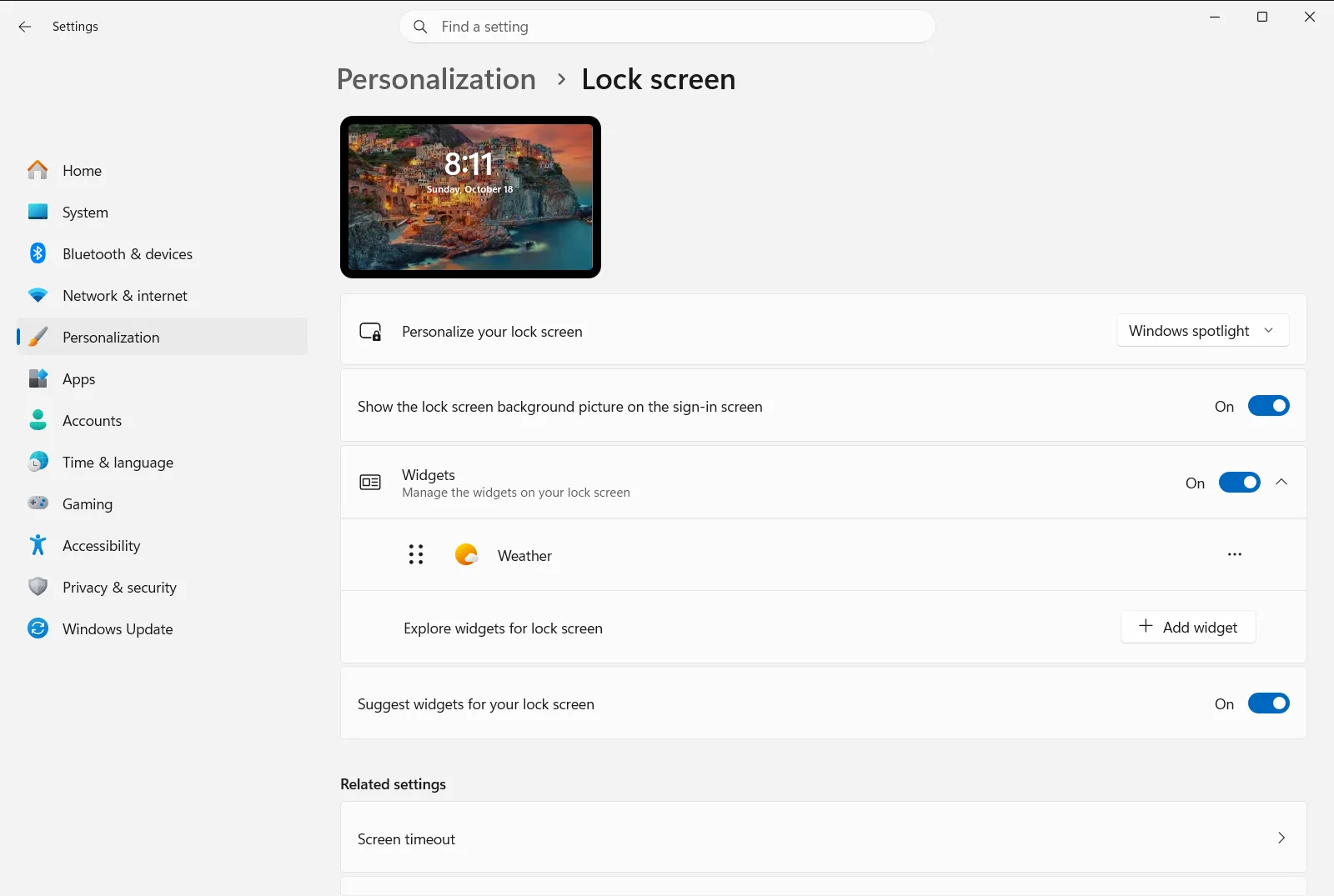
2. Choose the type of background
Find Change your lock screen background and open its list. It offers three kinds of background:
- A rotating set of images from Microsoft (the spotlight option). These come with tips, tricks, and notifications.
- A single picture that you choose.
- A slideshow of images from folders on your device.
If you pick the rotating Microsoft images, Windows changes the wallpaper for you and you can stop here.
3. Pick a single picture
After choosing the picture type, select one of the default images shown for it. To use your own photo, select Browse for a lock screen picture and choose an image file from your device.
4. Or build a slideshow from your folders
If you want the wallpaper to change between several photos, choose the slideshow type. Then select Add a folder to the lock screen slideshow and pick a folder that contains your pictures. You can add more than one folder.
5. Lock your PC to check the result
Press Windows + L to lock your PC. The lock screen should now show your new wallpaper. Sign in again to carry on working.
Fine-tune the lock screen slideshow
If you use a slideshow, open Advanced slideshow settings for extra controls. This page includes the following options:
- Include Camera Roll folders in Lock Screen adds your camera folders to the pool of pictures.
- Only use pictures that fit my screen in Lock Screen skips images that don’t suit your display.
- Enable Lock Screen slideshow on battery power lets the slideshow run when your device isn’t plugged in.
- Enable Lock Screen slideshow when my PC is locked turns the slideshow on when the PC is locked.
- Control how long to play Lock Screen slideshow sets how long the slideshow plays.
Related lock screen options
Several other options on the same page change how the wallpaper looks or behaves:
- Show lock screen background picture on the sign-in screen uses the same image on the sign-in screen, so both screens look consistent.
- Make the lock screen image react when I move my PC makes the image shift slightly when you move your device. Turn it off if you prefer a still picture.
- Get fun facts, tips, tricks, and more on your lock screen adds extra content from Microsoft on top of the lock screen.
- Manage lock screen widgets lets you add, remove, or reorder widgets on the lock screen.
Microsoft also describes these options in its lock screen customization guide.
If you can’t change the wallpaper
On a work or school device, an organization can manage the lock screen settings. In that case some options may be locked or reset. Contact your administrator if the lock screen background won’t change.
Frequently asked questions
What is the easiest way of changing lock screen wallpaper in Windows 11?
Open Settings, go to Personalization → Lock screen, and use Change your lock screen background to pick spotlight, a picture, or a slideshow. Lock your PC to check it.
How do I use my own photo as the lock screen background?
Choose the picture type under Change your lock screen background, then select Browse for a lock screen picture and pick an image file from your device. You can also use one of the default images shown.
How can I show several pictures on the lock screen instead of one?
Choose the slideshow type, then select Add a folder to the lock screen slideshow and pick a folder of photos. You can add more than one folder to the slideshow.
Can the sign-in screen use the same image as the lock screen?
Yes. On the lock screen page, turn on Show lock screen background picture on the sign-in screen so both screens use the same background picture and look consistent.
How do I stop the lock screen image from moving on my laptop?
Turn off Make the lock screen image react when I move my PC on the lock screen page. The wallpaper then stays still when you move your device.
Official Microsoft documentation
