Settings → AccessibilityCustomizing pointer appearance in Windows 11 means changing how the mouse pointer looks so it is easier to spot and follow on your screen. You can adjust its color and size, add trails that show where it moves, and show a visual indicator when you touch the screen. All of these options are in the accessibility part of Settings.
- Press Windows + I to open Settings, select Accessibility, open the page for the mouse pointer and touch, and pick a pointer color and size.
- If the screen as a whole needs more contrast, go to Settings → Accessibility → Contrast themes and choose a theme.
- On the same pointer page you can also turn on pointer trails and the touch indicator.
How to customize the pointer appearance
1. Open Settings
Press Windows + I to launch Settings.
2. Open the accessibility section
In the left navigation pane, select Accessibility. This section collects the tools that make Windows easier to see, hear, and control.
3. Open the mouse pointer and touch page
Find the page for the mouse pointer and touch in the list and select it. This is where Windows keeps the options for how the pointer and touch feedback look.
4. Change the pointer color and size
Choose the pointer options that work best for you. The pointer is easier to find when it is larger or uses a color that stands out from your background. Windows applies the change right away, so move the mouse and check that the pointer is easy to follow.
If the result is not comfortable, change the options again. There is no separate save button to look for.
5. Add pointer trails or a touch indicator
On the same page, turn on the option for pointer trails if you want a short trail to follow the pointer as it moves. This helps you see the direction and speed of your mouse.
If you use a touchscreen, turn on the touch indicator. Windows then shows a circle where your finger touches the screen. Expand the touch indicator settings and select the option that makes the circle darker and larger if you want it to stand out more.
Make the whole screen easier to see with a contrast theme
A pointer is only easy to see when it stands out from what is behind it. If the colors on your screen blend together, a contrast theme can increase the difference between elements such as text, buttons, and backgrounds. The settings page is also reachable directly:
Open "Contrast themes" in Settingsor press Win+R, type ms-settings:easeofaccess-highcontrast, and press Enter
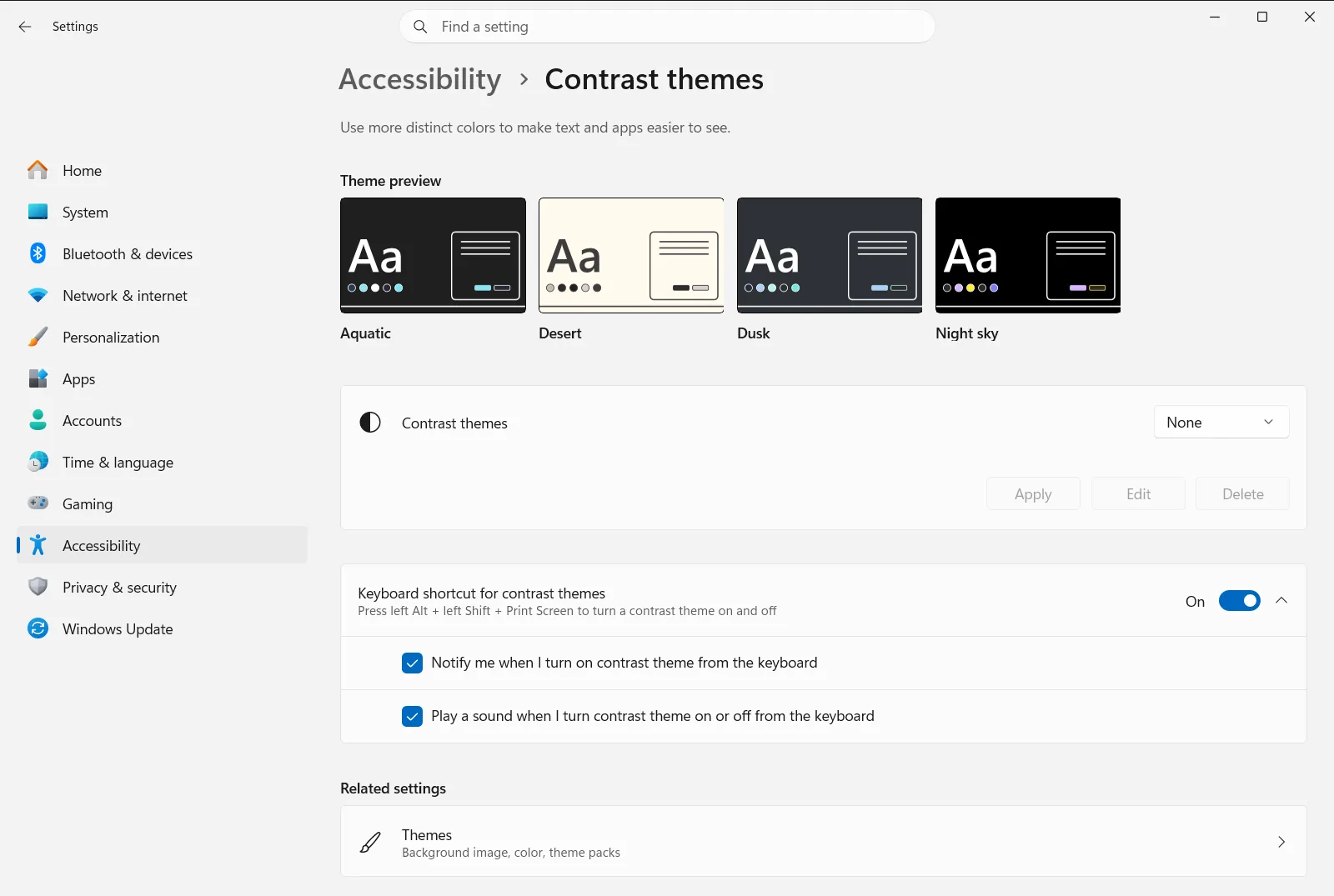
To get there by hand, follow this path: Settings › Accessibility › Contrast themes. Then do the following:
- Open the list under Choose a contrast theme and select one of the available themes.
- Apply the theme and wait a moment while Windows changes the colors on your screen.
- Check the pointer against the new colors. If it is still hard to see, go back to the pointer page and adjust its color or size.
Microsoft describes these options, along with other vision tools, in its article Make Windows easier to see.
Other ways to find the pointer more easily
- Enlarge the screen. Press Windows + + to start the built-in screen zoom, which enlarges part or all of the screen, and Windows + Esc to close it.
- Combine settings. A larger pointer, trails, and a contrast theme work well together. Try one change at a time so you can tell which one helps most.
- Work or school devices. If the contrast theme page is locked or some options are missing, your organization may manage these settings.
If the pointer still looks wrong
If you do not see a change after adjusting the pointer, close Settings and reopen it to confirm your choices were kept. If a contrast theme made the screen harder to read, return to Contrast themes and choose a different theme or turn the theme off.
Frequently asked questions
How do I start customizing pointer appearance in Windows 11?
Open Settings with Windows + I, select Accessibility, and open the page for the mouse pointer and touch. There you can change the pointer color and size, add trails, and turn on a touch indicator.
Can I make the Windows 11 mouse pointer bigger or change its color?
Yes. On the accessibility page for the mouse pointer and touch, you can choose a larger pointer and a color that stands out. The change is applied immediately, so you can check it by moving the mouse.
What are pointer trails and how do I turn them on?
Pointer trails show a short trail behind the pointer so you can see where the mouse is moving. Turn on the pointer trails option on the accessibility page for the mouse pointer and touch.
How can I make touches on the screen easier to see?
Turn on the touch indicator on the accessibility page for the mouse pointer and touch. Windows then shows a circle where you touch, and you can choose the option that makes the circle darker and larger.
Can a contrast theme help me see the pointer better?
A contrast theme increases the difference between items on screen, which can make the pointer easier to see. Open Contrast themes under Accessibility and apply a theme.
Official Microsoft documentation
