Settings → Personalization → StartTo find the Start menu in Windows 11, look for the four-pane Windows logo icon centered on your taskbar, or press the Windows key on your keyboard. Clicking this icon or tapping the shortcut opens the flyout menu where you can access pinned applications, recent files, and the search bar. If you prefer the classic location from earlier versions of Windows, you can reposition the icon to the left corner or customize its layout through system settings.
- Open Settings, select Personalization, choose Start, and configure Show or hide the Pinned section in Start.
- Press the Windows key or select the centered Windows icon on the taskbar to open the Start menu at any time.
- Open the Start menu after changing your options to verify that your pinned applications and recommended sections appear as intended.
How to find and configure Start menu settings in Windows 11
The Windows 11 Start menu brings together your daily applications, suggested documents, and system controls. You can adjust which sections appear and fine-tune how shortcuts are displayed by visiting the dedicated personalization settings.
1. Open Start settings
Press Windows + I to launch Settings. In the left navigation pane, select Personalization, then select Start.
Alternatively, open the page directly:
Open "Start" in Settingsor press Win+R, type ms-settings:personalization-start, and press Enter
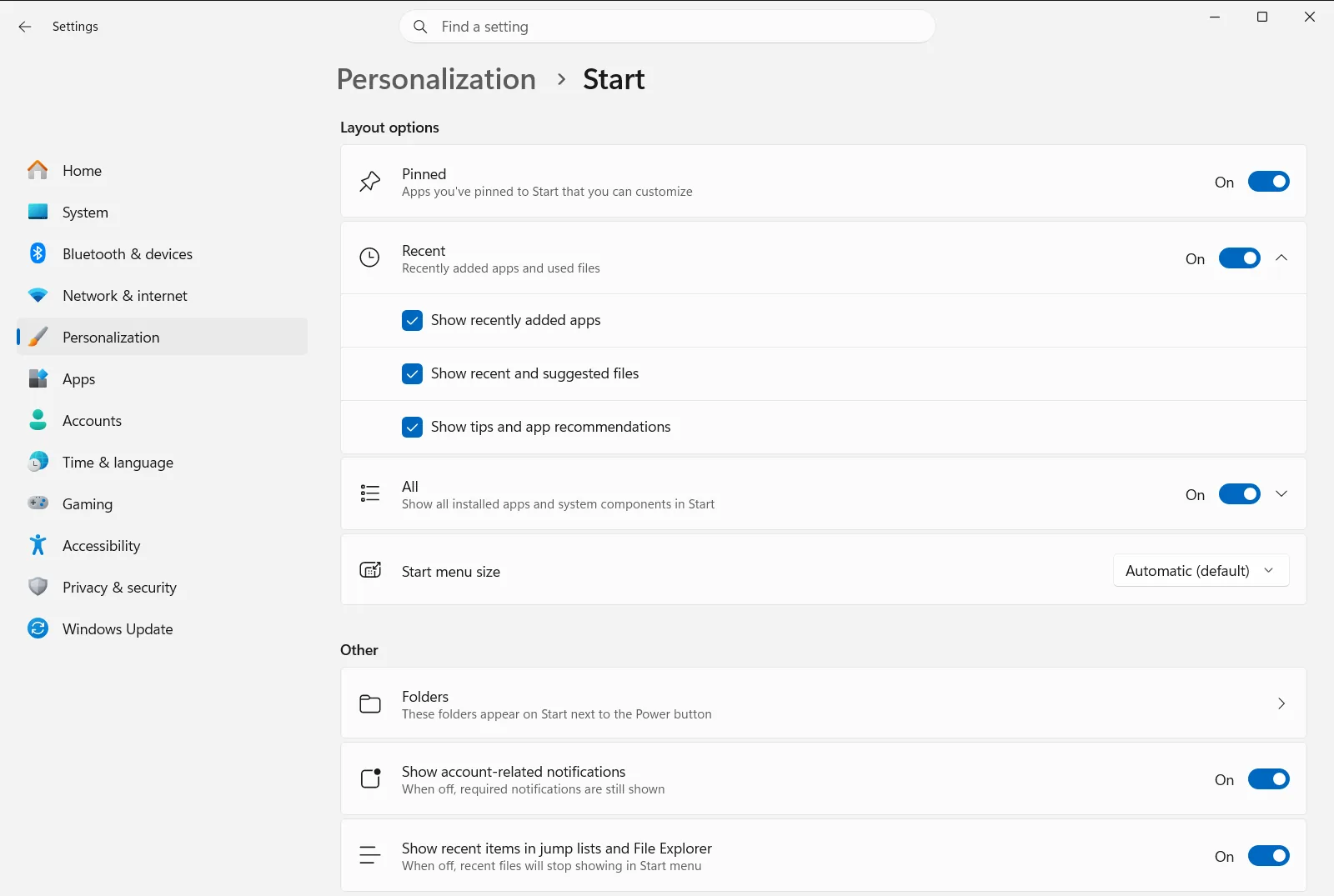
2. Customize pinned apps and layout options
Settings › Personalization › Start › Layout optionsLocate the layout section on the page. Turn on or turn off Show or hide the Pinned section in Start to choose whether your favorite pinned applications remain visible when you open the menu. You can also toggle Show or hide the All Apps section in Start to decide whether the complete list of installed applications appears.

3. Adjust recommendations and recent items
Settings › Personalization › Start › RecommendedUnder the recommendations section, toggle Show recent and suggested files in Start to decide whether Windows displays recently opened files and file recommendations. If you prefer a cleaner interface, you can also toggle Show recently added apps in Start or Show most used apps in Start to control how newly installed programs and frequent software appear.

4. Add folder shortcuts next to the power button
Settings › Personalization › StartSelect Choose which folders appear on Start to open the folder list. In this section, you can enable quick-access shortcuts that sit directly beside the power button at the bottom of the Start menu, including Show Documents folder on Start, Show Downloads folder on Start, Show File Explorer on Start, and Show Settings on Start.

5. Configure Start menu size and companion apps
Settings › Personalization › Start › OtherUnder the additional settings section, adjust Change Start menu size to modify the overall dimensions of the Start menu window. You can also select Choose which companions appear on Start to integrate mobile device companion panels, which show phone notifications and battery status directly alongside your Start apps.

Locating the Start menu on the Windows 11 desktop
In Windows 11, the Start button is located near the center of the taskbar by default. The four-square Windows icon sits alongside your active app icons and pinned shortcuts. Clicking the icon or pressing the Windows key opens the flyout panel immediately.
The Windows 11 Start menu is structured into distinct functional areas:
- Search: A search field at the top allows you to quickly find installed apps, web results, settings, and documents by typing keywords.
- Pinned: A customizable grid where you can pin programs, web links, and file folders. You can drag icons over one another to group them into folders or drag them to reorder items.
- Recommended: An area that highlights recently created files, frequent documents, and newly installed software.
- All apps: An expandable view that presents your complete library of installed software in an alphabetical list, grid, or categorized layout.
- Account and power: Profile controls in the bottom corner let you switch accounts, lock the computer, or sign out, while the power button lets you sleep, shut down, or restart.
- Mobile device companion: A connected panel powered by Phone Link that displays phone messages, missed calls, and device status.
For more details on grouping pinned shortcuts and organizing folders, consult Microsoft’s guide to customizing the Windows Start menu.
If you prefer the Start button at the bottom-left corner of the screen, you can reposition the entire taskbar grouping. Right-click an empty area of the taskbar, select the taskbar customization option, expand the taskbar behavior settings, and change the taskbar alignment setting from center to left. The Start icon will immediately shift back to the far left corner.
Managing privacy and recommendations in the Start menu
Windows 11 includes several privacy controls and notification switches for the Start menu. In Start, you can adjust how personal information and suggestions appear:
- Turn on Hide your account profile information to hide your user account name and profile picture from the Start screen, which protects your privacy when sharing screens or streaming.
- Turn off Show account related notifications in Start if you do not want account warning badges or promotional notices appearing next to your user avatar.
- Toggle Show suggestions in the recommended section off to stop Windows from displaying tips, promotions, or app suggestions in the recommended section.
- Adjust Show items in jump lists and recent files in File Explorer to manage whether recent files and jump lists appear when you right-click items in Start or File Explorer.
If your computer is provided by a business or school, some of these Start settings and folder shortcuts may be locked by organization policies.
Frequently asked questions
Where do I find the start menu in Windows 11?
Look for the centered Windows logo icon on the taskbar or press the Windows key to open the Start menu. To customize its layout, navigate to Settings > Personalization > Start.
Why is the Start button in the middle of the taskbar instead of the bottom left?
Windows 11 aligns taskbar icons and the Start button to the center by default. You can right-click an empty taskbar area, open taskbar configuration options, and change the taskbar alignment setting from center to left to return it to the corner.
How can I add folders like Downloads or Documents next to the power button?
In Settings, open Personalization > Start and choose Choose which folders appear on Start. Enable shortcuts like Show Documents folder on Start or Show Downloads folder on Start.
Can I hide my account email and profile picture from the Start menu?
Yes, you can hide your profile details by navigating to Start in Settings and turning on Hide your account profile information. This prevents personal account information from appearing on the Start menu screen.
How do I remove suggested files and recent items from the Start menu?
Go to Settings > Personalization > Start and turn off Show recent and suggested files in Start. You can also disable Show recently added apps in Start to hide recent apps.
Official Microsoft documentation
