Settings → Accounts → Email & accounts → Add, remove, or manage app accountsTo sign in to Outlook.com on Windows 11, you can access your mailbox through your web browser or connect your account directly in system settings for single sign-on across apps. You will need your full Microsoft account username—such as an address ending in @outlook.com, @hotmail.com, or @live.com—and your account password. Connecting your account syncs your messages, calendar, and contacts while keeping your credentials secure.
- Open Settings > Accounts > Email & accounts and select Add, remove, or manage app accounts to sign in.
- Alternatively, open your web browser, navigate to the Outlook.com login page, and enter your Microsoft account credentials.
- If you sign in from a new location or unfamiliar device, complete identity verification with a security code when prompted.
How to sign in to your Outlook.com account in Windows 11
When you want your desktop apps, email clients, and system features to access your mailbox without asking for your password every time, you can connect Outlook.com account credentials directly in Windows 11.
1. Open Email & accounts in Settings
Press Windows + I to launch Settings. In the left navigation pane, select Accounts, then select Email & accounts.
Alternatively, open the page directly:
Open "Email & accounts" in Settingsor press Win+R, type ms-settings:emailandaccounts, and press Enter
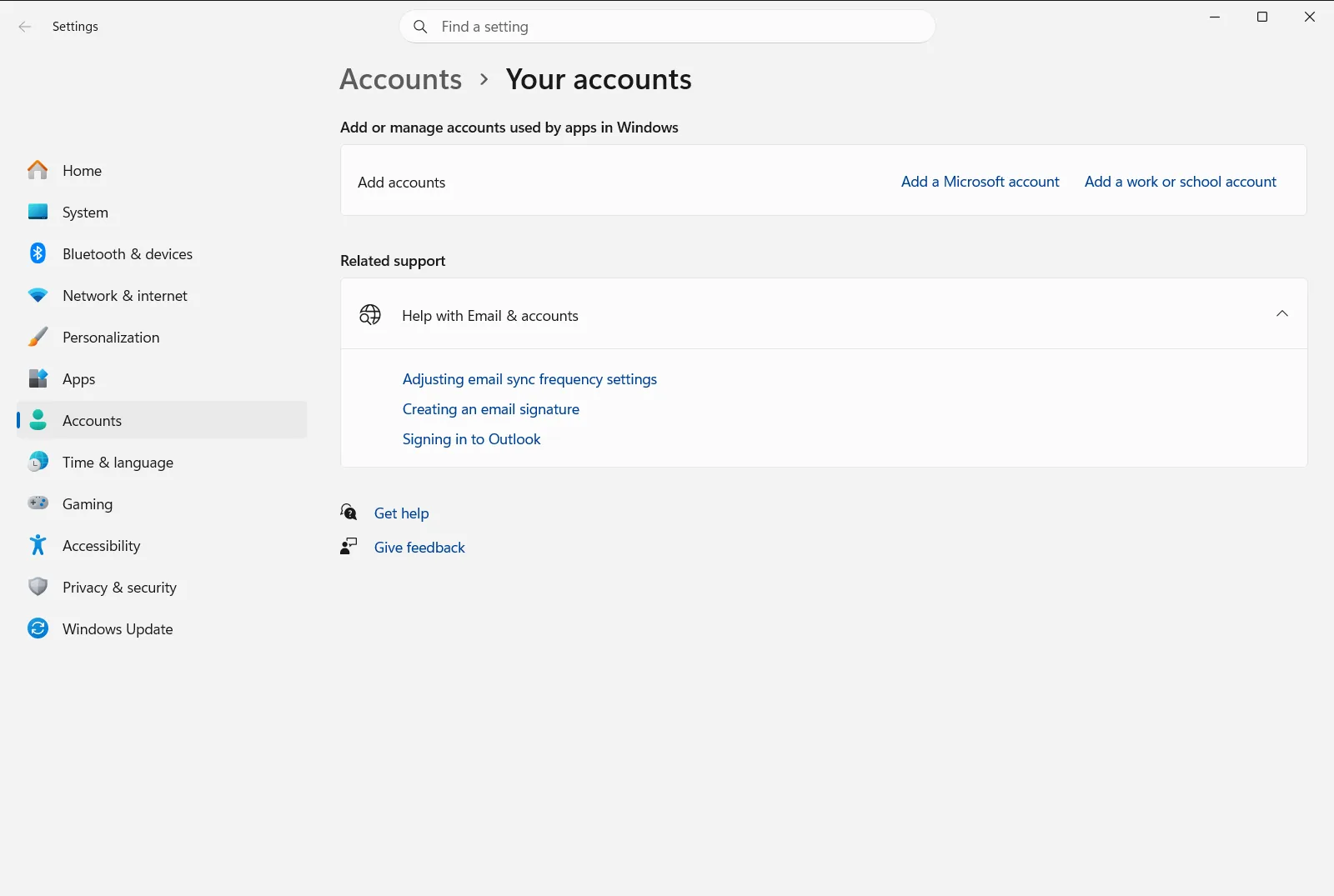
2. Locate Add, remove, or manage app accounts
Settings › Accounts › Email & accountsUnder the section for accounts used by apps and websites, locate Add, remove, or manage app accounts. Select the control to add a new account so Windows can register your credentials for single sign-on across installed applications.
3. Enter your account credentials
A dedicated sign-in window will open on your screen. Type your complete email address—which can be an @outlook.com, @hotmail.com, @live.com, or @msn.com address—and select the prompt to proceed.
On the subsequent screen, enter your password carefully to sign in to Microsoft account services. If your account uses passwordless sign-in, you can instead send a notification to your mobile authenticator app to authorize the request.
4. Complete security verification
If two-step verification is active on your Microsoft account, confirm your identity when prompted. You can approve the login request through your authenticator application or request a one-time security code sent via text message or backup email.
After successful verification, confirm whether Windows should remember your credentials across other apps on the device. Once confirmed, your Outlook.com mailbox and associated services will be connected.
Signing in to Outlook.com through a web browser
If you prefer checking your email on the web rather than adding your account to Windows, you can access your mailbox directly through any modern web browser. Open your browser and navigate to the official Outlook.com sign-in page. Select the sign-in button, type your Microsoft account email address, and provide your password to access your inbox, calendar, and contacts.
When accessing webmail from your personal Windows 11 computer, you can choose to remain signed in to reduce future authentication prompts. However, if you are using a shared or public computer, always sign out when you finish and close the browser session to keep your personal messages confidential.
Because Microsoft consolidated its consumer webmail services, the steps to sign in to Hotmail, Live, or MSN accounts are identical to signing in with an Outlook.com address. You will use the same username and password required to sign in to Microsoft account services across the web.
For official guidance on web access, account settings, and supported browser requirements, consult the Microsoft Support guide on signing in to Outlook.com.
Managing connected accounts and single sign-on
Adding your Outlook.com details to Windows 11 enables single sign-on across built-in services and web applications. When an account is registered under Email & accounts, compatible applications can access your mailbox and calendar without asking you to type your password repeatedly.
You can review or modify your connected accounts at any time. Return to Settings, navigate to Accounts, and select Email & accounts. Select your registered account under Add, remove, or manage app accounts to manage its synchronization options, update stored credentials, or remove the profile if you no longer wish to use it on the PC.
Troubleshooting Outlook.com sign-in problems
Microsoft continuously monitors accounts for unexpected activity to prevent unauthorized access. If you travel to a new region, connect from an unfamiliar network, or use a new device, you may encounter an extra security prompt asking you to confirm that it is really you. Having up-to-date security information—such as an active phone number or alternate email address—ensures you can receive the required verification code and regain immediate access to your messages.
If Windows reports that your password is incorrect, ensure that Caps Lock is off and that your keyboard layout matches your language. If you still cannot log in to Outlook.com, use the account recovery workflow on the sign-in prompt to reset your password using your backup security methods.
On computers managed by a company, school, or organization, IT administrators can apply system policies to Email & accounts. These administrative policies may prevent users from linking personal Microsoft accounts or changing app account settings. If options on the page appear disabled or display an organization notice, contact your workplace administrator for assistance.
Frequently asked questions
How do I sign in to outlook.com on Windows 11?
You can sign in to Outlook.com by visiting the website in your web browser or by adding your credentials in Settings under Accounts > Email & accounts > Add, remove, or manage app accounts.
Can I use my Hotmail or Live address to sign in to Outlook.com?
Yes, Microsoft accounts ending in @hotmail.com, @live.com, @msn.com, and @outlook.com all share the same sign-in service and credentials. You can use any of these addresses interchangeably on the login screen.
Why does Outlook.com ask to verify my identity when I travel?
Microsoft monitors unusual sign-in activity to protect accounts from unauthorized access. When signing in from a new location or unfamiliar device, you must confirm your identity using a secondary security code.
How do I remove an Outlook.com account from Windows 11?
Open Settings, navigate to Accounts > Email & accounts, find your account under Add, remove, or manage app accounts, select it, and choose the option to manage or remove it from your device.
Why are email account settings blocked on my work computer?
An organization can enforce management policies that restrict adding or altering email accounts. If your computer is managed by a business or school, an administrator policy may disable these options.
Official Microsoft documentation
