Settings → Personalization → Colors → Turn on light mode systemwideResolving high contrast problems in Windows 11 typically requires turning off an active contrast theme and reconfiguring standard visual personalization settings. An accidental keyboard shortcut often triggers extreme contrast colors, locking normal themes and leaving windows harsh or illegible. Toggling contrast themes off and readjusting your display mode quickly restores comfortable viewing.
- In Settings, select Personalization, open Colors, and configure Turn on light mode systemwide.
- Press Left Alt + Left Shift + Print Screen to instantly turn off high contrast mode if it was activated unintentionally.
- Toggle Transparency effects or select Choose your accent color to restore standard system styling.
How to resolve high contrast problems by restoring color settings
1. Open Colors in Settings
Press Windows + I to launch Settings. In the left navigation pane, select Personalization, then select Colors.
Alternatively, open the page directly:
Open "Colors" in Settingsor press Win+R, type ms-settings:colors, and press Enter
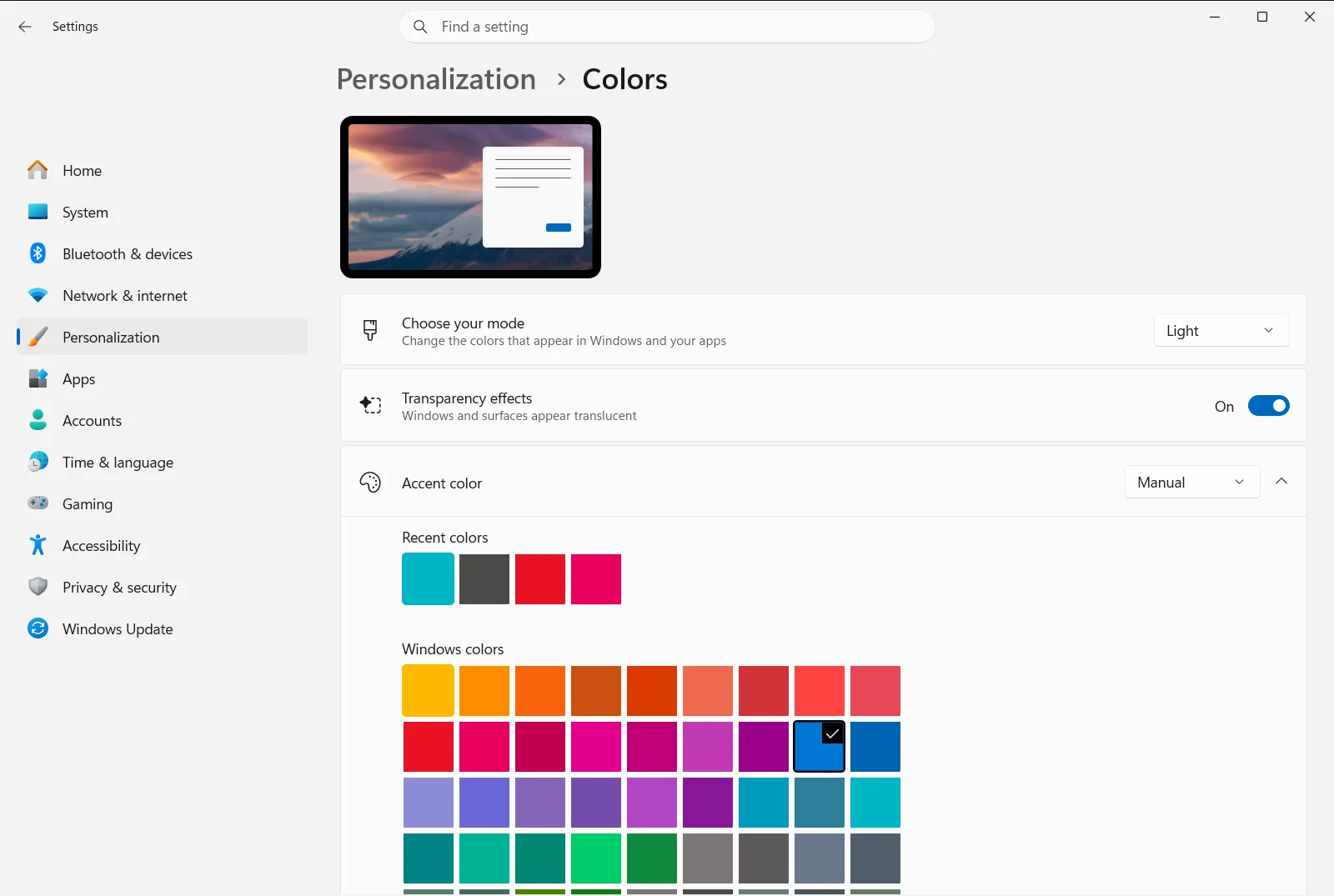
2. Toggle off high contrast mode
If Windows displays stark solid backgrounds, harsh neon borders, or grayed-out theme options, an accessibility contrast theme is currently engaged. Press Left Alt + Left Shift + Print Screen on your keyboard to immediately toggle off high contrast mode. Windows may display a brief “Please wait” prompt on screen for a few moments while it reloads default visual rendering.
3. Reset the system color mode
Settings › Personalization › ColorsLocate Turn on light mode systemwide to manage how Windows and installed applications render screen tones. Select Light, Dark, or Custom from the drop-down menu to reset your color palette. Returning to your preferred mode eliminates washed-out surfaces and restores standard interface brightness.
4. Adjust transparency effects
Settings › Personalization › ColorsFind Transparency effects on the page. If text readability suffers because wallpaper or background windows bleed through active panes, switch this toggle to Off to establish solid opaque surfaces. If you prefer subtle translucent panels across the taskbar and menu headers, switch the toggle to On.
5. Select a distinct accent color
Settings › Personalization › ColorsNavigate to Choose your accent color to define the highlight color used across interactive controls, toggles, and navigation links. If controls blend into surrounding panels, choose a bolder swatch from the color grid. Alternatively, enable Automatically pick an accent color from my background so Windows automatically extracts a harmonious accent tone from your current desktop background.
Customizing contrast themes to resolve readability problems
For users who rely on high contrast to accommodate low vision or color sensitivity, turning the feature off completely is not always desirable. However, preset contrast themes can sometimes cause readability problems, such as hyperlinks blending into dark backgrounds, inactive text becoming invisible, or buttons disappearing entirely. Windows allows you to resolve these specific contrast conflicts by building a customized contrast profile.
When modifying a contrast theme, you can individually assign distinct color values to six essential interface elements:
- Background: Sets the solid backdrop color behind body text across Windows windows, applications, and web pages.
- Text: Configures the foreground font color for readable content on all standard surfaces.
- Hyperlinks: Defines the color of clickable web links and navigational application links to ensure they stand out clearly against the background.
- Inactive Text: Specifies the shade applied to disabled options and grayed-out menu controls, keeping them distinct yet recognizable.
- Selected Text: Determines the highlight color for selected paragraphs, highlighted menu items, and active ribbons.
- Button Text: Governs the font color displayed inside clickable buttons and command bars.
By picking colors on the palette and adjusting the brightness slider, you can eliminate clashing color pairings while maintaining necessary visual distinction. For detailed instructions on saving and managing personalized contrast configurations, refer to the Microsoft guide to changing color contrast in Windows.
Enhancing visual separation with app themes and accent surfaces
Low contrast issues frequently stem from mismatched application themes or poor separation between overlapping application windows. In Colors, selecting Custom under Turn on light mode systemwide unlocks separate controls for your operating system and application layers.
You can configure Turn on dark mode for apps to Dark while setting Turn on dark mode systemwide to Light, or vice versa, tailoring the visual hierarchy to your working environment. If flat window edges make it difficult to determine which window is currently active, scroll down and enable Apply color to title bar. This applies your selected accent color directly to active title bars and window borders, producing clear visual boundaries.
You can also enable Apply color to Start, taskbar, and Notification Center to extend your accent color across the Start menu, taskbar, and notification area, enhancing peripheral visibility across the desktop. Keep in mind that on managed business or school computers, certain color and transparency personalization policies may be enforced or restricted by organization administrators.
Frequently asked questions
What is the quickest method for resolving high contrast problems in Windows 11?
Press Left Alt + Left Shift + Print Screen to turn off high contrast mode. Then go to Colors in Settings and reset Turn on light mode systemwide to restore your preferred visual appearance.
Why are color personalization settings grayed out or locked in Windows 11?
Options in Colors are disabled when an accessibility contrast theme is active. Turning off high contrast mode restores full access to Turn on light mode systemwide and Choose your accent color.
How do you turn off transparency if it causes low contrast on open windows?
Open Colors inside Settings and toggle Transparency effects to Off. This replaces see-through surfaces with solid opaque backgrounds for improved text contrast.
What should you do if text or links are illegible inside a contrast theme?
Customize the active contrast theme by editing individual element colors. You can reassign clearer shades to the background, body text, hyperlinks, and buttons, then save the modified profile to eliminate illegible color combinations.
How can you make window borders and title bars easier to distinguish?
In Colors, choose a vivid accent tone under Choose your accent color and enable Apply color to title bar. This paints active window frames with contrasting color.
Official Microsoft documentation
