Settings → System → About → Windows specificationsTo check multiple language support in Windows 11, verify the specific edition of the operating system installed on your device. Every edition supports adding extra display languages except for Windows 11 Home Single Language, which restricts the interface to one language pack. You can confirm your installed edition by viewing your system specifications in Settings.
- Open Settings, select System > About, and check Windows specifications.
- If your edition is Windows 11 Home Single Language, only one display language is supported; all other editions support multiple languages.
- To add multiple display languages on a single-language edition, upgrade to Windows 11 Home or Pro through the digital store or with a product key.
How to check multiple language support in Windows 11
Verifying language capability requires finding your operating system edition name. You can check this information in a few steps using the system configuration interface:
1. Open About
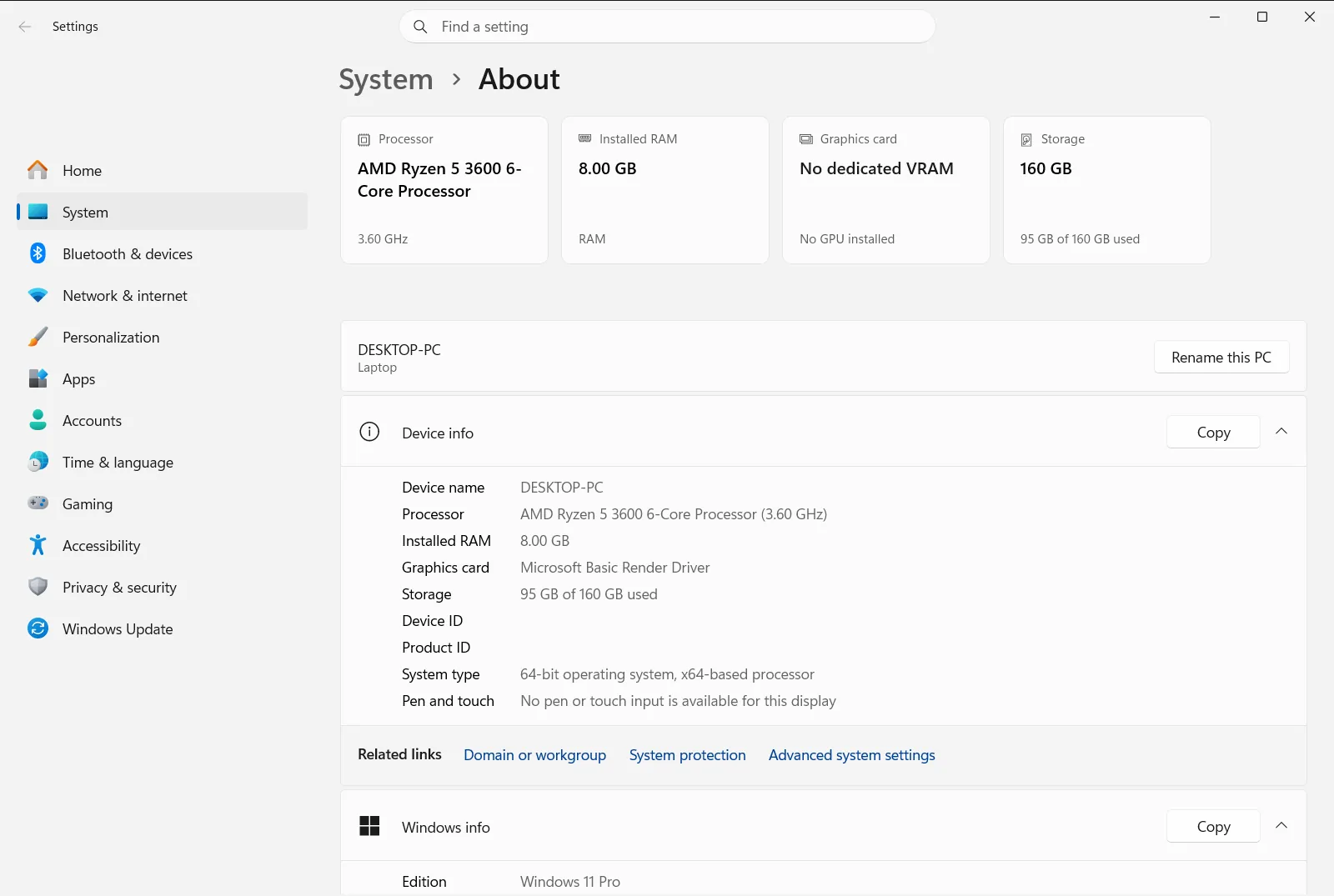
Press Windows + I on your keyboard to launch Settings. In the navigation pane on the left side, select System, then scroll down the main list and select About.
Alternatively, open the page directly:
Open "About" in Settingsor press Win+R, type ms-settings:about, and press Enter
2. Locate Windows specifications
After navigating to the About screen, scroll past the hardware summary to find the section titled Windows specifications. This area provides specific information about your operating system build, version, and edition.
3. Check your Windows edition
Review the edition listed inside the Windows specifications section to determine your language capabilities:
- Windows 11 Home Single Language: Your license supports only one display language. You cannot install additional display language packs to switch the user interface.
- Windows 11 Home: Full support for multiple display languages. You can download, install, and switch between any available language packs.
- Windows 11 Pro, Enterprise, or Education: Full support for multiple display languages across the operating system interface and all user accounts.
If your installation is any edition other than Windows 11 Home Single Language, your computer supports multiple languages without restrictions.
Understanding Windows 11 single language limitations
Windows 11 is distributed in several editions designed for various hardware categories and regional markets. Devices featuring Windows 11 Home Single Language are commonly pre-installed by computer manufacturers in selected regions. While these computers offer the same core productivity and security features as other editions, their license agreement restricts the operating system display interface to one language.
If you have a single-language edition and attempt to add another language pack in your system language options, the operating system informs you of the restriction. As outlined in the Microsoft Support guide on checking multiple language support, Windows displays one of the following notifications when trying to install an extra language:
- Only one language pack allowed.
- Your Windows license supports only one display language.
There is an important technical difference between your Windows display language and your keyboard input methods. The display language changes the text used across the desktop, dialog boxes, system notifications, and menus. While Windows 11 Home Single Language locks the display language to the original choice, you can still add multiple keyboard layouts, input methods, and typing tools for different languages without changing your license.
Upgrading your edition for multiple language support
If you confirm that your computer runs Windows 11 Home Single Language and you need to change your display language, you must upgrade your operating system. Upgrading changes your licensing tier and immediately removes the restriction, allowing you to install and switch between multiple display languages.
To upgrade your edition, you have two primary options:
- Upgrade through the digital store: You can purchase an edition upgrade directly through the built-in digital storefront in Windows to move to Windows 11 Home or Windows 11 Pro. The digital upgrade process preserves your installed applications, files, and personal settings while unlocking full language capabilities.
- Upgrade with a product key: If you already have a valid product key for Windows 11 Home or Windows 11 Pro, you can enter the key in your system activation settings to perform an in-place edition upgrade.
Once the upgrade finishes and your computer restarts, you can return to your language options to download and apply any display language you need.
Note that if your device is owned or managed by an organization, configuration policies may manage settings on the About page and prevent you from modifying editions or system language settings.
Frequently asked questions
How to check multiple language support in Windows 11?
Check your edition by opening Settings and navigating to System > About. Windows 11 Home Single Language supports only one display language, while all other editions support multiple languages.
Which Windows 11 editions do not support multiple languages?
Only Windows 11 Home Single Language limits your computer to a single display language. All other editions, including standard Windows 11 Home, Pro, and Enterprise, provide full support for installing and using multiple display languages.
What error message indicates a single language edition of Windows 11?
Windows displays the message "Only one language pack allowed" or "Your Windows license supports only one display language." Seeing either notification confirms that your current edition restricts you to a single display language.
Can I add different keyboard layouts on Windows 11 Home Single Language?
Yes, you can add multiple keyboard layouts and input methods on Windows 11 Home Single Language. The single language restriction applies strictly to the operating system display language, not your typing or keyboard preferences.
How can I enable multiple languages on Windows 11 Home Single Language?
Upgrade your operating system edition to Windows 11 Home or Windows 11 Pro. You can purchase an upgrade through the digital store or enter a valid product key in system activation settings to unlock multiple display languages.
Official Microsoft documentation
