Settings → System → About → Windows specificationsChecking Windows version details allows you to identify your operating system edition, feature version, and OS build. In Windows 11, viewing your Windows 11 version details helps verify application compatibility and confirm that recent security updates have been installed. These settings also reveal your processor architecture and hardware configuration.
- Open Settings, select System, open About, and check Windows specifications.
- Examine your processor and system architecture under View device name, processor, RAM, and Windows version to see whether your system runs 64-bit Windows.
- Work or school organization policies may manage your device and restrict access to specific system details.
How to check Windows version details
1. Open system information
Press Windows + I to launch Settings. In the left navigation pane, select System, then select About.
Alternatively, open the page directly:
Open "About" in Settingsor press Win+R, type ms-settings:about, and press Enter
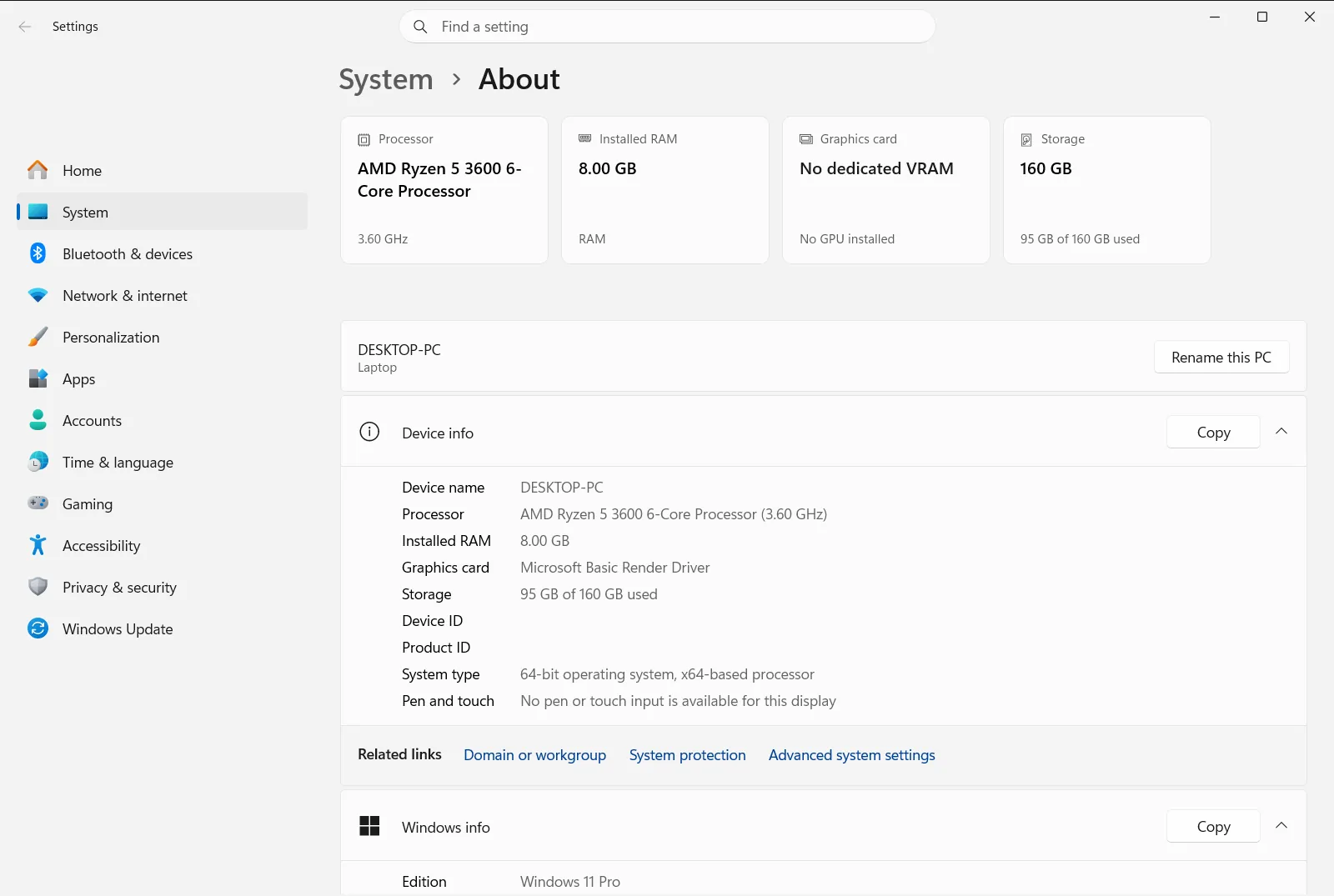
2. Review operating system details
Scroll down the page to find Windows specifications. Under this header, Windows lists your operating system edition, feature version, OS build number, and installation date.
3. Check system type and architecture
To determine your processor architecture and whether your installation is 64-bit, locate See if you have a 32-bit or 64-bit version of Windows within View device name, processor, RAM, and Windows version. This entry indicates if your device uses an x64-based or ARM-based processor.
Understanding operating system specifications and build values
When viewing Windows specifications, Windows presents several distinct values that describe your operating system installation:
- Edition: Indicates the product tier of Windows 11 running on your computer, such as Home, Pro, Enterprise, or Education. Different editions offer distinct networking and management features.
- Version: Shows the major annual feature update installed on your system. Feature updates deliver new system capabilities and platform changes.
- OS build: Displays the exact operating system build number, along with the minor revision number. This number updates whenever monthly security and quality updates are installed, making it the most precise indicator of system patching status.
- Installed on: Displays the date when the current version was installed or when initial setup took place.
Checking these values is especially useful when installing specialized software, games, or device drivers that demand a minimum platform release. Many modern applications specify a minimum OS build rather than just an edition name. The OS build consists of a primary build number followed by a decimal point and a minor servicing revision number. Whenever Windows installs a monthly cumulative quality update, the decimal portion increments, confirming that your system has received the latest security patches without requiring a full platform reinstall.
Below these specifications, Windows provides an option to copy the displayed text directly to your clipboard. This makes it straightforward to paste the details into technical support tickets, hardware audits, or configuration spreadsheets.
Reviewing device hardware details and machine specifications
The About page also summarizes your computer hardware alongside operating system details. Looking under View device name, processor, RAM, and Windows version reveals several critical device properties:
- View your PC name: Shows the network name assigned to your computer. If you wish to modify this label, select Rename your PC to assign a new identifier and restart the PC.
- View processor info: Identifies the manufacturer, model, and clock speed of your central processor.
- View RAM info: Shows the total amount of physical random-access memory installed and how much of that memory is currently usable by the operating system.
- See if you have a 32-bit or 64-bit version of Windows: Clarifies whether your operating system is 64-bit and whether your hardware relies on an x64 or ARM architecture.
- View pen and touch info: Confirms whether your display supports direct fingertip touch input or active pen input.
- View your product ID: Displays the product identification code generated for your Windows installation.
Understanding these hardware metrics is essential when verifying whether your PC meets the recommended requirements for resource-intensive software. For instance, knowing both total and usable installed memory helps identify if internal graphics or system components are reserving memory. Similarly, confirming your processor type and architecture ensures you download the correct 64-bit or ARM installer package when setting up third-party utilities.
Manufacturer assistance and organization policies
In addition to hardware and software specifications, About includes options for assistance and hardware lifecycle management. Under Get PC support info, you can find links to manufacturer documentation, customer support portals, and warranty information provided by your device maker.
If you are planning to retire or replace your computer, Trade-in or recycle your PC offers resources and guidelines for safely trading in or recycling your equipment.
If your computer is joined to a school or corporate domain, organization policies may manage About. System administrators can configure policies that manage or restrict access to certain device specifications and hardware identifiers across managed work devices.
Frequently asked questions
What is the fastest method for checking Windows version details?
Open Settings, navigate to System, and select About. Look under Windows specifications to see your Windows edition, version, and OS build.
Where can I see if my operating system is 32-bit or 64-bit?
Check See if you have a 32-bit or 64-bit version of Windows within View device name, processor, RAM, and Windows version on the About page to see whether your operating system and processor architecture are 64-bit.
How can I copy my operating system build details to the clipboard?
Go to About in Settings and locate Windows specifications. Use the copy button located beneath the listed specifications to copy the edition, version, and build numbers.
Where can I find my processor model and installed RAM?
Review View device name, processor, RAM, and Windows version on the About screen. It displays View processor info and View RAM info alongside your device name.
Why are some system details missing or restricted on my PC?
If your PC is connected to a school or workplace network, organization policies may manage About and restrict access to certain operating system or hardware details.
Official Microsoft documentation
