Settings → Accounts → Email & accounts → Add, remove, or manage app accountsTo create an email signature in Outlook, configure your email account in Windows 11 and customize your signature text directly within the Outlook application. Windows Settings allows you to manage connected accounts across your system, while Outlook provides tools to format text, add links, and select default signatures for your messages. Once you set up your signature, Outlook automatically includes it in your outgoing emails and replies.
- In Settings, open Accounts > Email & accounts > Add, remove, or manage app accounts to set up your email account.
- In Outlook, open the settings menu, select the signature options, and compose your personalized text.
- Choose your default signature for new messages and replies, then save your changes to apply it automatically.
How to create an email signature in Outlook
1. Open email settings
Press Windows + I to launch Settings. In the left navigation pane, select Accounts, then select Email & accounts.
Alternatively, open the page directly:
Open "Email & accounts" in Settingsor press Win+R, type ms-settings:emailandaccounts, and press Enter
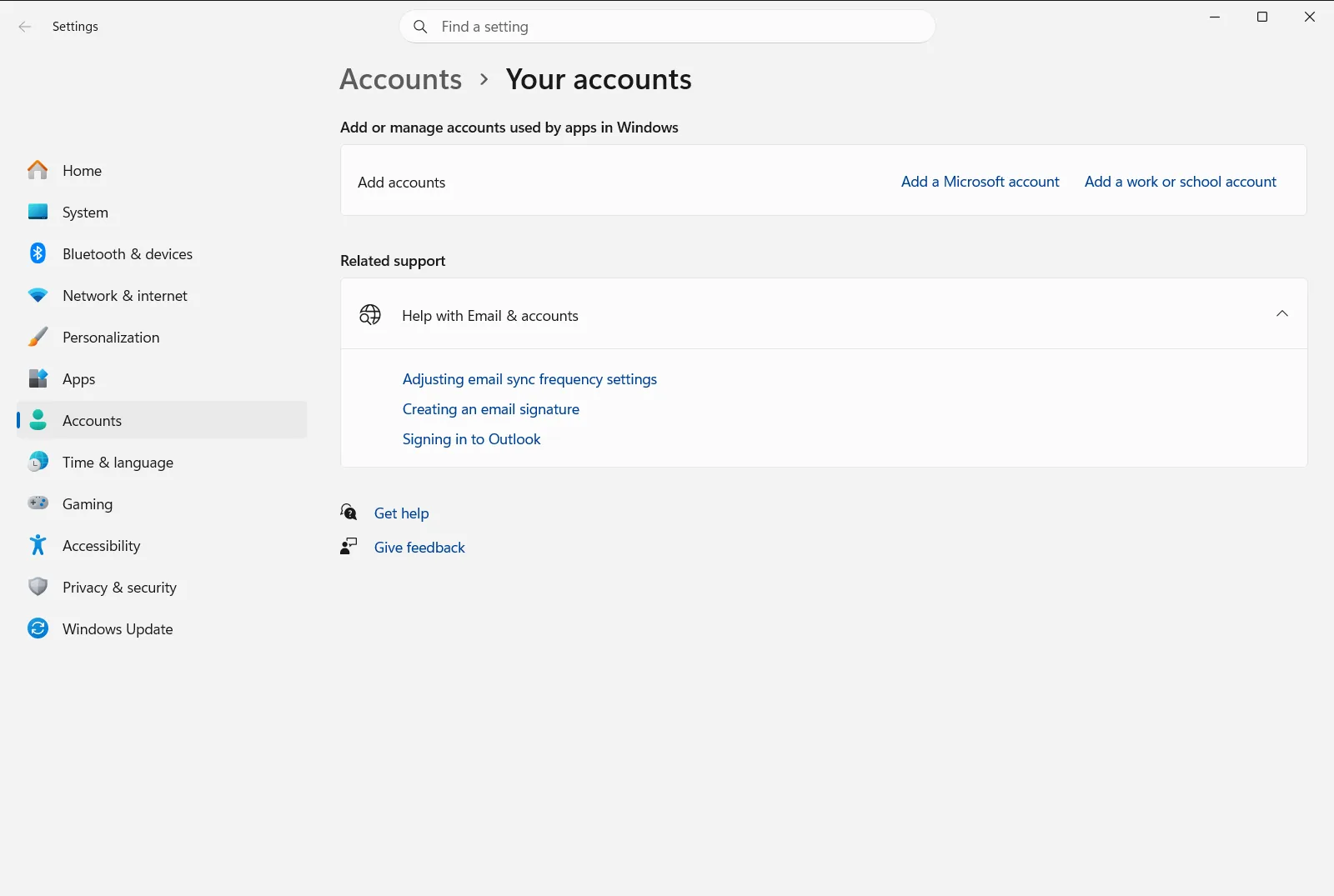
2. Verify or add your account
To ensure your signature associates with the correct mailbox, check the accounts connected to Windows 11. In Email & accounts, locate Add, remove, or manage app accounts.
Settings › Accounts › Email & accountsReview the list of connected accounts used by email and other applications. If your email account is not present, select the option to add an account and complete the sign-in prompt. If your device is managed by a company or school, organization policies may control which accounts can be added.
3. Open Outlook settings
Launch the Outlook application on your Windows 11 device. Look for the settings menu icon in the upper toolbar or window header to open application preferences.
Within the settings window, navigate to the email configuration section to access signature management options.
4. Compose a new signature
Select the option to create a new signature. Provide a descriptive title so you can easily identify the signature later, especially if you plan to create multiple signatures for different purposes.
Use the editing box below to type your sign-off, full name, job title, phone number, and organization. You can use the formatting tools to adjust font style, font size, text alignment, and colors, or insert hyperlinks to websites and social profiles.
5. Set signature defaults and save
Locate the default signature selection area. If you manage multiple accounts, ensure the correct email address is selected in the account dropdown menu.
Choose your new signature for new messages, and decide whether to assign it or a shorter version to replies and forwarded messages. Once configured, save your settings to apply the signature across all future email drafting sessions.
Managing accounts for email and other apps
In Windows 11, account credentials and single sign-on services are centralized under Email & accounts. The Add, remove, or manage app accounts setting lets you coordinate accounts across Microsoft services, email clients, and web platforms.
When you add a Microsoft account or an enterprise mailbox in this section, supported Windows applications like Outlook can automatically detect your profile. This eliminates the need to sign in separately across each application and ensures your account preferences remain synchronized.
If you need to switch accounts or remove an outdated email profile, you can return to Add, remove, or manage app accounts at any time. Selecting an account provides options to manage account settings or remove the profile from your Windows 11 device.
Troubleshooting signature and account setup
If you encounter issues while setting up your signature or managing your email in Windows 11, review the following troubleshooting steps:
- Missing signature on new messages: If your signature does not appear when composing a new email, return to the signature settings in Outlook. Verify that your signature is explicitly assigned as the default for new messages under your specific email account.
- Multiple email accounts: Signatures in Outlook are tied to individual email profiles. If you have several accounts connected under Add, remove, or manage app accounts, you must configure and assign a signature separately for each mailbox.
- Managed device restrictions: On work or school PCs, your organization may enforce policies on Email & accounts that prevent adding personal accounts or modifying app permissions. If account options are grayed out, check with your network administrator.
- Signature not updating: If changes made to a signature do not reflect immediately in draft messages, close and restart the Outlook app to refresh the configuration.
Frequently asked questions
How do I create an email signature in Outlook?
Connect your mailbox under Accounts in Settings, open Outlook, access settings from the top toolbar, and create a signature under mail settings. Choose your defaults for new emails and save your changes.
Where do I manage email accounts for Outlook in Windows 11?
You can manage connected mailboxes by opening Settings, navigating to Accounts, and selecting Email & accounts to view Add, remove, or manage app accounts.
Can I create different email signatures for new messages and replies?
Yes, you can specify separate default signatures in Outlook. In the signature preferences, select one signature for new messages and choose another or none for replies and forwards before saving.
Why can I not add an email account in Windows Settings?
Account management may be restricted if you are using a work or school device. Organization policies applied to Email & accounts can prevent adding or removing accounts without administrator approval.
What should I do if my Outlook signature does not appear automatically?
Ensure you have assigned your saved signature to your active account under the default signature settings in Outlook. Restarting the application also helps refresh account configurations across Windows 11.
