Settings → System → ActivationIf you are wondering how to find your Windows product key, the answer depends on how you got Windows. The 25-character key is usually on a label, a card in the box, or in a purchase email. Many PCs have no key at all, because they use a digital license instead.
- Open Settings → System → Activation to check activation, then look for the key where you bought Windows.
- A new PC usually has its key preinstalled or on a Certificate of Authenticity label, and a retail copy has it on a card in the box.
- If you upgraded for free or bought the Pro upgrade in the Microsoft Store app, you have a digital license and no key to find.
How to find your Windows product key
1. Open activation settings
Press Windows + I to launch Settings. In the left navigation pane, select System, then select Activation.
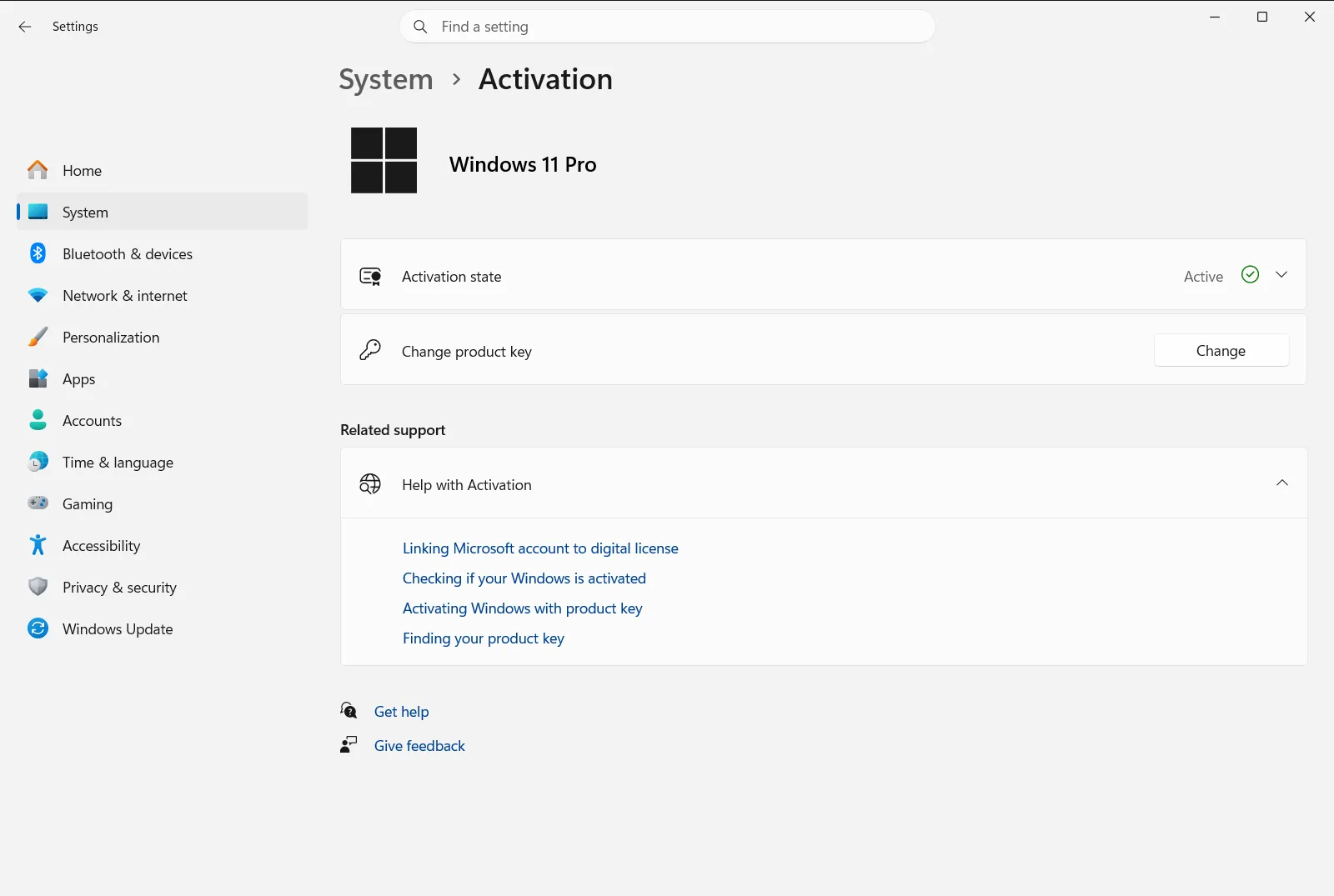
Alternatively, open the page directly:
Open "Activation" in Settingsor press Win+R, typems-settings:activation, and press Enter
2. Check whether Windows is activated
Use See if Windows is activated on this page to see the activation status of your PC. If Windows is already activated, you don’t need to enter a key to keep using it. You only need the key if you plan to reinstall Windows on a device that won’t reactivate by itself.
This page is mainly for checking and changing the key. It is not a reliable place to read the full 25-character code, so the next steps show where the key comes from.
3. Look where your key was supplied
The right place depends on how you obtained Windows:
- A new PC with Windows: the key is preinstalled on the PC, included with its packaging, or printed on the Certificate of Authenticity (COA) label attached to the PC. Ask the hardware manufacturer if you can’t find it.
- A boxed copy from an authorized retailer: look for a label or card packed in the box.
- A digital copy from an authorized retailer: check the confirmation email, or the digital locker on the retailer’s website.
- A digital copy from a Microsoft website: the key is in the confirmation email. Microsoft keeps a record of keys only for purchases from the Microsoft online store, and you can confirm such a purchase in the order history of your Microsoft account.
For details on each case, see the official Microsoft article on finding your product key.
4. Check whether you have a digital license instead
A digital license activates Windows without a product key, so there is nothing to look up. You most likely have one in these cases:
- You upgraded to Windows 11 for free from an earlier version of Windows.
- You bought a Windows 11 Pro upgrade in the Microsoft Store app. The confirmation email then contains the digital license instead of a key.
If you got Windows through a Volume Licensing agreement or an MSDN subscription, your key is available in the web portal for that program. On a work or school PC, an organization may also manage activation, so ask your IT administrator.
5. Enter the key if you need to activate
Once you have the key, go back to Activation. Select Change product key and type the 25-character code in the format XXXXX-XXXXX-XXXXX-XXXXX-XXXXX. Follow the prompts to finish activating.
If you can’t find your product key
If the label is worn off, the box is gone, and you can’t find the email, work through these options:
- Contact the manufacturer if Windows came preinstalled, or the retailer that sold you the copy.
- Search your email accounts for the purchase confirmation, including spam and archived folders, and check your Microsoft account order history if you bought from Microsoft.
- If you have no valid key, Buy product key in Activation lets you purchase one.
If activation fails after you find the key
If Windows still isn’t activated, select Troubleshoot activation in Activation. It checks for common problems. Make sure you typed the key exactly as supplied, and that it is meant for the edition of Windows 11 on your PC.
If you are reinstalling Windows, you might not need a key at all, especially if the device already has a digital license. After a hardware change such as a new motherboard, you may need to reactivate Windows.
Frequently asked questions
How to find my Windows product key?
Look where you got Windows: the label or packaging on a new PC, the card in a retail box, or the purchase email. A free upgrade or Store purchase uses a digital license, so no key exists to find.
Where is the Windows product key on a new PC?
On a new PC, the key is preinstalled, included with the packaging, or printed on the Certificate of Authenticity label attached to the PC. The hardware manufacturer can help if you can't find it.
Does Microsoft keep a record of my Windows product key?
Only if you bought from the Microsoft online store. Check the order history of your Microsoft account and the confirmation email. Purchases from other retailers are not recorded by Microsoft.
Why do I have no product key after upgrading to Windows 11?
A free upgrade to Windows 11 gives you a digital license instead of a product key. The license activates Windows without a code, so you can check See if Windows is activated to confirm your PC is activated.
Where do I enter a Windows product key in Windows 11?
Open Settings, select System, then Activation, and select Change product key. Type the 25-character key and follow the prompts.
Official Microsoft documentation
