Settings → Bluetooth & devices → TouchpadYou can fix touchpad issues in Windows 11 by checking the touchpad settings first and the driver second. Most problems, such as a switched-off touchpad, a slow cursor or taps that behave oddly, come down to a setting. If the touchpad is not working at all, a missing or outdated driver is the more likely cause.
- Open Settings → Bluetooth & devices → Touchpad and make sure Turn the touchpad on or off is on.
- If the problem remains, use Reset your touchpad to its default settings on the same page to restore the default touchpad settings.
- If the settings don’t help, update the touchpad driver through Windows Update or Device Manager, or reinstall it in Device Manager.
How to fix touchpad problems in Windows 11
1. Open the touchpad settings
Press Windows + I to launch Settings. In the left navigation pane, select Bluetooth & devices, then select Touchpad.
If the touchpad doesn’t respond at all, connect a mouse or use the keyboard to move around Settings. Alternatively, open the page directly:
Open "Touchpad" in Settingsor press Win+R, type ms-settings:devices-touchpad, and press Enter
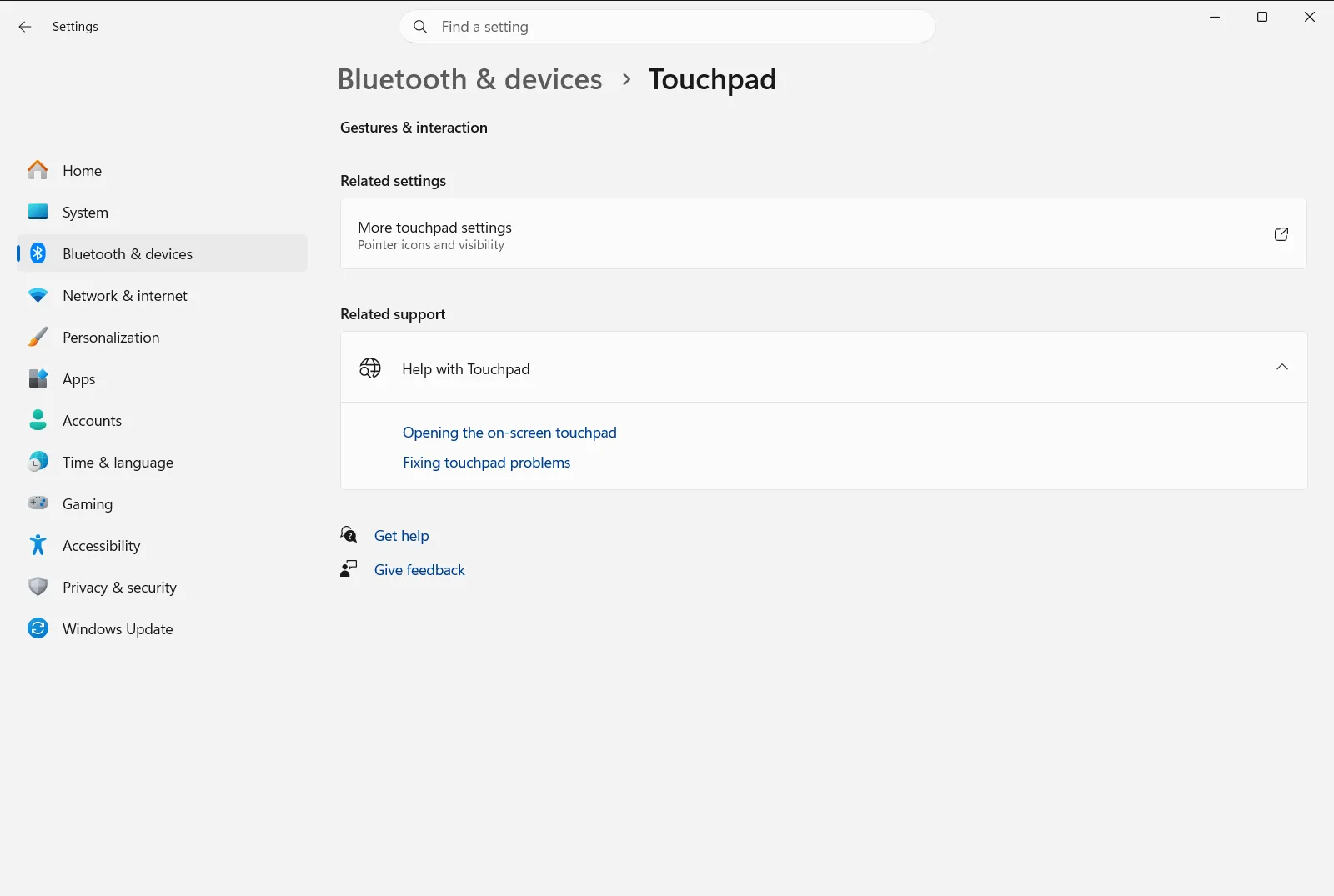
2. Make sure the touchpad is turned on
Find Turn the touchpad on or off and check that the switch is on. A touchpad that was switched off by accident is a common reason for a touchpad not working.
If the touchpad stops working only when an external mouse is attached, look at Turn off touchpad when a mouse is connected and change it so the touchpad stays available.
3. Check the cursor speed and tap options
If the touchpad works but feels wrong, review the options under Gestures & interaction. Start with Change the speed the cursor moves when you use the touchpad if the pointer is too fast or too slow.
If clicks happen by accident or don’t register, check Turn off tap to click when using the touchpad, which controls tap to click.
4. Reset the touchpad to its defaults
If you’ve changed many options and can’t tell which one causes the trouble, select Reset your touchpad to its default settings. This puts the touchpad settings back to how Windows ships them, so you can test again from a clean state.
5. Update the touchpad driver
If the touchpad is still not responding, the driver may be missing or out of date. The recommended way to update it is through Windows Update; Microsoft describes this order in its touchpad troubleshooting article. Install any available updates, then restart the PC and test the touchpad.
You can also update the driver manually in Device Manager. Right-click the Start button, choose Device Manager, and look for your touchpad under Human Interface Devices or Mice and other pointing devices. Right-click it and choose the option to update the driver.
6. Reinstall the touchpad driver
If no newer driver is available or the update didn’t help, reinstall the touchpad. In Device Manager, find the touchpad in the same two categories, right-click it and choose Uninstall device. Then restart the PC.
After the restart, Windows detects the touchpad again and installs a driver for it, which can bring in the latest version from Windows Update.
Fix specific touchpad behavior
If only one gesture misbehaves, change that option on Touchpad instead of resetting everything:
- Scrolling goes the wrong way: use Reverse the touchpad’s scrolling direction. Scrolling too fast or too slow is handled by Change the speed of touchpad scrolling.
- Two-finger scrolling does nothing: check Turn off scrolling when you drag with two fingers on the touchpad.
- Pinch zoom triggers by mistake or doesn’t work: review Turn off zooming when you pinch with two fingers on the touchpad.
- Right-click doesn’t work: check Turn off right clicks when you tap with two fingers on the touchpad and Turn off touchpad right-clicking.
- Items move when you tap twice: look at Turn off double-tap and drag on the touchpad.
- Taps feel delayed or too sensitive: use Turn off taps or change the delay on your touchpad.
- Pressing to click feels too hard or too soft: adjust Set how hard you press the touchpad to click.
Which options you see depends on your touchpad hardware, so some of them may be missing on your device.
If the touchpad still doesn’t work
If updating and reinstalling the driver doesn’t help, contact the manufacturer of your PC for support. On a work or school device, an organization can manage the touchpad settings, so some options may be locked or may change back on their own.
Frequently asked questions
How do I fix touchpad issues Windows 11?
Check that the touchpad is on under Bluetooth & devices → Touchpad, reset it to defaults if needed, then update or reinstall the touchpad driver.
Why does my touchpad stop working when I connect a mouse?
Windows may be set to turn the touchpad off while a mouse is connected. In Settings, open Bluetooth & devices → Touchpad and review Turn off touchpad when a mouse is connected so the touchpad stays available.
How do I reset my touchpad settings to default in Windows 11?
Open Settings, go to Bluetooth & devices → Touchpad, and select Reset your touchpad to its default settings to restore the default touchpad settings. Then test the touchpad again from a clean state.
Where do I update or reinstall the touchpad driver?
Use Windows Update, which is the recommended method, or Device Manager. In Device Manager, look for the touchpad under Human Interface Devices or Mice and other pointing devices.
How do I change the scrolling direction on my touchpad?
Open Touchpad and use Reverse the touchpad’s scrolling direction to reverse the direction. You can change the scrolling speed with Change the speed of touchpad scrolling.
Official Microsoft documentation
