Settings → Bluetooth & devices → DevicesTo learn how to reinstall Bluetooth driver Windows 11 components on your computer, you can remove the wireless adapter and let the operating system automatically restore it upon restart. Reinstalling the driver resolves unresponsive connections, sudden device drops, and pairing failures caused by corrupt configuration files. You can also review your wireless status and manage connected hardware directly from the system settings menu.
- Open Settings → Bluetooth & devices → Devices to toggle Turn on Bluetooth, then restart your PC.
- To reinstall the driver files cleanly, remove the adapter using the device management console and restart Windows 11 so it reloads automatically.
- Check and manage individual accessories under Add or remove devices if devices require re-pairing.
How to reinstall the Bluetooth driver in Windows 11
When wireless accessories stop communicating or pairing errors occur, removing the wireless adapter and allowing Windows 11 to detect it anew is the most reliable fix. Follow these steps to prepare your device settings and complete the driver reinstallation.
1. Open Bluetooth settings
Press Windows + I to launch Settings. In the left navigation pane, select Bluetooth & devices, then select Devices.
Alternatively, open the page directly:
Open "Devices" in Settingsor press Win+R, type ms-settings:connecteddevices, and press Enter
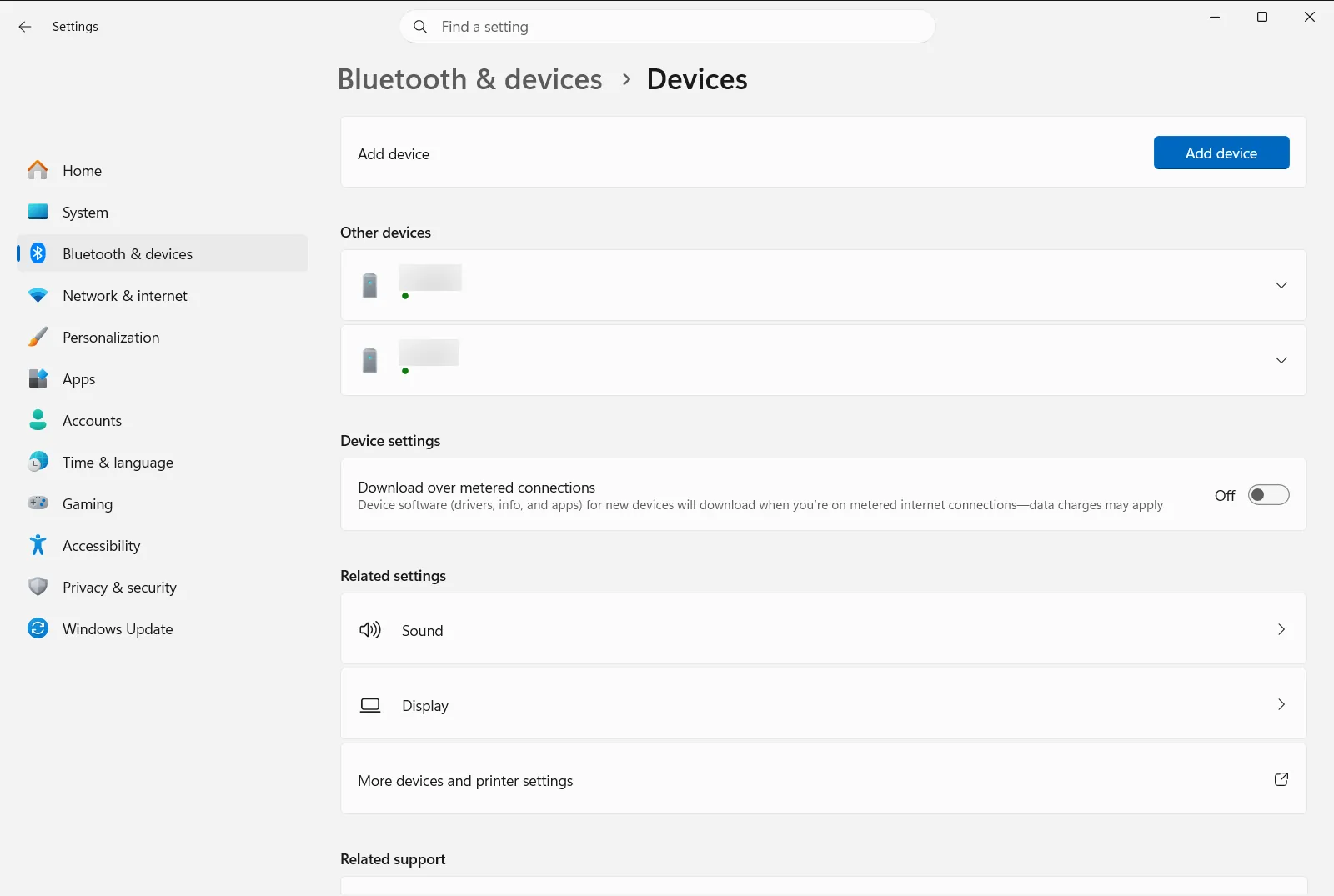
2. Check the Bluetooth radio status
Locate Turn on Bluetooth near the top of the page. Ensure the wireless toggle is active, or turn it off and back on to check if the radio responds. If your computer is managed by an organization, wireless connectivity policies might control this setting.
3. Remove conflicting Bluetooth devices
Scroll down to Add or remove devices to view all paired wireless accessories. If a specific peripheral fails to connect or synchronize, open its more options menu and choose to remove it so you can establish a clean pairing after refreshing the driver.

4. Uninstall the Bluetooth adapter
Right-click the Start button on your taskbar and select the hardware management console from the quick link menu. Expand the wireless adapter category to view your physical Bluetooth hardware. Right-click your primary Bluetooth adapter, select the option to uninstall the device, and confirm the prompt without removing the driver software files from your storage drive.
5. Restart your PC to reinstall the driver
Restart your computer from the Start menu. During the reboot sequence, Windows 11 detects the hardware adapter and automatically reinstalls the appropriate default driver. Once your computer finishes starting up, test your wireless peripherals to ensure they connect normally.
Updating or rolling back the Bluetooth driver
If reinstalling the standard driver does not solve your wireless issues, the problem may stem from a corrupted update or an incompatible driver package. You can inspect the adapter properties within the hardware management console to check driver details.
If Bluetooth connectivity worked properly until a recent system update, open the driver properties for your adapter and select the option to roll back the driver to its earlier working version. Alternatively, you can search for updated drivers through system updates or download dedicated packages from the hardware maker. For more information on driver updates and maintenance, refer to the official Microsoft guide on updating Bluetooth drivers in Windows.
Downloading the latest driver from the PC manufacturer
When generic operating system drivers fail to restore functionality, your computer manufacturer often provides proprietary drivers optimized for your specific motherboard or wireless chipset. Visit the support and downloads section of your PC manufacturer’s website and locate your exact computer model.
Download the latest Bluetooth driver package built for Windows 11, run the installer program, and follow the on-screen instructions. Once the installation finishes, restart your PC to complete the process. Afterwards, navigate back to Settings → Bluetooth & devices → Devices and verify that Turn on Bluetooth is switched on.
Frequently asked questions
How to reinstall Bluetooth driver Windows 11?
To reinstall your Bluetooth driver, remove the wireless adapter using the hardware management utility, then reboot your computer. Windows automatically detects the hardware and reinstalls the driver during startup. Afterwards, verify your connections in Settings.
Will restarting Windows 11 reinstall the Bluetooth driver automatically?
Yes, Windows 11 automatically reinstalls the default driver upon restart. When you remove the adapter and reboot, the operating system detects the hardware and loads a fresh driver copy.
What should you do if Bluetooth still does not work after reinstallation?
If Bluetooth fails after reinstalling, check Turn on Bluetooth in Settings to ensure the radio is enabled, roll back a recent driver update, or install the newest driver package directly from your PC manufacturer.
How do you roll back a problematic Bluetooth driver update?
To roll back the driver, open hardware properties for your wireless adapter and choose the rollback option. This restores the previous working driver version if a recent update introduced pairing errors.
Do you need to pair Bluetooth accessories again after reinstalling the driver?
Some accessories reconnect automatically, but you may need to re-pair stubborn devices. Navigate to Add or remove devices in Settings to add your wireless accessories again if they do not connect automatically.
Official Microsoft documentation
