Settings → Gaming → Xbox Game BarYou can record a game clip on your PC with Xbox Game Bar Windows 11 using one keyboard shortcut, once the feature is switched on. Recording works for a game or any other app you are using, so it also suits showing a bug to a developer. This guide covers turning it on, choosing what audio to capture, recording, and finding the finished clip.
- Go to Settings → Gaming → Xbox Game Bar, switch on the main toggle, then press Windows + Alt + R.
- Press Windows + Alt + R again to stop; the MP4 clip is saved in the Captures folder inside Videos.
- To record system sounds, open the overlay with Windows + G and choose the capture option that includes all audio.
How to record a game clip with Xbox Game Bar on Windows 11
1. Open the Xbox Game Bar settings page
Press Windows + I to launch Settings. In the left navigation pane, select Gaming, then select Xbox Game Bar.
Alternatively, open the page directly:
Open "Xbox Game Bar" in Settingsor press Win+R, type ms-settings:gaming-gamebar, and press Enter
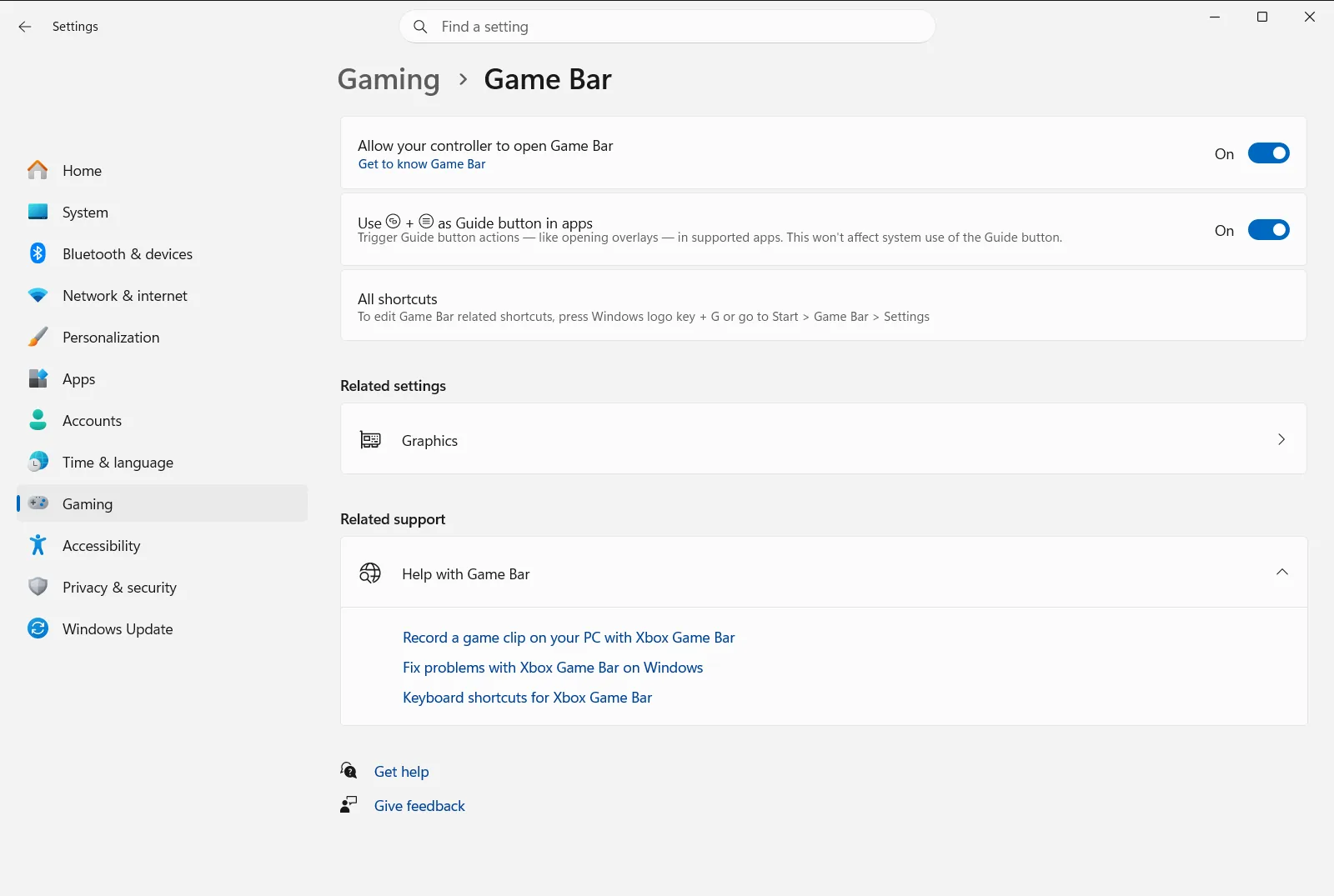
2. Turn the feature on
At the top of the page, switch on the main toggle that lets you open the overlay with a keyboard shortcut. Until this switch is on, the recording shortcuts do nothing.
If the page is locked or the switch is unavailable, your device may be managed by an organization (work or school), which can control this page.
3. Choose what audio to capture (optional)
To make sure your clip includes everything you hear, set the audio option before you record:
- Switch to your game or app and press Windows + G to show the overlay.
- Open the overlay’s own settings and go to its capture section.
- In the audio options, select the choice that records all audio, not only the game.
- Press Windows + G again to hide the overlay.
The same list also offers narrower choices, such as game audio only, so pick whichever fits your clip.
4. Start recording
Go to the game or app you want to capture and press Windows + Alt + R. Recording begins right away.
While you record, press Windows + Alt + M to turn your microphone on or off. Press Windows + G if you want to bring the overlay controls back.
5. Stop recording and find your clip
When you have captured what you need, press Windows + Alt + R again.
Open the Videos folder on your PC and look in the folder named Captures. Your clip is saved there as an MP4 file. The file name includes the name of the game or app plus the date and time of the recording, so you can tell clips apart.
Take a screenshot instead of a video
If a still image is enough, press Windows + Alt + Print Screen while your game or app is in front. The image is saved as a PNG file in the same Captures folder as your video clips.
Open the overlay with a controller
If you play with a controller, the same page has an option for opening the overlay with the controller’s Xbox button. You can find it here: Settings › Gaming › Xbox Game Bar.
Once the overlay is open, you can still use it to adjust the capture options described in step 3.
If the shortcut does not start a recording
- Return to Xbox Game Bar and make sure the main switch is on.
- Click inside the game or app you want to record, so it is the window in front, and try the shortcut again.
- Press Windows + G to check whether the overlay opens at all. If it does not, the feature is probably still off or restricted on your device.
Microsoft also publishes a keyboard and screen reader walkthrough of the same recording steps.
Frequently asked questions
How do I record a game clip on your PC with Xbox Game Bar Windows 11?
Open Settings → Gaming → Xbox Game Bar and switch on the main toggle. In your game, press Windows + Alt + R to start and again to stop. The MP4 is saved in Videos\Captures.
Where does Game Bar save my recorded clips?
Clips are saved as MP4 files in the Captures folder inside your Videos folder. Each file name contains the game or app name and the date and time of the recording, which helps you find the right clip.
How can I include system sounds in a Game Bar recording?
Press Windows + G to open the overlay, open its settings, go to the capture section and select the option that records all audio. Then hide the overlay with Windows + G and record as usual.
How do I turn my microphone on or off while recording?
Press Windows + Alt + M during the recording to toggle your microphone on and off. You do not need to stop the clip, and you can press Windows + G to show the overlay controls.
Can I take a screenshot with Game Bar instead of a video?
Yes. Press Windows + Alt + Print Screen while your game or app is in front. The screenshot is saved as a PNG file in the same Captures folder where your recorded video clips are stored.
Official Microsoft documentation
