Settings → Gaming → Xbox Game BarTo fix problems with Xbox Game Bar on Windows 11, first check that Game Bar is turned on in Settings, then test the Windows + G shortcut while a game or app is in focus. If it still does not respond, review the controller settings, restart your PC, and install pending updates.
- Open Settings → Gaming → Xbox Game Bar, make sure Game Bar is turned on, then press Windows + G.
- If a controller button does not open Game Bar, check Game bar controller settings on the same page.
- If nothing changes, restart your PC and install pending Windows updates.
How to fix Xbox Game Bar problems on Windows 11
Most Game Bar problems, such as the overlay not opening, the shortcut doing nothing, or the controller button being ignored, come from a switched-off setting or a stale session. Work through the steps in order and test Game Bar after each one.
1. Open the Xbox Game Bar settings page
Press Windows + I to launch Settings. In the left navigation pane, select Gaming, then select Xbox Game Bar.
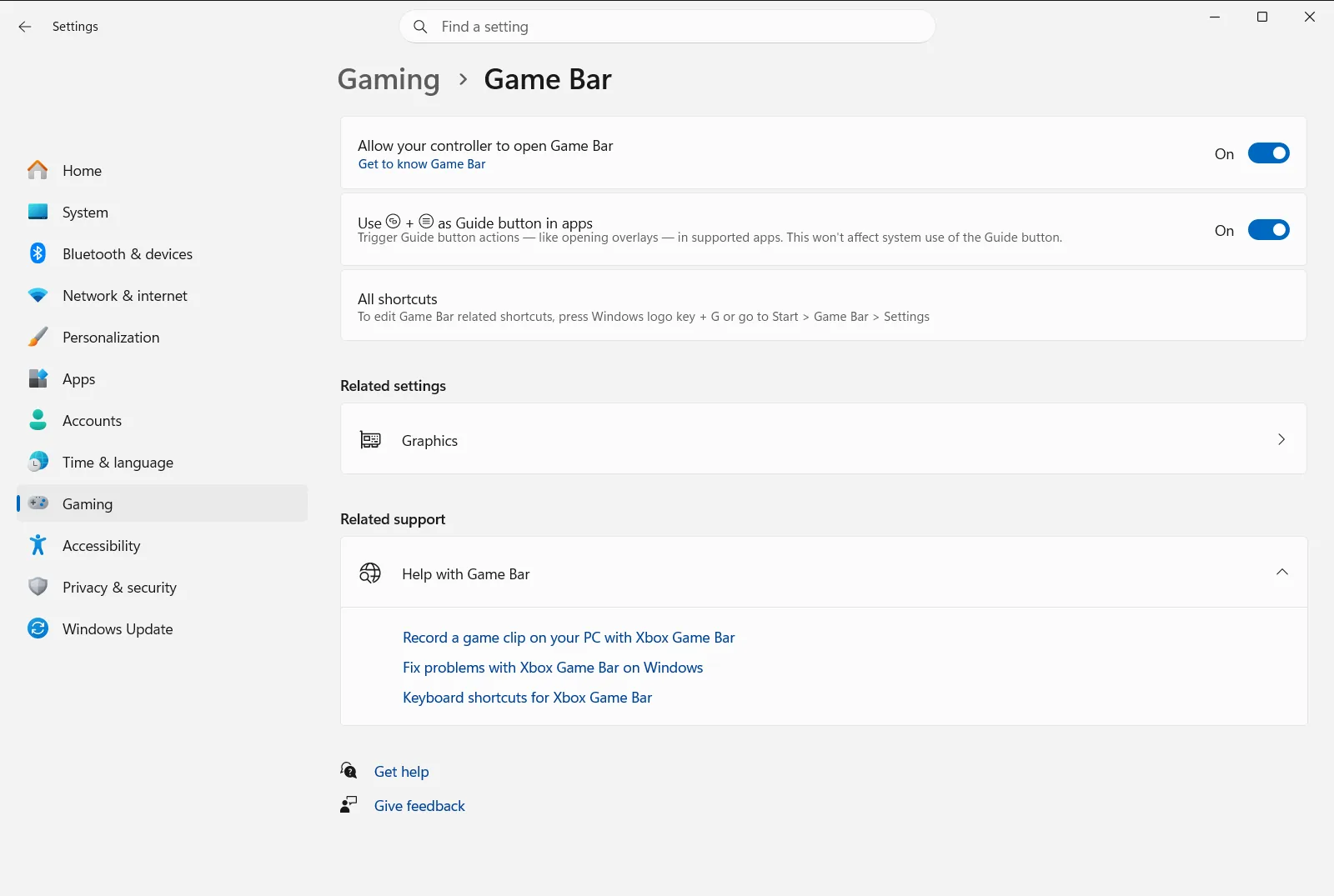
Alternatively, open the page directly:
Open "Xbox Game Bar" in Settingsor press Win+R, typems-settings:gaming-gamebar, and press Enter
2. Check that Game Bar is turned on
Look at the main Game Bar Settings area at the top of the page. Make sure the switch that lets Game Bar open is turned on. If it was off, Game Bar cannot appear no matter which shortcut or button you use.
While you are here, look through the other options on the page, such as those related to capturing clips and screenshots. A capture feature that seems broken is often just disabled.
If the switch is unavailable or keeps turning itself off on a work or school PC, your organization may be managing this page.
3. Test the Win+G shortcut
Click inside the game or app you want to use Game Bar with, so it has focus. Then press Windows + G. Game Bar should appear as an overlay on top of the window.
If nothing happens, try these checks:
- Switch to a different app or game and press the shortcut again. This shows whether the problem affects everything or only one program.
- Close and reopen the game, then try again. Some games take over the screen in a way that blocks overlays until they restart.
- Try a different window mode in the game, for example windowed or borderless instead of exclusive full screen, if the game offers that choice.
4. Review the controller settings
If you open Game Bar with a controller button and it does nothing, go back to the same Settings page and find Game bar controller settings. It covers how a wireless or Xbox controller interacts with Game Bar. Compare it with how you expect the button to behave and adjust it.
The full path is Settings › Gaming › Xbox Game Bar.

Make sure the controller is connected and working in a game before you blame Game Bar. A controller that is not detected cannot trigger anything.
5. Restart your PC and install updates
Save your work and restart Windows. A restart clears background processes that may be holding Game Bar in a broken state.
After the restart, install any pending Windows updates and update the Xbox Game Bar app if an update is offered. Then repeat the Windows + G test from the previous steps.
If Game Bar still does not work
Some quick checks help narrow down the cause:
- Game Bar not opening only in one game: the game is probably blocking overlays. Test Game Bar on the desktop or in another app to confirm that Game Bar itself is fine.
- Shortcut not responding anywhere: go back to Xbox Game Bar and confirm the setting from step 2 is still on. Another program may also be using the same key combination, so close recently installed utilities and test again.
- Controller button ignored: recheck Game bar controller settings and test the controller in another game or app.
For more detailed troubleshooting from the Xbox team, see the Xbox Support troubleshooting article for Game Bar.
Related Game Bar settings
The Xbox Game Bar page is the central place for Game Bar behavior on Windows 11. Besides the on/off setting and the controller options, it also holds options for capturing game clips and screenshots. When you troubleshoot, change one setting at a time and test after each change, so you know which change fixed the problem.
Frequently asked questions
How do I fix problems with Xbox Game Bar on Windows 11?
Open Settings, select Gaming, then Xbox Game Bar, and make sure Game Bar is turned on. Press Win+G inside a game or app to test it, review the controller settings, then restart your PC and install updates.
Why does Win+G do nothing on my PC?
Game Bar is probably turned off, or the active window is blocking overlays. Check that it is on under Xbox Game Bar, click into the app so it has focus, and press Win+G again.
Where are the Xbox Game Bar settings in Windows 11?
Open Settings, select Gaming, then select Xbox Game Bar. You can also press Windows + R and run ms-settings:gaming-gamebar to open the page directly.
What can I do if my controller button does not open Game Bar?
Open Xbox Game Bar and review Game bar controller settings. Also check that the controller is connected and works in another game or app.
Why can't I change the Game Bar settings on my work PC?
Your organization may manage the Game Bar page on a work or school device, which can lock or reset the options. Contact your IT administrator if the settings are unavailable or turn themselves off.
Official Microsoft documentation
