Settings → Accessibility → KeyboardWindows 11 keyboard shortcuts let you open apps, manage windows, and edit text without reaching for the mouse. Most of them combine the Windows key, Ctrl, Alt, or Shift with a letter, number, or arrow key. This article covers the most useful Windows 11 shortcut keys and the keyboard options that make them easier to use.
- Open Settings → Accessibility → Keyboard and turn on Underline access keys to see which letters trigger menu commands.
- If pressing several keys at once is hard, turn on Sticky keys on the same page to enter shortcuts one key at a time.
- If an accessibility prompt keeps appearing, turn off its keyboard shortcut on that page.
How to use Windows 11 keyboard shortcuts
1. Learn the Windows key shortcuts
Hold the Windows key and press another key to reach common tasks quickly:
- Windows + E: open File Explorer.
- Windows + I: open Settings.
- Windows + D: show or hide the desktop.
- Windows + L: lock your PC.
- Windows + V: open clipboard history.
- Windows + .: open the emoji panel.
- Windows + A: open quick settings.
- Windows + N: open the notification center.
- Windows + X: open the quick link menu from the Start button.
- Windows + Shift + S: start a screenshot selection.
Microsoft keeps a complete list of the default shortcuts in its Keyboard shortcuts in Windows article. Some apps change the behavior of certain shortcuts, so a combination may not work the same everywhere.
2. Use text editing and window shortcuts
These combinations work in most apps and save a lot of mouse clicks:
- Ctrl + C, Ctrl + X, Ctrl + V: copy, cut, and paste.
- Ctrl + Z and Ctrl + Y: undo and redo.
- Ctrl + A: select everything.
- Ctrl + F: find text in the current app or page.
- Alt + Tab: switch between open windows.
- Alt + F4: close the current window.
- Windows + Tab: open Task view.
- Windows + Z: open snap layouts.
- Windows + arrow keys: snap the current window to part of the screen.
- Windows + Ctrl + D: create a new desktop. Use Left or Right instead of D to switch between desktops.
In File Explorer, F2 renames the selected item, Alt + Enter shows its properties, and Ctrl + Shift + N creates a new folder.
3. Open the keyboard accessibility settings
Press Windows + I to launch Settings. In the left navigation pane, select Accessibility, then select Keyboard.
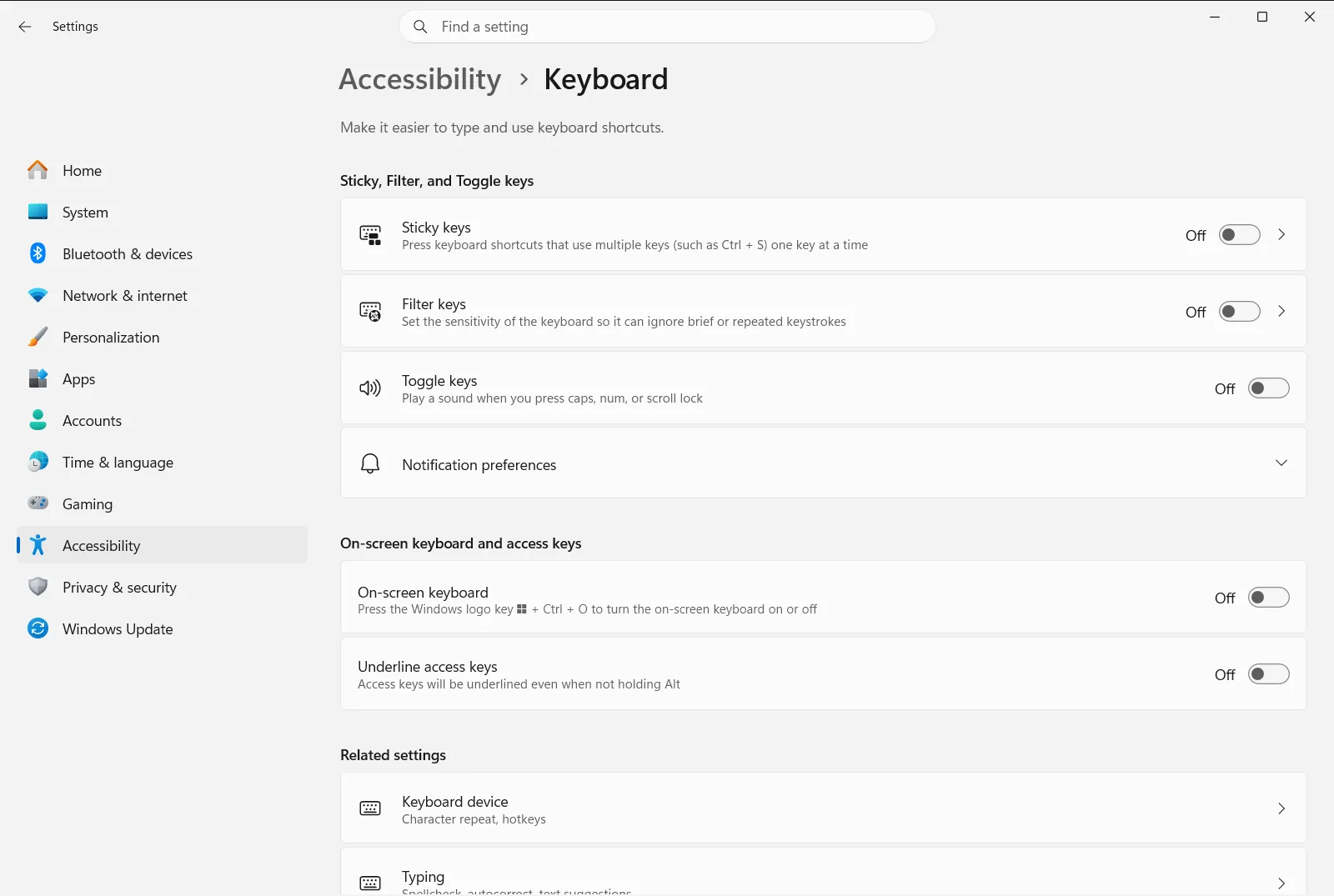
Alternatively, open the page directly:
Open "Keyboard" in Settingsor press Win+R, typems-settings:easeofaccess-keyboard, and press Enter
If your PC belongs to a work or school, an organization may manage the options on this page.
4. Show underlined access keys
Many menus and dialog boxes have a letter you can press to choose a command. Under On-screen keyboard and access keys, turn on Underline access keys. Windows then underlines those letters so you can see them without guessing.
5. Press shortcut keys one at a time
This option lets you press shortcut keys one after another instead of holding them together. Under Sticky, Filter, and Toggle keys, turn on Sticky keys. For example, you can press Ctrl, release it, and then press C to copy.
Stop accessibility shortcuts from starting by accident
Windows can turn on some keyboard accessibility features with a keyboard shortcut, which is helpful if you need them and annoying if you don’t. If a prompt or sound appears unexpectedly, review these options in Sticky, Filter, and Toggle keys:
- Turn off Keyboard shortcut for Sticky keys so its keyboard shortcut no longer turns that feature on.
- Turn off Keyboard shortcut for Filter keys so holding the right Shift key no longer turns that feature on.
- Turn off Notify me when I turn on Sticky, Filter, or Toggle keys if you don’t want a warning each time one of these features starts.
If you do use these features, leave the shortcuts on, because they let you turn these features on quickly without opening Settings.
Fine-tune one-key-at-a-time shortcuts
After you turn on Sticky keys, you can adjust a few related options:
- Lock shortcut keys when pressed twice in a row keeps a modifier key active after you press it twice in a row, until you press it again. This is useful when you need several shortcuts in a row.
- Turn off Sticky keys when two keys are pressed at the same time switches Sticky keys off if you press two keys together, so it doesn’t get in your way when you use a normal combination.
- Show the Sticky keys icon on the taskbar shows an icon on the taskbar so you can tell when the feature is active.
If you can’t press physical keys at all, the On-screen keyboard option on the same page shows a keyboard on the screen that you can click or tap.
Frequently asked questions
What are the Windows 11 keyboard shortcuts?
Windows 11 keyboard shortcuts combine keys like Windows, Ctrl, Alt, and Shift with other keys, such as Windows + E for File Explorer and Ctrl + C to copy. You can make them easier to press by turning on Sticky keys under Accessibility > Keyboard.
How do I open Settings with a keyboard shortcut in Windows 11?
Press the Windows key and I together to open Settings. From there, choose Accessibility and then Keyboard to change keyboard accessibility options.
How can I press keyboard shortcuts without holding keys together?
Turn on Sticky keys under Accessibility > Keyboard. You can then press Ctrl, release it, and press the next key, which makes shortcuts easier if holding several keys is difficult.
Why does a Sticky keys or Filter keys prompt keep appearing?
A keyboard shortcut probably turned the feature on by accident. Turn off Keyboard shortcut for Sticky keys or Keyboard shortcut for Filter keys under Accessibility > Keyboard to stop the prompt from appearing again.
How can I see which letters trigger menu commands?
Turn on Underline access keys under Accessibility > Keyboard. Windows then underlines the access key letters in menus and dialog boxes so you can see which key to press.
Official Microsoft documentation
