Settings → Accessibility → MagnifierTo pin display magnifier to the Start menu of Windows 11, search for the app, open its right-click menu and choose the option that pins it to Start. Once pinned, the tile stays in your pinned apps, so you can start the magnifier with one click instead of digging through Settings.
- Open the Start menu, type the app name Magnifier, right-click the result and choose the option that pins it to Start.
- To change zoom and view afterwards, go to Settings → Accessibility → Magnifier.
- To undo it, right-click the pinned tile and choose the option that unpins it from Start.
How to pin the magnifier to the Start menu in Windows 11
1. Open the Start menu and search for the app
Select the Start button on the taskbar, or press the Windows key. Without clicking anything else, start typing Magnifier. Windows searches as you type and shows the matching app at the top of the results.
2. Pin it from the right-click menu
Right-click the app in the search results. In the menu that opens, choose the option that pins the app to the Start menu. Nothing else is needed: Windows adds the tile right away, with no confirmation prompt.
If you use the keyboard, highlight the result with the arrow keys and press the Menu key (or Shift + F10) to open the same menu.
3. Check the pinned tile
Open the Start menu again and look at the pinned apps at the top. The magnifier tile should now be there. Select it to start the magnifier. You can drag the tile to another position among the pinned apps so it sits where you can reach it easily.
When the magnifier is running, press Windows + Esc to turn it off again.
4. Open the magnifier settings page (optional)
Pinning only gives you a shortcut. How the magnifier behaves is set in Settings. Press Windows + I to launch Settings. In the left navigation pane, select Accessibility, then select Magnifier.
Alternatively, open the page directly:
Open "Magnifier" in Settingsor press Win+R, type ms-settings:easeofaccess-magnifier, and press Enter
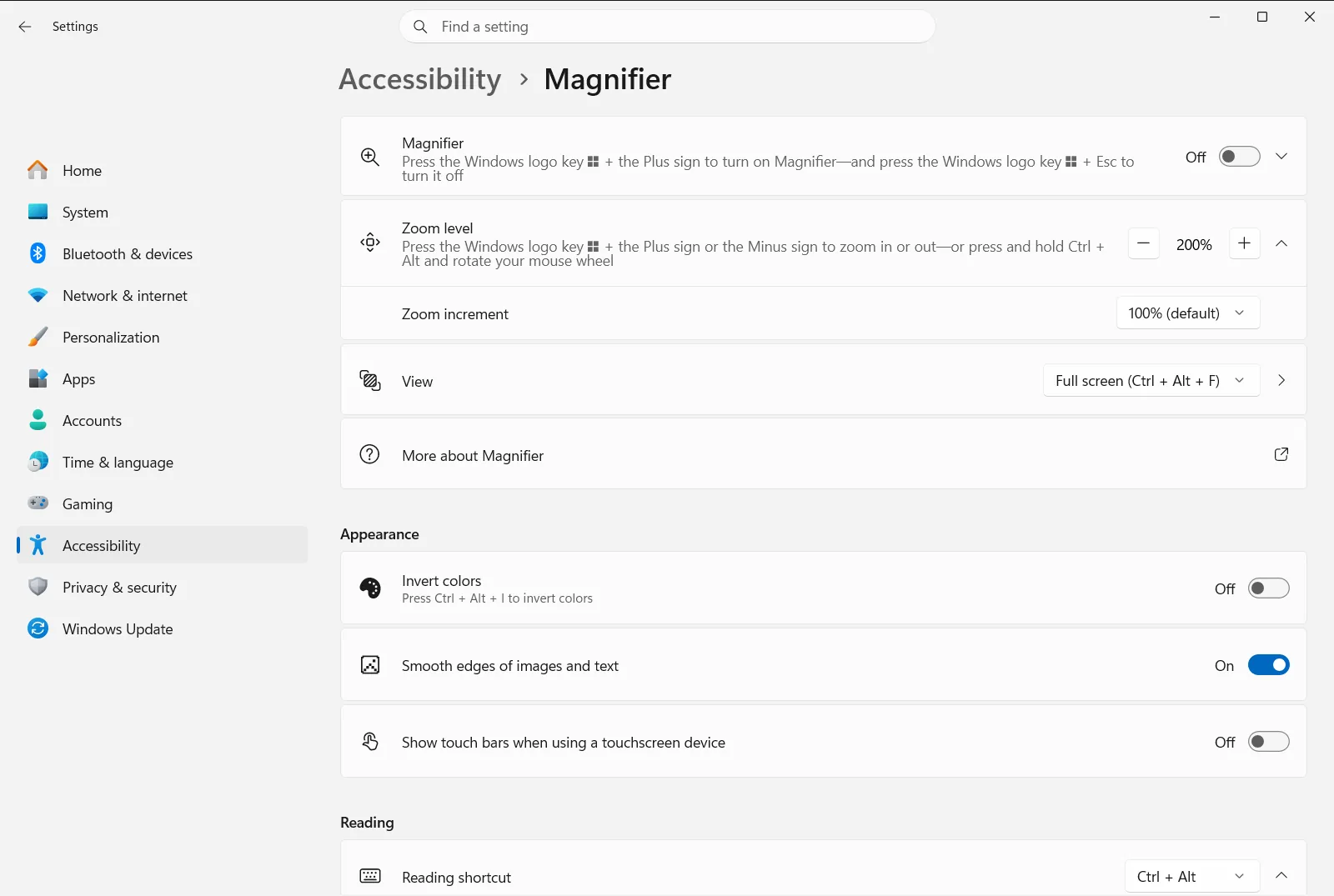
5. Set the zoom level and view you want
Use Magnifier zoom level to choose how much the screen is enlarged when the magnifier starts. Use Magnifier view to pick full screen, docked or lens mode. Your choices apply the next time you start the magnifier from the pinned tile.
On a work or school device, an organization can manage this page, so some options may be fixed or unavailable.
Other ways to start the magnifier
A pinned tile is only one option. These alternatives work with or without it.
- Keyboard shortcut: press Windows + Plus sign (+) to turn it on and Windows + Esc to turn it off. Microsoft documents these shortcuts in its Magnifier support article.
- Settings switch: on the magnifier page, turn on Turn on Magnifier.
- View shortcuts: while it is running, press Ctrl + Alt + F for full screen, Ctrl + Alt + D for docked, or Ctrl + Alt + L for lens.
Start the magnifier automatically instead
If the computer is mainly used by someone with low vision, you may prefer that the magnifier starts without any click. The magnifier page has two options for this:
- Start Magnifier after sign-in starts it once you have signed in.
- Start Magnifier before sign-in starts it on the sign-in screen.
To find them quickly, use this path:
Settings › Accessibility › Magnifier › Magnify things on the screen Settings › Accessibility › Magnifier › Magnify things on the screenRemove the pinned tile
To remove the tile, open the Start menu, right-click the pinned magnifier and choose the option that unpins it from Start. This only removes the shortcut. The keyboard shortcut and the Settings page keep working, and you can pin the app again at any time with the steps above.
Frequently asked questions
How do I pin display magnifier to the start menu of Windows 11?
Search for the app in the Start menu, right-click the result and choose the option that pins it to Start. The tile then appears among your pinned apps, where one click starts the magnifier.
How do I remove the magnifier from the Start menu again?
Right-click the pinned tile and choose the option that unpins it from Start. This only removes the shortcut; the app stays installed and the Windows + Plus keyboard shortcut keeps working as before.
What is the keyboard shortcut to turn the magnifier on and off in Windows 11?
Press the Windows logo key and the Plus sign (+) to turn it on, and the Windows logo key and Esc to turn it off. This works whether or not the app is pinned to the Start menu.
Can the magnifier start automatically when I sign in?
Yes. Open Settings, go to Accessibility and Magnifier, then turn on Start Magnifier after sign-in. To have it on the sign-in screen too, also turn on Start Magnifier before sign-in.
Where do I change the zoom level of the pinned magnifier?
Open Settings, select Accessibility, then Magnifier. Use Magnifier zoom level to set the zoom for the next start.
Official Microsoft documentation
