Settings → Gaming → CapturesYou can record game clips in Windows 11 with a keyboard shortcut: switch to your game, press Windows + Alt + R to start, and press the same keys to stop. Windows saves the clip as an MP4 video. Before you record, you can adjust video quality, audio and clip length in Settings.
- Open Settings → Gaming → Captures to set quality, then press Windows + Alt + R in your game.
- Press Windows + Alt + R again to stop; the clip is saved as an MP4 file in the Videos folder, inside a folder named Captures.
- Press Windows + Alt + M during a recording to turn your microphone on or off.
How to record game clips in Windows 11
1. Make sure the game overlay is turned on
The recording shortcuts work through the built-in game overlay, so it must be switched on first. Press Windows + I to open Settings, type xbox in the search box, and open the result that mentions the overlay. If its switch is off, turn it on.
To check that it works, press Windows + G. The overlay controls appear on top of your screen, and pressing the same keys again hides them.
2. Open the capture settings
Press Windows + I to launch Settings. In the left navigation pane, select Gaming, then select Captures.
Alternatively, open the page directly:
Open "Captures" in Settingsor press Win+R, type ms-settings:gaming-gamedvr, and press Enter
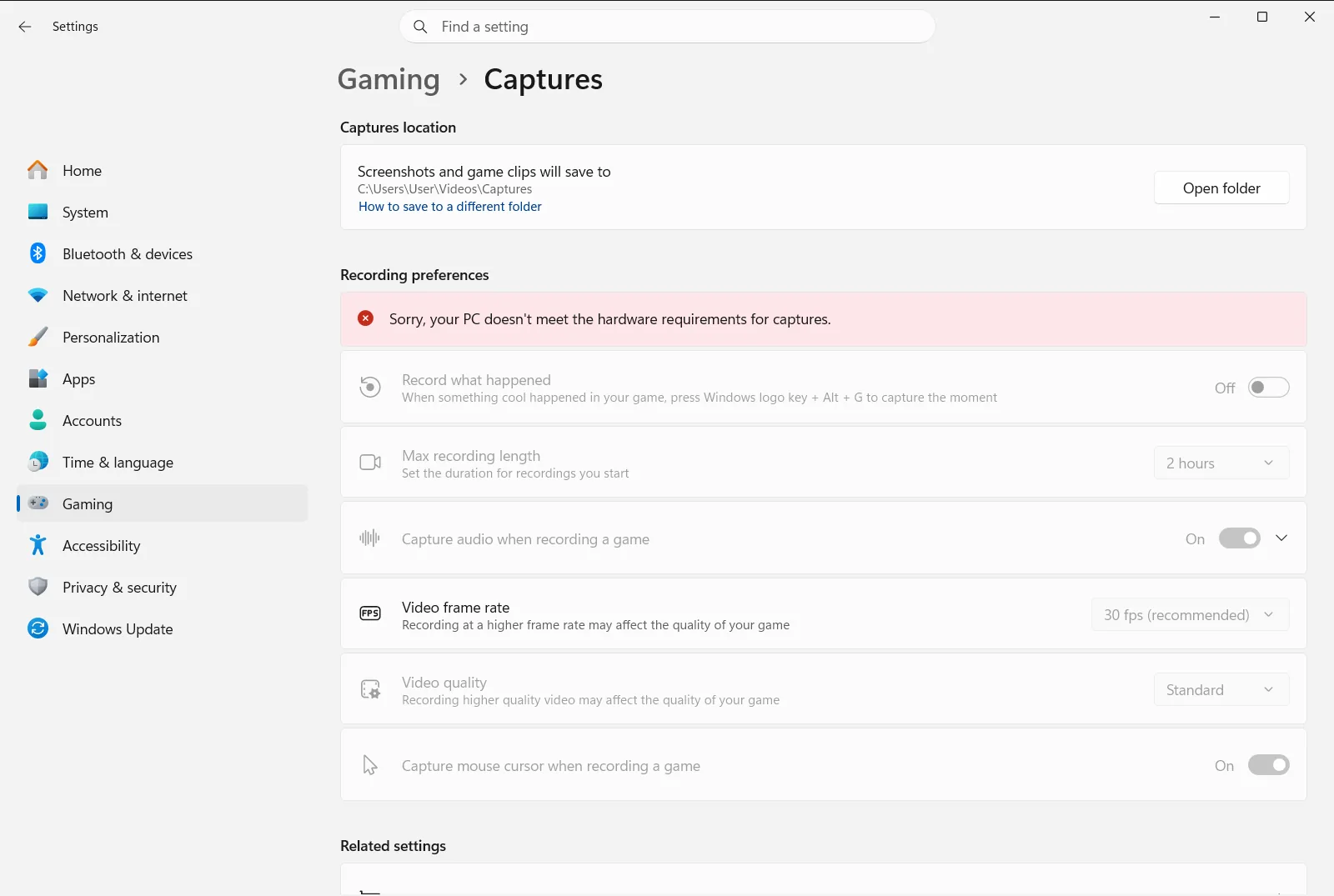
The options are grouped under Recording preferences, with sub-groups named Record this, Recorded audio and Recorded video. On a work or school device, an organization can manage this page, so some options may be locked.
3. Choose your video options
Under Recorded video, adjust these options:
- Game Captures video quality sets how detailed the recorded video is. Higher quality usually gives sharper clips but larger files.
- Game Captures video frame rate sets how many frames per second the clip contains.
- Capture mouse cursor in game recordings decides whether your mouse pointer appears in the recording.
4. Choose your audio options
Under Recorded audio, use Record audio when I record a game to decide whether your clips include sound at all. If audio is on, you can also fine-tune it:
- Game Captures audio quality settings controls the quality of the recorded sound.
- Game Captures microphone volume sets how loud your microphone is in the clip.
- Game Captures system volume sets how loud the computer’s own sound is in the clip.
- Record game audio only when using Captures controls whether your captures include only the game’s sound.
5. Start recording your game
Switch to the game or app you want to record, then press Windows + Alt + R. Recording starts right away, so play until you have captured what you need.
While recording, press Windows + Alt + M to switch your microphone on or off. Press Windows + G if you want to bring up the overlay controls.
6. Stop recording and find your clip
Press Windows + Alt + R again to end the clip. Windows saves it as an MP4 file in Videos\Captures. Each file is named after the game or app and the recording date and time, which makes clips easy to sort.
Change how long clips can be
If your recordings stop sooner than you expect, check Game Captures maximum recording length under Record this. This option sets the maximum recording length.
Settings › Gaming › Captures › Recording preferences › Record thisTake a screenshot instead of a clip
If a still image is enough, press Windows + Alt + Print Screen while the game is in front. The picture is saved as a PNG file in the same Captures folder as your videos.
If the recording shortcut does nothing
- Switch to the game or app window first, then press Windows + Alt + R.
- Return to step 1 and confirm the game overlay switch is on. Pressing Windows + G should show its controls.
- If the clip has no computer sound, open the overlay’s own settings with Windows + G and choose the audio capture option that includes all computer sounds. Also check that Record audio when I record a game is on.
- If the options on the capture page are unavailable, your organization may be managing them.
For a keyboard-only walkthrough of the same shortcuts, see Microsoft’s guide to recording your screen with a screen reader.
Frequently asked questions
Record game clips windows 11: what is the quickest way?
Open your game and press Windows + Alt + R to start recording, then press the same keys to stop. To set quality, audio and clip length first, go to Settings → Gaming → Captures.
Where are my recorded game clips saved?
Clips are saved as MP4 files in the Captures folder inside your Videos folder. Each file name includes the name of the game or app plus the date and time of the recording.
How do I turn my microphone on or off while recording a clip?
Press Windows + Alt + M during the recording to toggle the microphone. To decide whether clips include audio at all, use Record audio when I record a game on the capture settings page.
How do I take a screenshot of my game instead of a video?
Press Windows + Alt + Print Screen while the game is in front. Windows saves the image as a PNG file in the same Captures folder where your recorded video clips are stored.
Why does Windows + Alt + R not start a recording?
The game overlay may be turned off, or the game or app is not in front. Search Settings for xbox, turn the overlay on, then switch to your game and try the shortcut again.
Official Microsoft documentation
