Settings › Network & internet › EthernetFixing Ethernet connection issues in Windows 11 usually starts with the hardware: the cable, the router port, and a restart of your modem and router. If the wired connection still fails, you can check its status in Settings, run a few network commands, and reinstall the network adapter driver.
- Reseat the cable and restart the modem and router, then open Settings > Network & internet > Ethernet > Ethernet settings to check the connection.
- If the connection still fails, run the network commands in an administrator command window, in the order given below.
- Reinstall the Ethernet adapter driver next, and use a network reset only as the last resort.
How to fix Ethernet connection issues in Windows 11
1. Check the Ethernet cable and the router port
Make sure both ends of the Ethernet cable are firmly plugged in: one in the Ethernet port on your PC, the other in the router. On the router, use a regular Ethernet (LAN) port, not the Internet port that connects the modem to the router.
If you have a spare cable, swap it in. If the connection works with the second cable, the first one is probably faulty.
2. Restart your modem and router
Restarting forces a fresh connection to your internet service provider. Everyone on your Wi-Fi network is disconnected for a short time while you do it.
- Unplug the power cable of the router.
- Unplug the power cable of the modem. If the lights stay on, the modem has a backup battery, so remove it.
- Wait at least 30 seconds, then put the battery back if you removed it.
- Plug in the modem and wait until its lights stop blinking.
- Plug in the router and wait a few minutes until both devices are fully on.
If you have a single modem and router combination device, you only need to restart that one device. Then try the Ethernet connection on your PC again.
3. Check the connection status in Settings
Press Windows + I to launch Settings. In the left navigation pane, select Network & internet, then select Ethernet.
Alternatively, open the page directly:
Open "Ethernet" in Settingsor press Win+R, type ms-settings:network-ethernet, and press Enter
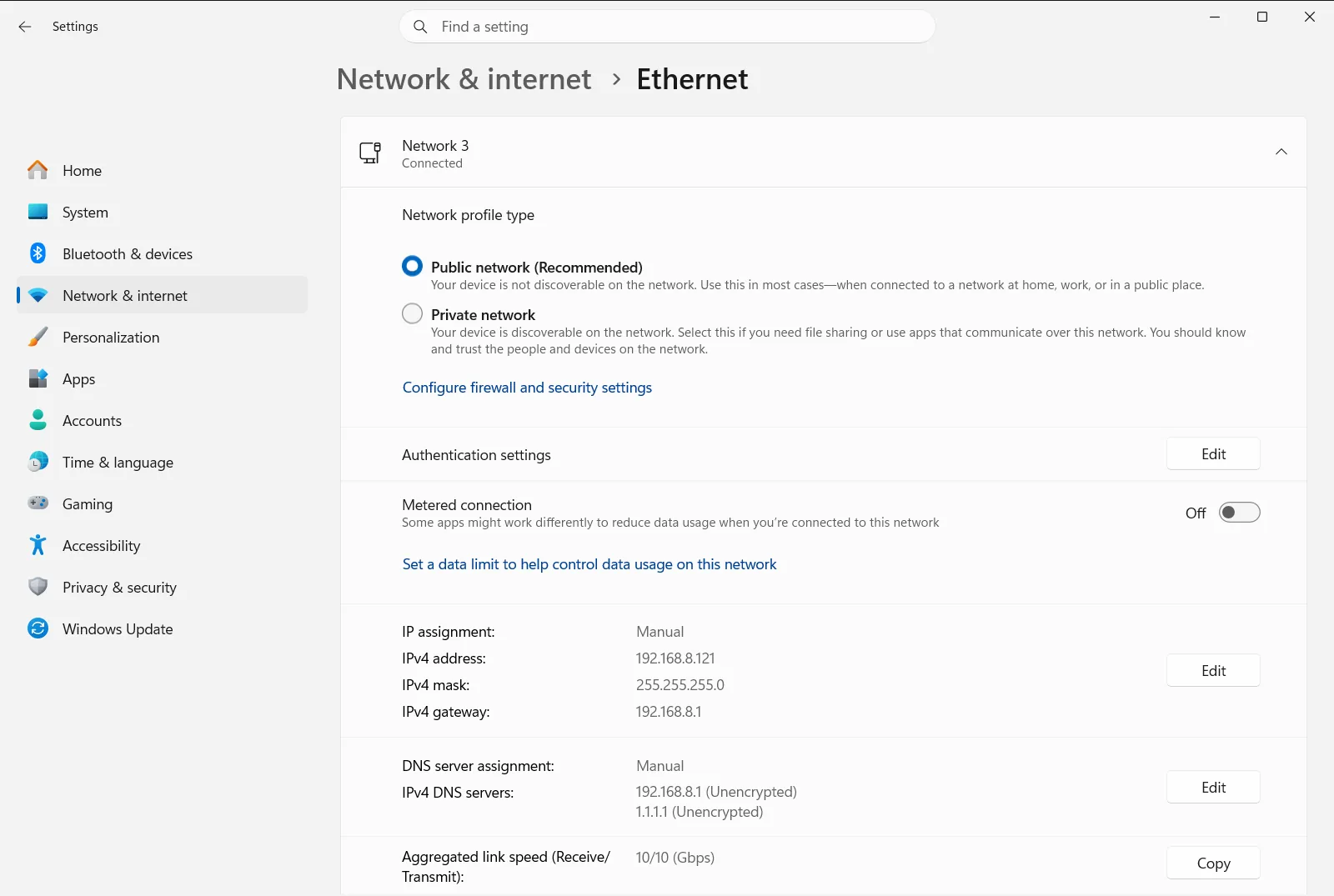
Your Ethernet connection should be shown as connected. If Windows shows an error instead, continue with the next step.
4. Review your Ethernet settings
Open Ethernet settings to see the details of your wired connection, including options such as the network profile (private or public). Use it to look into any error message Windows shows for the connection.
On a work or school device, an organization can manage this option, so some settings may be locked.
5. Run the network commands
These commands reset the TCP/IP stack, release and renew your IP address, and clear the DNS cache. Search the taskbar for the command-line tool, choose to run it as administrator, and confirm the prompt. Then run these commands in this order, pressing Enter after each one:
netsh winsock resetnetsh int ip resetipconfig /releaseipconfig /renewipconfig /flushdns
After the last command, check whether the connection works. Restarting the PC afterward is a good idea.
6. Reinstall the Ethernet adapter driver
Try this if the steps above did not help, especially if the connection stopped working after a recent update. First, download the latest network adapter driver from your PC manufacturer’s website as a backup. If the PC cannot get online, download it on another PC and copy it to a USB flash drive. You need the manufacturer and model of your PC.
Then open the Windows tool for managing hardware by searching the taskbar for it. Expand the network adapters list and select your Ethernet adapter. Open its context menu (right-click, or press and hold) and choose to uninstall the device. Select the option to remove the driver software for this device, and confirm.
Restart the PC. Windows looks for the adapter and installs a driver automatically. If it does not, install the backup driver you saved.
Narrow down the problem with Wi-Fi
If your router also offers Wi-Fi, connect to it for a moment. A working Wi-Fi connection gives you internet access while you troubleshoot. It also tells you that the problem is probably with the cable, the Ethernet port, or the adapter rather than with your internet service.
Last resort: network reset
Windows also offers a network reset. Use it only when nothing else has worked. It removes all installed network adapters and their settings, and the adapters are reinstalled after the PC restarts. It can help with connection problems after upgrading to Windows 11, or when you can get online but cannot reach shared network drives.
For more detail on each step, see the official Microsoft guide to Ethernet connection problems.
Frequently asked questions
What is the best way of fixing Ethernet connection issues on Windows 11?
Check the cable and router port, restart the modem and router, then check the status under Ethernet. If it still fails, run the network commands and reinstall the adapter driver.
Which commands reset the network stack in Windows 11?
In an administrator command window, run these in order: netsh winsock reset, netsh int ip reset, ipconfig /release, ipconfig /renew and ipconfig /flushdns. They reset TCP/IP, renew your IP address and clear the DNS cache.
How can I tell if the Ethernet cable is the problem?
Plug the cable firmly into your PC and into a regular router port, not the Internet port used for the modem. If a different cable works, the first cable is probably faulty and should be replaced.
Is it safe to uninstall the Ethernet network adapter driver?
Yes, Windows normally reinstalls the driver automatically after a restart. Download the latest driver from your PC maker's website first as a backup, using another PC and a USB drive if needed.
What does a network reset do and when should I use it?
It removes your network adapters and their settings, then reinstalls them after a restart. Use it last, after other steps fail, for example after upgrading to Windows 11 or when shared network drives are unreachable.
Official Microsoft documentation
