Settings › Bluetooth & devices › Mouse › ScrollingIf your mouse is not working in Windows 11, the cause is usually a loose connection, flat batteries or a changed mouse setting rather than a broken device. Work through the checks below in order, starting with the hardware and then moving to the mouse options in Settings. You can reach every mouse setting with the keyboard alone.
- Open Settings > Bluetooth & devices > Mouse and check Change the speed the cursor moves when you use the mouse and Change the primary button on your mouse.
- Before that, reconnect the mouse, replace or charge its batteries, and restart the PC to rule out a simple fault.
- If the pointer does not move at all, press Windows + I and use Tab, the arrow keys and Enter to reach the mouse page.
How to fix a mouse that is not working in Windows 11
1. Rule out connection and power problems
Start with the device itself, because many “mouse not working” cases are hardware related.
- Wired mouse: unplug it and plug it into a different USB port on the PC itself, not a hub or dock.
- Wireless mouse with a receiver: reinsert the receiver, replace or charge the batteries, and make sure the switch on the underside is set to on.
- Bluetooth mouse: put the mouse back into pairing mode and pair it with the PC again.
If you have another mouse, try it. If the second mouse works, the first one is probably faulty or out of power.
2. Restart the PC
A restart clears many temporary glitches. If you cannot click, press the Windows key, use Tab and the arrow keys to reach the power button, press Enter, and choose the restart option.
When the PC is back at the desktop, test the mouse again before changing any settings.
3. Open the mouse settings with the keyboard
Press Windows + I to launch Settings. In the left navigation pane, select Bluetooth & devices, then select Mouse. Use Tab and the arrow keys to move around and Enter to select.
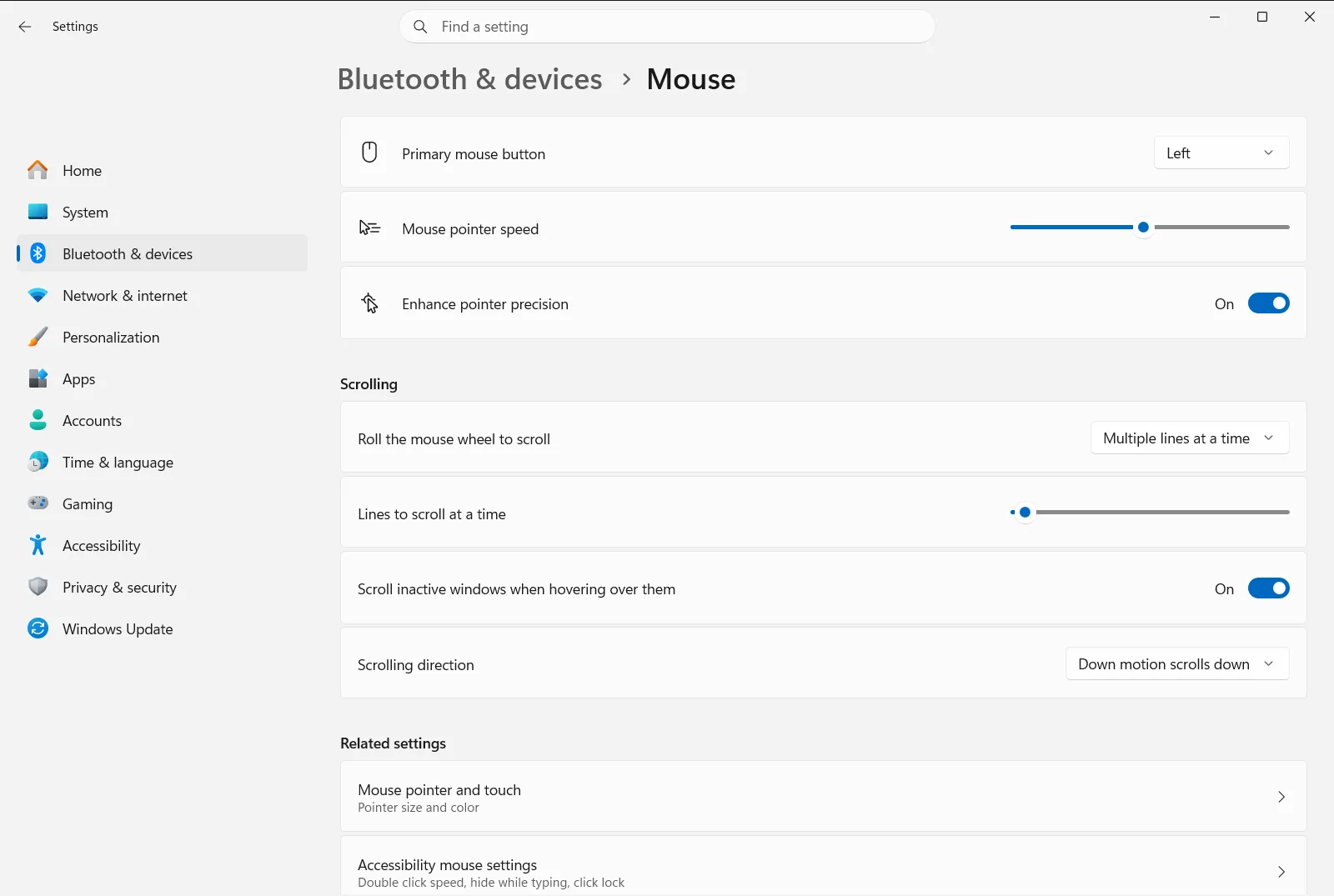
Alternatively, open the page directly:
Open "Mouse" in Settingsor press Win+R, typems-settings:mousetouchpad, and press Enter
You can also press Windows + R, type ms-settings:mousetouchpad and press Enter.
4. Check the primary mouse button
If clicks seem to do the wrong thing, for example the right button selects items and the left button opens menus, the buttons may be swapped. Find Change the primary button on your mouse and make sure the left button is chosen, unless you want the right button as the main one.
5. Fix a pointer that is too slow, too fast or hard to control
If the pointer moves but barely crosses the screen, or flies past what you aim at, adjust Change the speed the cursor moves when you use the mouse. Move the slider a little at a time and test the pointer after each change.
6. Check the scroll wheel behavior
If the wheel seems broken, one of the scrolling options may simply be set differently from what you expect. Under Scrolling on the same page, review these options:
- Reverse the mouse scroll direction controls whether the page moves the opposite way when you turn the wheel.
- Choose how many lines to scroll with the mouse wheel sets how far each notch of the wheel moves the content.
- Scroll inactive windows when I hover over them lets the wheel scroll a window under the pointer even if it is not the active one.
Pointer precision and other options that change how the mouse feels
Enhance pointer precision makes the pointer travel a different distance depending on how fast you move the mouse. It helps with accuracy when you move slowly. If the pointer feels inconsistent or jumpy, switch it off, test the mouse, and then decide which setting suits you better.
Microsoft’s guide to mouse settings also describes further pointer options, such as double-click speed, pointer trails and ClickLock, which can make a working mouse seem to misbehave.
If the mouse still does not respond
- Test the mouse on another computer. If it fails there too, replace the mouse.
- Test a different mouse on your PC. If that one also fails, the problem is more likely the USB port or the system than the mouse.
- For a wireless mouse, move the receiver closer to the mouse and away from other wireless devices.
- If the settings page is missing, locked or changes back, the device may be managed by your work or school, and an administrator may control these options.
Keep the keyboard shortcuts in mind while troubleshooting. Windows + I opens Settings even when the pointer is frozen.
Frequently asked questions
Mouse not working Windows 11: what should I try first?
Check the cable, receiver or batteries, try another USB port, and restart the PC. Then open the mouse page in Settings with the keyboard and review the primary button, pointer speed and scrolling options.
How can I open Settings if my mouse pointer does not move?
Press Windows + I to open Settings, then use Tab, the arrow keys and Enter to select Bluetooth & devices and Mouse. You can also press Windows + R and run ms-settings:mousetouchpad.
Why are my left and right mouse clicks swapped?
The primary button is probably set to the right button. Open the mouse page in Settings and change the option named Change the primary button on your mouse back to the left button.
Why is my mouse pointer too slow or too fast in Windows 11?
The pointer speed is set too low or too high. Use the Change the speed the cursor moves when you use the mouse slider on the mouse page, and test after each small change until the pointer feels right.
Why does my mouse wheel scroll in the wrong direction?
The scroll direction is probably reversed. On the mouse page, turn Reverse the mouse scroll direction on or off, then scroll in any window to check which direction feels natural.
Official Microsoft documentation
