Settings › Bluetooth & devices › Mouse › ScrollingTo change mouse scrolling settings in Windows 11, open Mouse in Settings and use the options in the Scrolling group. There you decide how far the page moves with each wheel notch, which way it moves, and whether windows you only point at can scroll. The changes take a minute and need no extra software.
- Open Settings > Bluetooth & devices > Mouse, then change the options under Scrolling.
- To check a change, scroll a long web page or document; to undo it, return to the same page and set the option back.
- You can set scroll distance, lines per notch, scroll direction, and scrolling of inactive windows.
How to change mouse scrolling settings in Windows
1. Open the mouse settings page
Press Windows + I to launch Settings. In the left navigation pane, select Bluetooth & devices, then select Mouse.
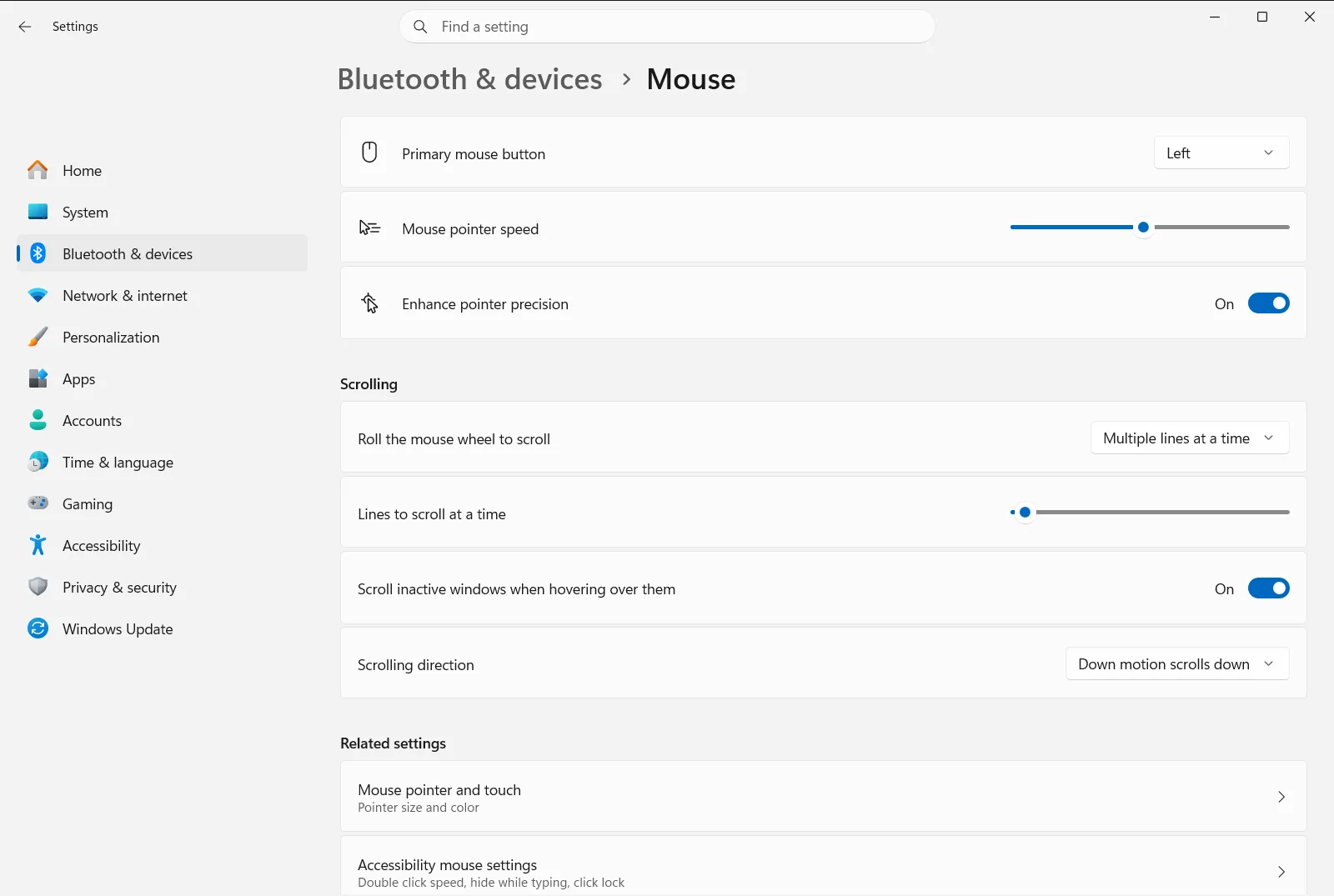
Alternatively, open the page directly:
Open "Mouse" in Settingsor press Win+R, typems-settings:mousetouchpad, and press Enter
Scroll down to the Scrolling group. All the wheel options in this article are in it.
2. Choose how far the wheel scrolls
Find Change how far you scroll with the mouse wheel and open its drop-down list. You can have each wheel notch move the page by several lines or by a whole screen.
Several lines suit reading and browsing, because you keep your place. A whole screen suits long documents, because you page through them in fewer turns of the wheel.
3. Set how many lines to scroll
If you chose to scroll by lines, drag the slider for Choose how many lines to scroll with the mouse wheel. A higher number makes each notch jump further, and a lower number gives finer control.
This slider only matters when the wheel scrolls by lines. If the page still moves a full screen at a time, go back to the previous step and change that choice first.
4. Reverse the scroll direction if needed
Use Reverse the mouse scroll direction to pick which way the page moves when you roll the wheel down. You can make a downward roll scroll the page down, or the opposite.
If the direction feels wrong after the change, switch it back. Nothing else is affected.
5. Decide whether inactive windows scroll on hover
Turn on Scroll inactive windows when I hover over them if you want to scroll a window just by pointing at it, without clicking it first. This helps when you read one window while typing in another.
Turn it off if you prefer that only the window you last clicked responds to the wheel.
Test and undo your changes
Open a long web page, a document, or a folder with many files and turn the wheel a few notches. Check the distance and the direction. If something feels off, return to Mouse and adjust the same option again. To undo a change, simply set the option back to its previous value.
On a work or school device, an organization can manage the mouse settings page, so some options may be fixed by your administrator.
Other mouse options to know about
The same page also holds options that are not about scrolling, such as Change the primary button on your mouse and Change the speed the cursor moves when you use the mouse. If your wheel scrolls fine but the pointer feels too fast or too slow, adjust the cursor speed instead of the scrolling options.
Horizontal scrolling, which you get by tilting the wheel left or right on mice that support it, is set in a separate classic mouse properties window that you can reach from the related settings links on the same page. The mouse itself has to support horizontal scrolling for that setting to have any effect. Microsoft describes these extra options in its article on mouse settings.
Frequently asked questions
How do I change mouse scrolling settings in Windows?
Open Settings > Bluetooth & devices > Mouse, then use the options under Scrolling to set scroll distance, lines, direction, and inactive-window scrolling.
How do I reverse the mouse scroll direction in Windows 11?
Open Mouse and change Reverse the mouse scroll direction under the scrolling group. This decides whether rolling the wheel down moves the page down or up.
How do I make the mouse wheel scroll more lines at a time?
Drag the slider for Choose how many lines to scroll with the mouse wheel to a higher number. It applies when the wheel is set to scroll by lines rather than by a full screen.
Can I scroll a window without clicking it first?
Yes, turn on Scroll inactive windows when I hover over them on the mouse page. Then you can scroll any window just by pointing at it, even if another window is active.
How do I make the mouse wheel scroll one screen at a time?
Open the drop-down list for Change how far you scroll with the mouse wheel and choose the whole-screen option instead of several lines. Each wheel notch then moves the page by a full screen.
Official Microsoft documentation
