Settings → Apps → Installed appsTo free up storage space effectively in Windows 11, start with the apps you no longer use. Each installed app takes room on your drive, and removing the ones you have forgotten about is one of the quickest ways to get that room back. Review your apps in Settings and uninstall the ones you don’t need.
- Open Settings, select Apps, then Installed apps, and uninstall apps you no longer use.
- To check that it worked, return to the list and confirm the removed app no longer appears.
- On a work or school device, an organization may restrict this page, so some apps can’t be removed.
How to free up storage space by removing unused apps
1. Open the Installed apps page
Press Windows + I to launch Settings. In the left navigation pane, select Apps, then select Installed apps.
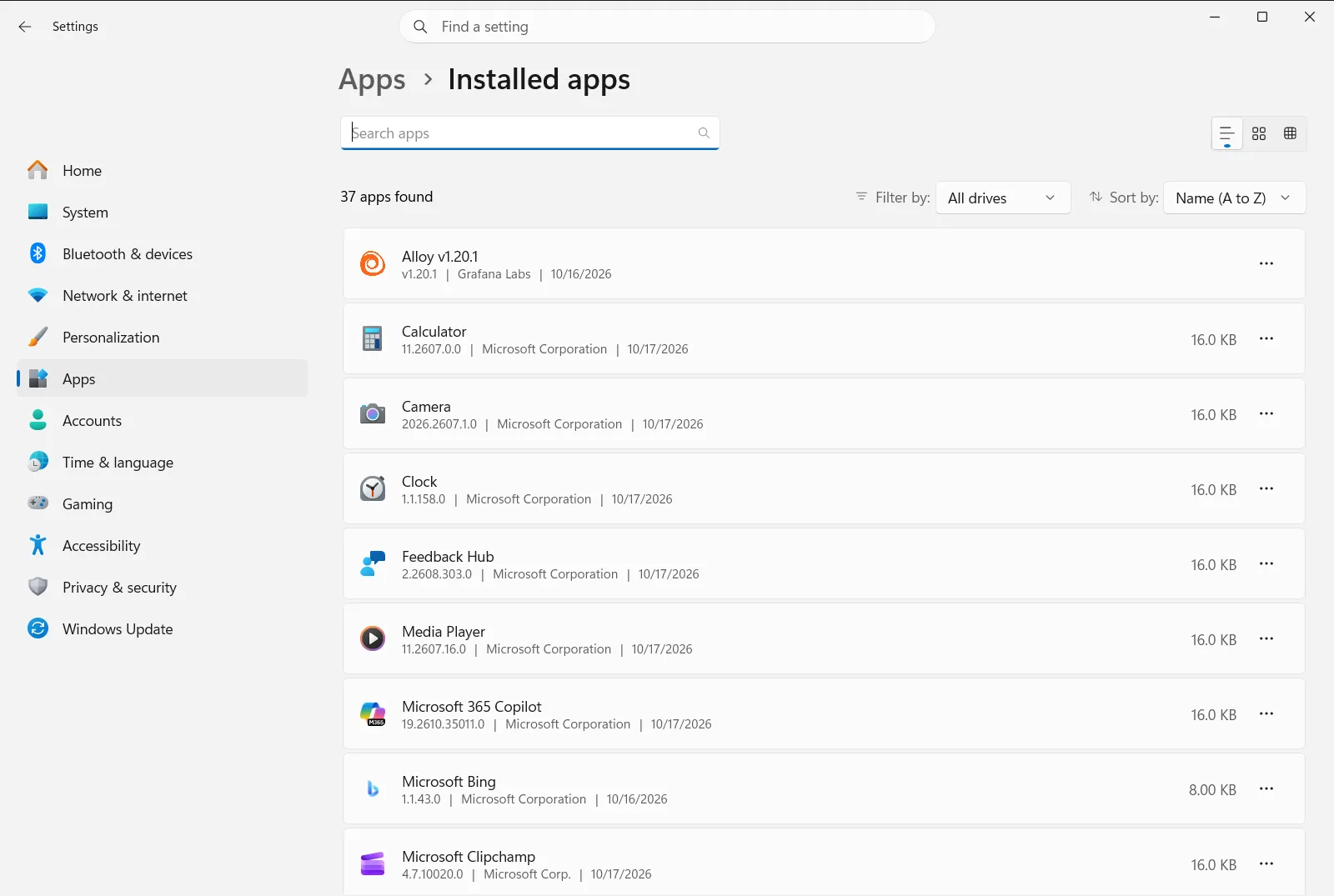
Alternatively, open the page directly:
Open "Installed apps" in Settingsor press Win+R, typems-settings:installed-apps, and press Enter
2. Review the list of apps
The page lists the apps and programs installed on your device. Scroll through the list slowly and note which apps you haven’t opened in a long time, which you installed for a single task, and which duplicate another app you already use.
If you aren’t sure what an app does, leave it for now. You can come back to it later, once you know whether anything depends on it.
3. Open the options for an app you want to remove
Find the row of the app you want to get rid of and open its options menu, the three-dot button at the end of the row. From that menu, choose the option to uninstall the app.
The same list also lets you modify some apps, depending on what the app supports.
4. Confirm the removal
Windows asks you to confirm that you want to uninstall the app. Confirm it. Some traditional desktop programs then open their own uninstaller, so follow its prompts until it finishes.
Wait for the removal to complete before you start on the next app. Removing several apps at once can make it harder to tell which uninstall is still running.
5. Repeat and check the result
Go back to the list and confirm the app no longer appears. Then repeat steps 3 and 4 for any other apps you decided to remove. Every app you uninstall frees the space it used on your drive.
If an app can’t be removed or changed
Some apps are part of Windows, and others may be required by another program. If an app doesn’t offer a way to uninstall it, leave it installed. If an app offers a modify option instead of a full removal, that option changes the installed components rather than deleting the whole app.
On a work or school device, an organization can manage the Installed apps page. If the options are missing or unavailable, contact your administrator.
Other ways to find your apps
You can also find installed apps from the Start menu, where the most used apps appear first, followed by an alphabetical list. If you only want to confirm that a certain app is present, Microsoft’s guide to checking whether an app is installed covers that.
Searching the list is useful when you have many apps and know the name of the one you want. Type part of the name, and the list narrows to matching entries, so you can reach the app’s options without scrolling.
Tips for choosing what to uninstall
- Start with apps you installed for a one-time purpose, such as a converter or a trial program.
- Remove duplicates, for example two apps that do the same job.
- Keep anything you don’t recognize until you have looked up what it does.
- Reinstall an app later if you find you need it after all. Uninstalling is not permanent for apps you can download again.
Review your apps now and then. A regular check keeps the list tidy and stops unused programs from building up and taking space.
Frequently asked questions
Free up storage space effectively Windows 11: what is the fastest way?
Open Settings, go to Apps and then Installed apps, review the list, and uninstall the apps you no longer use. Repeat for each unused app.
Where do I see which apps are installed on my Windows 11 PC?
Open Settings, select Apps, then Installed apps. The page lists your installed apps and programs. Apps also appear on the Start menu, with the most used ones at the top.
How do I uninstall an app from the Installed apps list?
Find the app in the list, open the three-dot menu at the end of its row, and choose the uninstall option. Confirm the prompt, and follow the app's uninstaller if it opens one.
Why can't I uninstall some apps in Windows 11?
Some apps are part of Windows or are needed by other programs, so no uninstall option appears. On a work or school device, an organization may also restrict the Installed apps page.
How do I know the app was removed after I uninstalled it?
Return to Installed apps and look through the list. If the app no longer appears there, the removal worked and the space it used has been freed.
Official Microsoft documentation
